Commands
Bridge
 Bridge
The Bridge command creates faces to connect two SubD/Mesh edge chains.
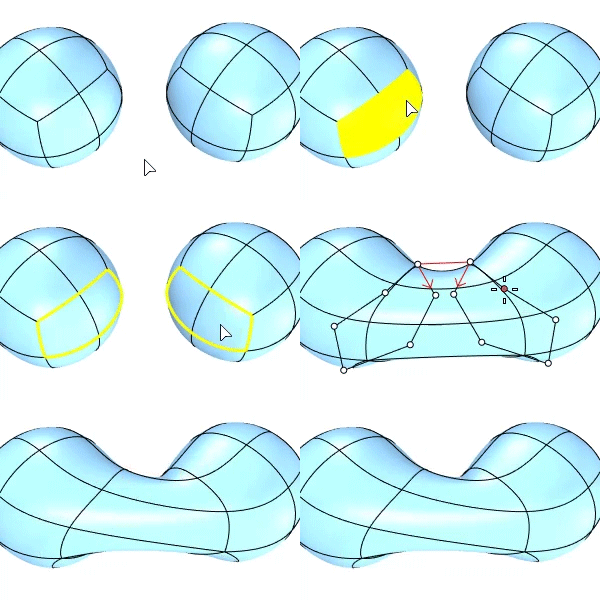
Input
- Two naked SubD/Mesh edge chains
- Boundaries of two SubD/Mesh face groups
Steps
-
Start the command.
-
Select the first naked edge chain or face group, press Enter.
-
Select the second naked edge chain or face group, press Enter.
The two edge chains must have the same edge number.
-
Click the bridge endpoints to adjust alignment as needed, press Enter.
Options
Edge selection mode
-
(Default)
Click selects a single edge. Double-click selects an edge loop.
Ctrl+click deselects a single edge. Ctrl+double-click deselects an edge loop.
-
EdgeLoop
Click an edge to select an edge loop.
The clicked edge displays a brighter highlight than the other edges in the loop.
Ctrl+click the same edge to deselect the loop.
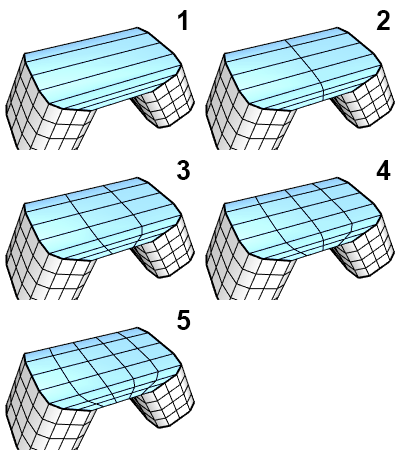
Segments
The number of new faces added between the two edge chains.
-
Join
Joins the bridge into the input objects. Uncheck to create a stand-alone bridge.
-
Crease (For Join=Yes only)
Enabled
Mesh - The bridge is joined with the input meshes.
SubD - The bridge connects to the input SubDs with creased edges.
Disabled
Mesh - The bridge is welded with the input meshes.
SubD - The bridge connects to the input SubDs with smooth edges.
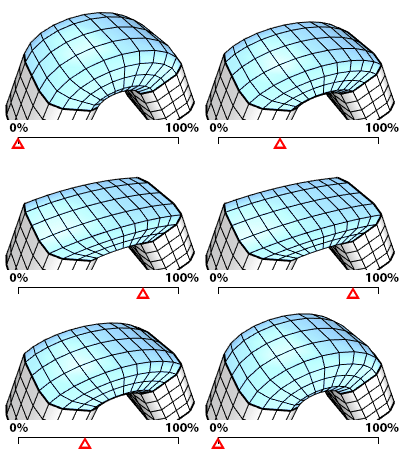
Straightness (0~100%)
The straight level of the bridge transition. 100% creates a straight bridge. Decreasing the value creates a smoother bridge. A smooth bridge requires more segments to achieve.
Adjust alignment
Change chain directions
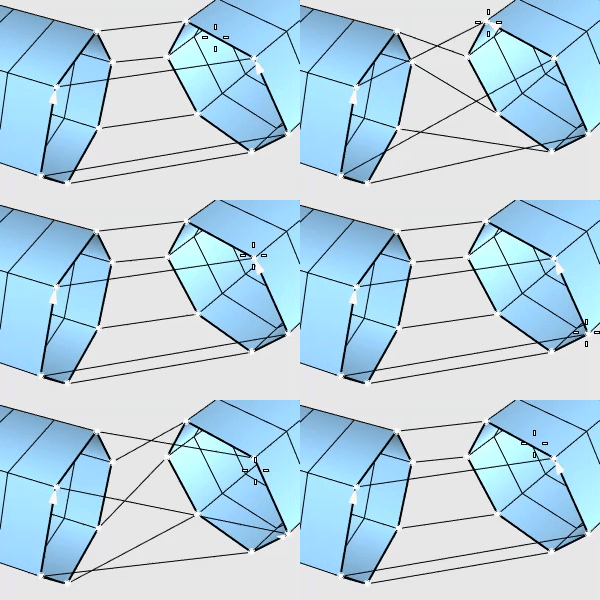
Arrowheads indicate chain directions. Chain directions are automatically detected to create a non-tangled bridge. However, you can click an endpoint of a chain to reverse the direction.
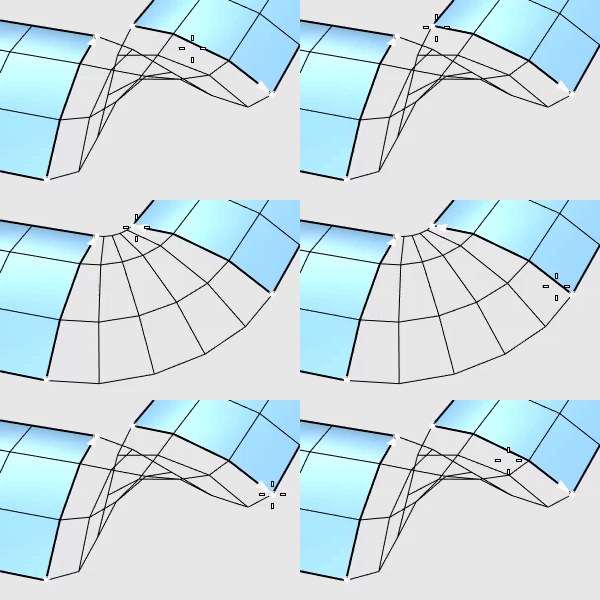
Move seam location (For closed loops only)
The seam location is selected based on the first picked edge. Click a point to move the seam location to that point. Click the seam point to reverse the chain direction.
For more information, please refer to the Rhino documentation.