Commands
Show Edges
.png) Show Edges
Show Edges
The ShowEdges command highlights naked, non-manifold or all edges of the selected surface, mesh and SubD objects.
Steps
- Select objects.
The edges highlight and the ends of edges are marked with point display markers in the color you selected.
Edge Analysis options
Show:
- All edges: Display the edges of objects, including:
- All edges of surfaces, polysurfaces, and Extrusions.
- Naked, creased, and soft crease edges of SubDs.
- Naked and unwelded edges of meshes
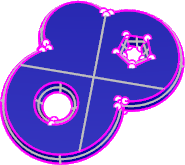
- Naked edges: Displays open edges in surfaces, polysurfaces, meshes, and SubDs. A surface, polysurface, mesh, SubD edge that is not connected to another edge. Solid objects have no naked edges.
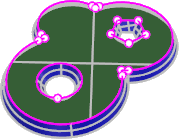
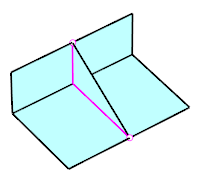
- Non-manifold edges: Displays the edges of polysurfaces or meshes shared by more than two faces.
Zoom:
Zoom to include the selected edges.
- Zoom options
- All: Zooms to include all naked edges.
- Current: Zooms to the first edge in the selection. This useful if you zoom out with the mouse and want to zoom back in.
- Next: Zooms to the next edge in the selection. If the selected objects have only one naked edge, this option is not displayed
- Previous: Zooms to the previous edge in the selection. If the selected objects have only one naked edge, this option is not displayed.
- Mark: Marks ends of the edge with point objects. If the All option was previously selected, all naked edges are marked.
Edge color:
Sets the display color for the edges.
- Add Objects: Adds objects to the edge display.
- Remove Objects: Removes objects from the edge display.
For more information, please refer to the Rhino documentation.