User Interface
Windows Layout & Panels
Panels allow us to organize the interface according to our preferences and needs. RhinoArtisan and Rhino panels can be docked anywhere within the application and even moved to other monitors, providing a larger graphical workspace.
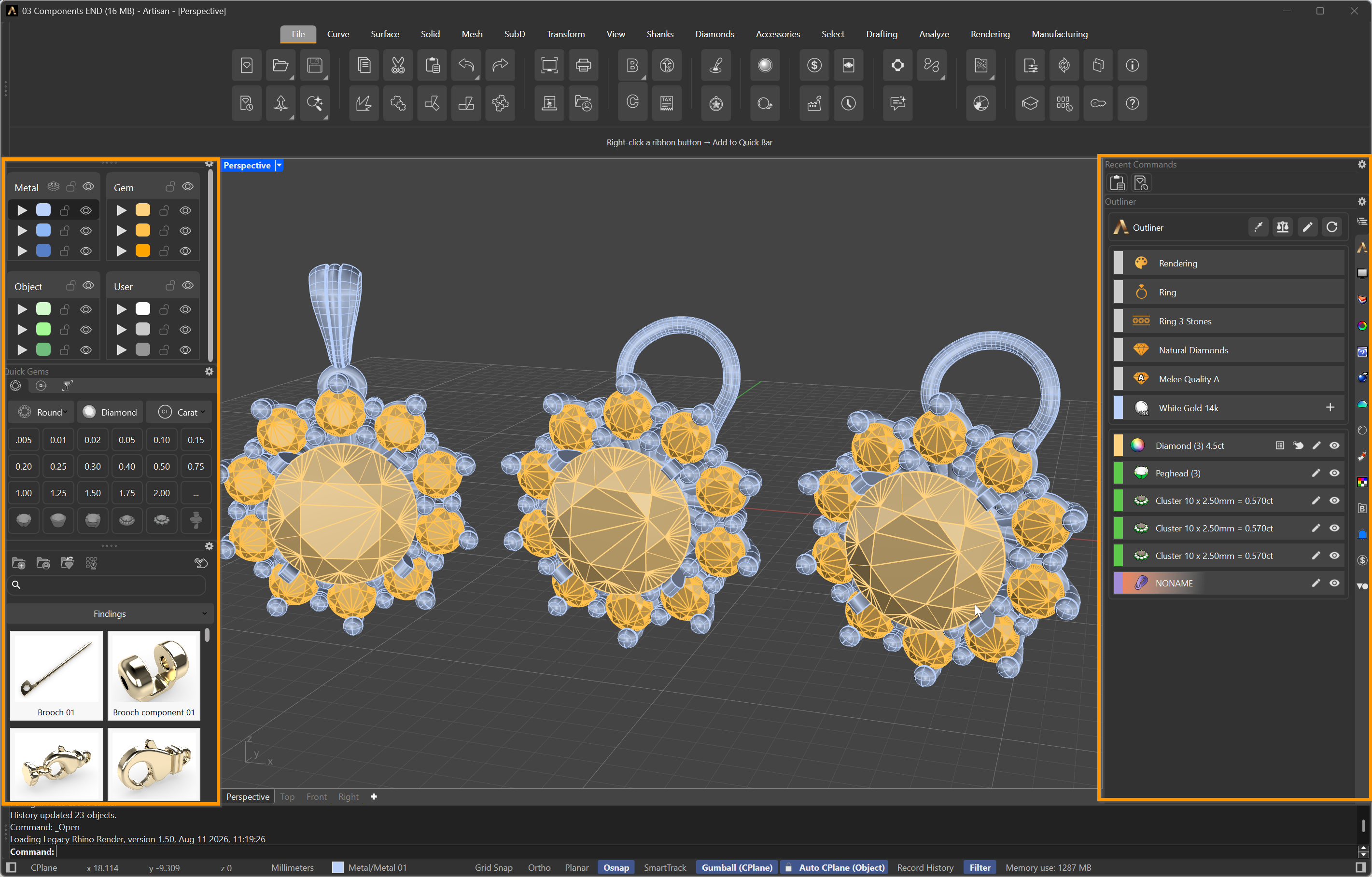
RhinoArtisan panels docked on both sides of the viewport
How to display the RhinoArtisan panels?
The RhinoArtisan panels are visible when you install the software, but if you have closed them, you can reopen them from the Panels button in the File tab.
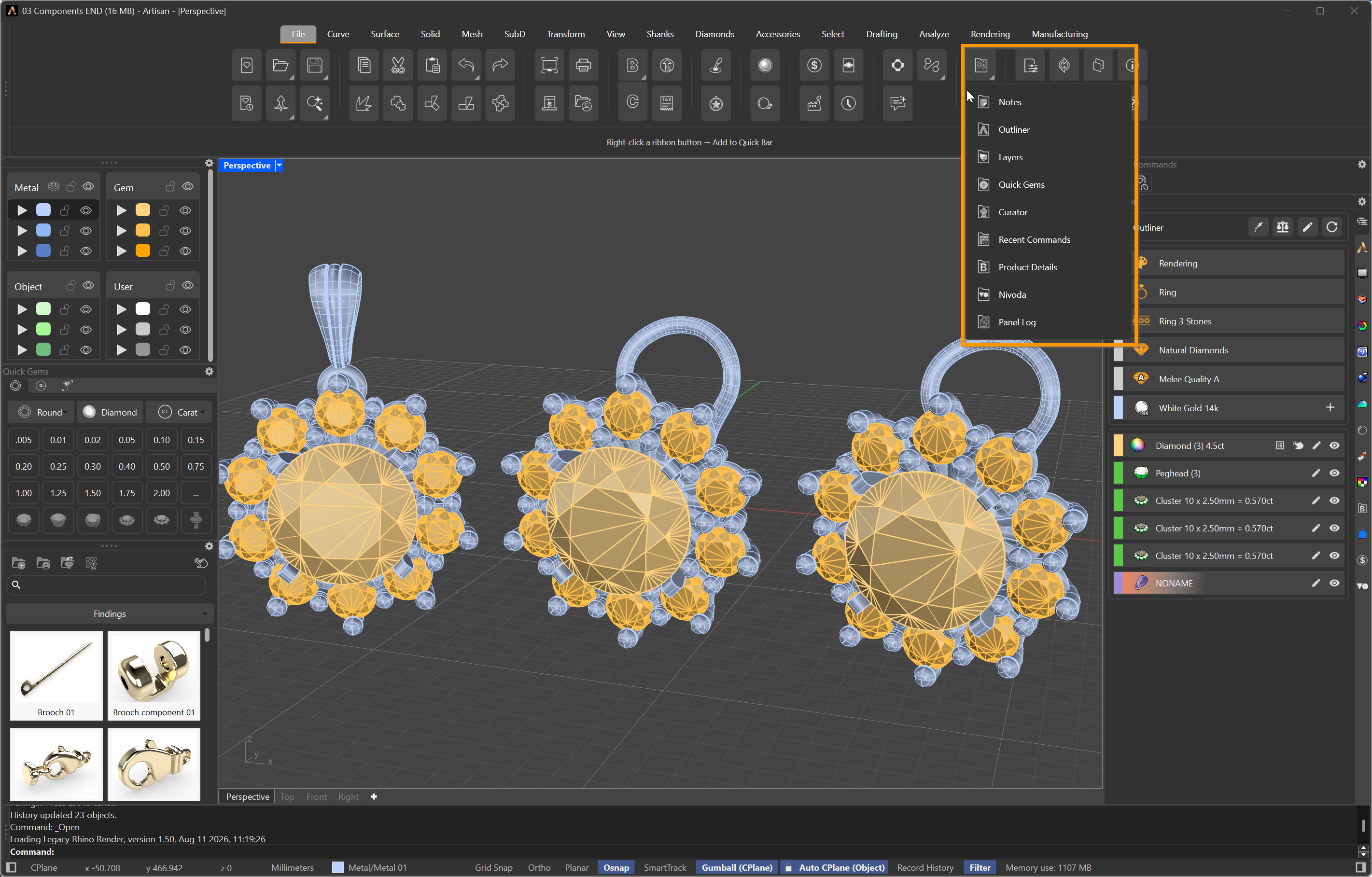
Panels button in the File tab
How to display the Rhino standard panels?
Right-click on the tab strip at the edge of the panel area and the full list appears, RhinoArtisan’s panels among Rhino’s own. A tick means the panel is open; click any entry to show or hide it.
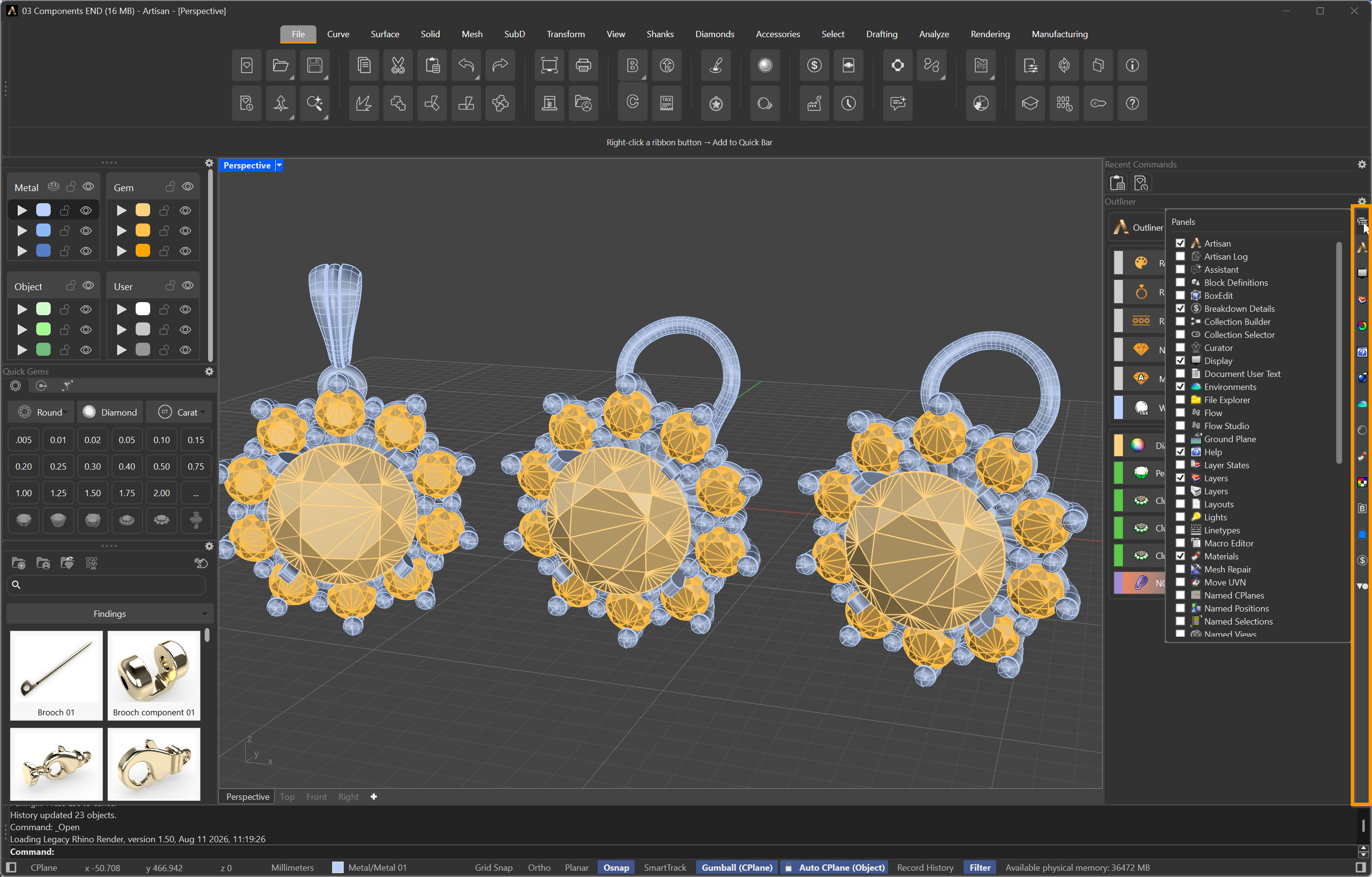
The complete panel list, RhinoArtisan's and Rhino's together
How to restore the default layout?
If the interface ends up scattered, or a panel refuses to come back where you want it, you do not have to fix it by hand: the Window Layout button in the File tab puts every panel back exactly as it shipped.
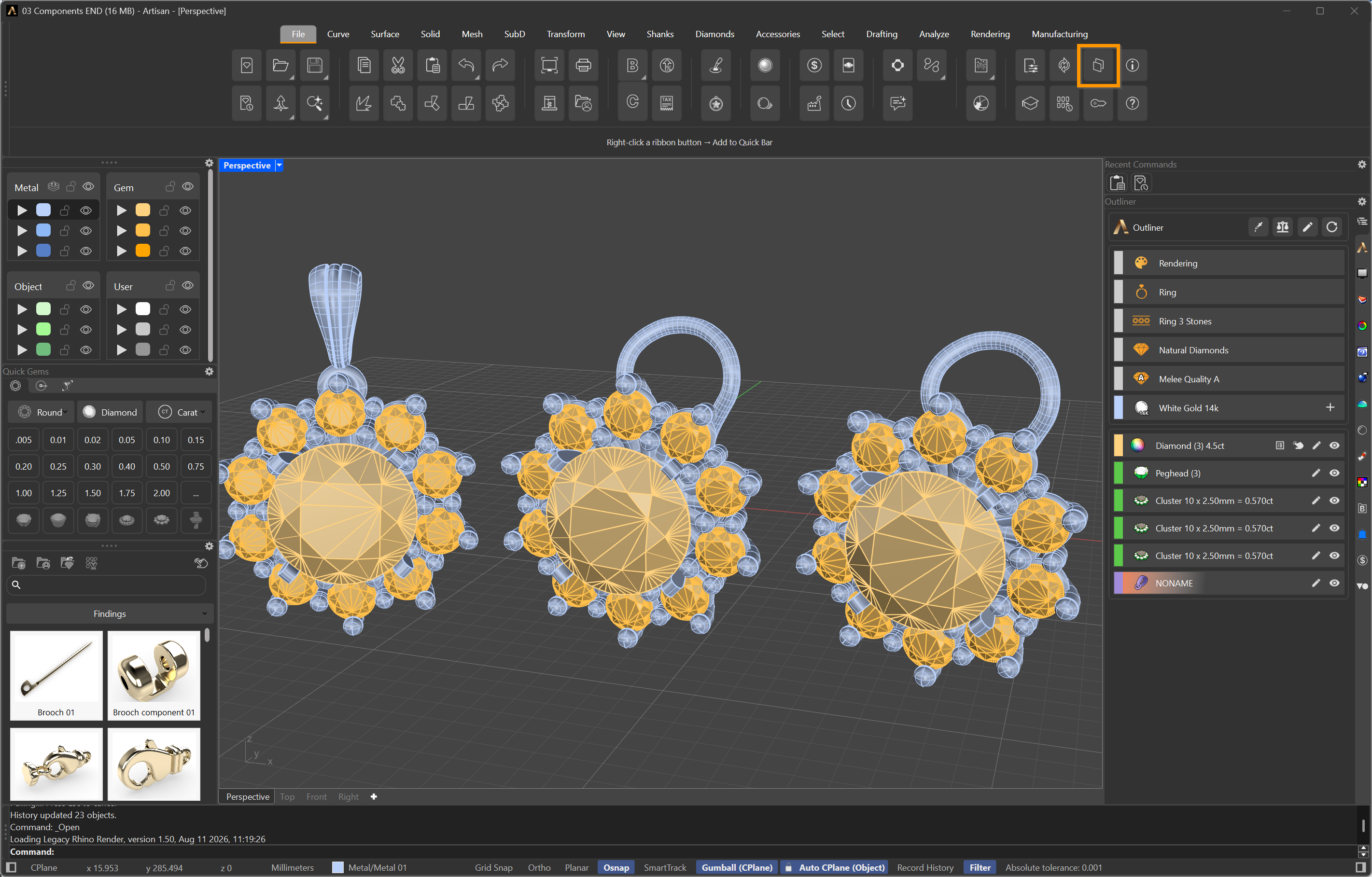
Window Layout, in the File tab