User Interface
Launcher
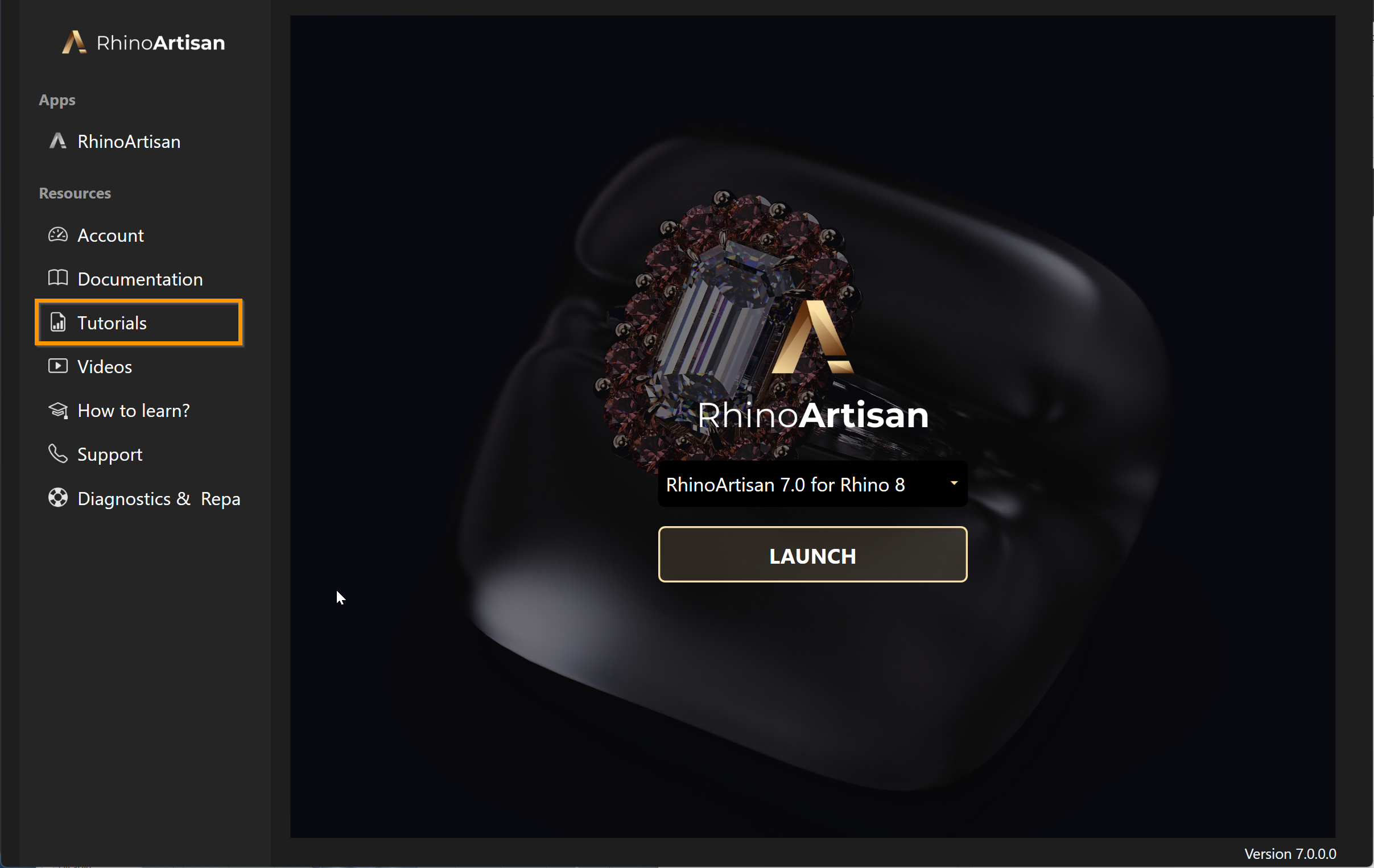
The Launcher is the app that opens RhinoArtisan in the RhinoArtisan interface. It’s what starts when you click the RhinoArtisan icon on your desktop — see How to download, install and activate your license.
Besides launching the program, it gathers a list of tools and links that can help you.
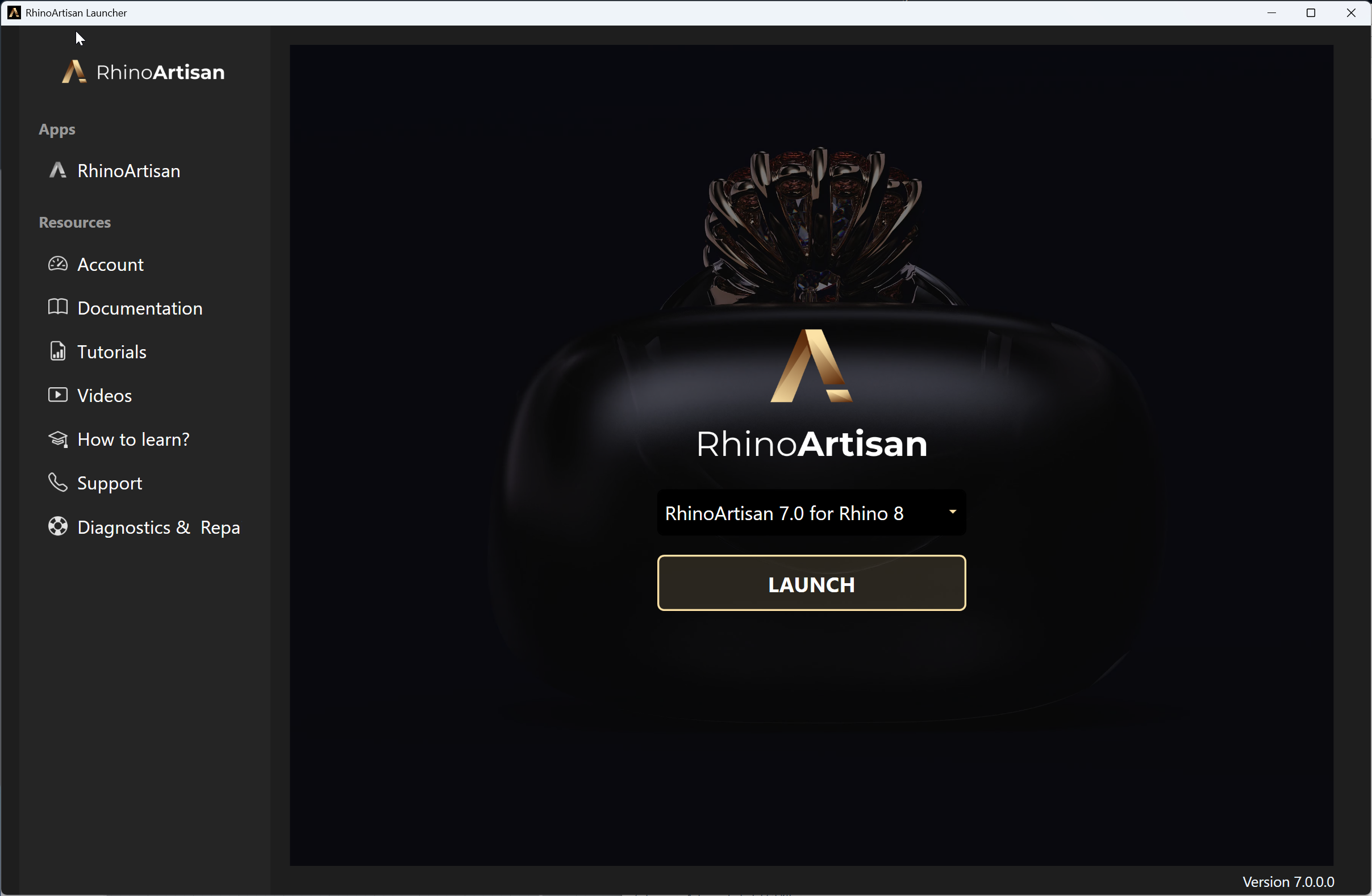
The RhinoArtisan Launcher
Which Rhino to run
If you have more than one version of Rhino installed, the dropdown in the centre is where you pick the one to use — for example RhinoArtisan 7.0 for Rhino 8. Choose it there and click LAUNCH.
Our recommendation is to always use the newest Rhino, but if you’d rather run RhinoArtisan on an older one such as Rhino 7, you can.
The Launcher remembers your choice for next time.
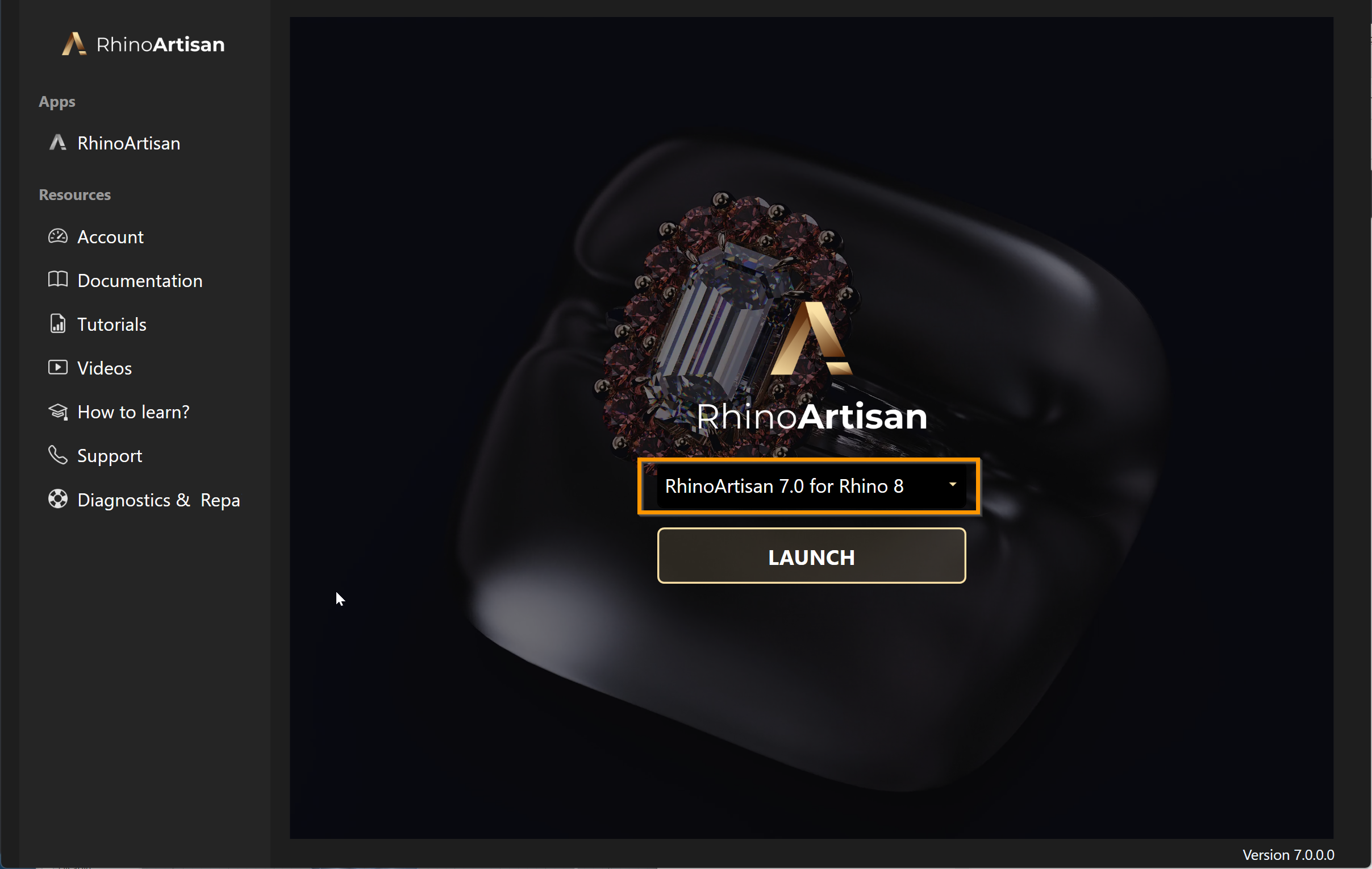
Pick the Rhino version to run
The Launcher’s own version is shown in the bottom-right corner of the window.
Resources
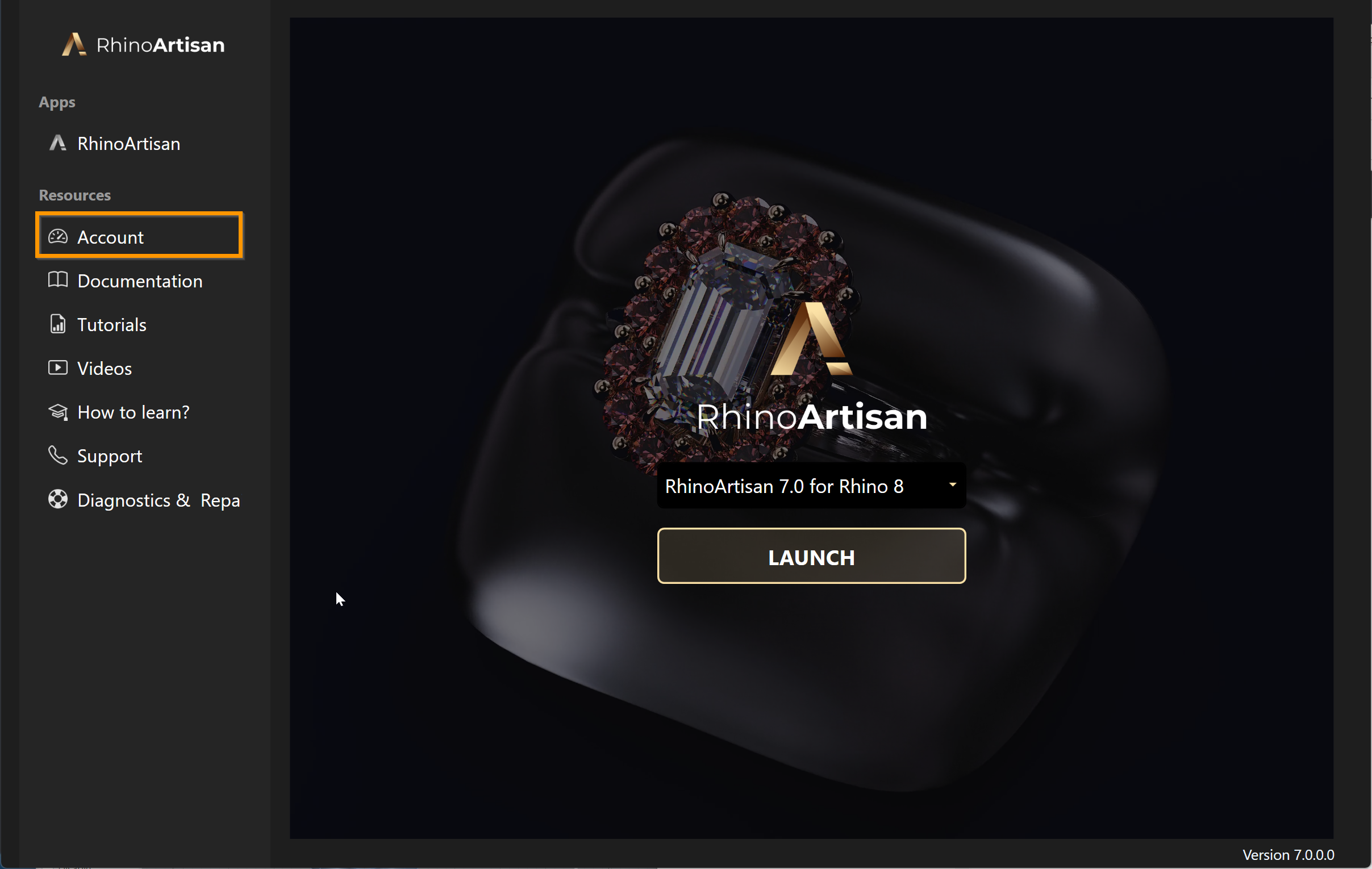
Account
A direct link to your user account, where you can download the latest releases along with the other tools and assets available to you. You can also reach it at rhinoartisan.com/account.
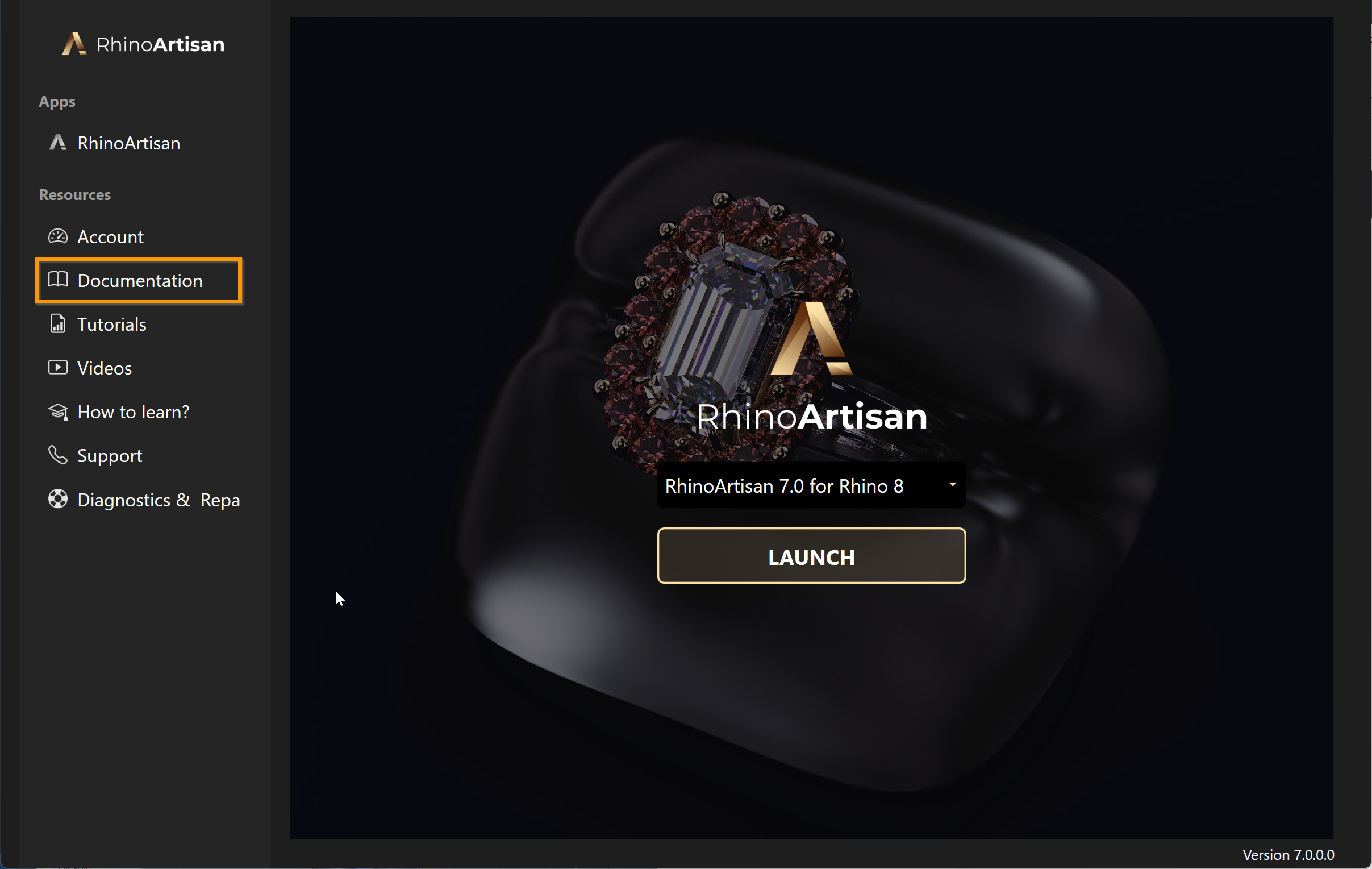
Documentation
Opens the RhinoArtisan documentation on the web — exactly the pages you’re reading right now.
Tutorials
A collection of step-by-step tutorials showing how the commands are applied in practice.
The two go together: the documentation answers your questions about one specific command, and the tutorials show you how to put it to work.
Videos
Hours of RhinoArtisan content, split into sections and with a search box to find exactly what you’re after — search for paves, for gemsetting, for whatever you’re working on. See Videos.
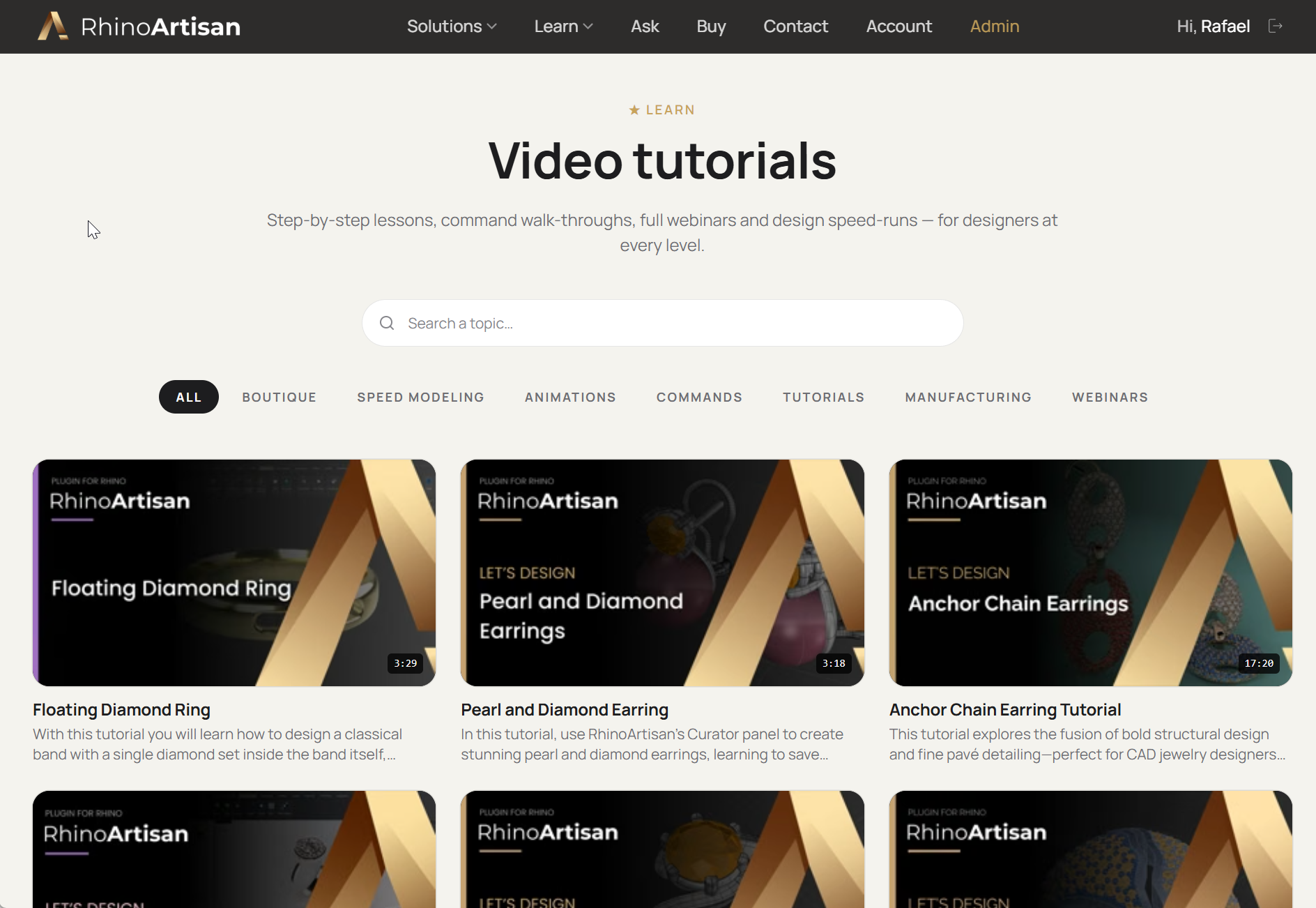
Sections and a search box to find what you need
How to learn?
Where all the training material lives, and above all the courses — organised by level, so you can pick the one that matches where you are.
If you’re new, our recommendation is to start with Kickstart: From idea to Creation, which is free. It may feel a little basic if you’re an experienced user, but it covers the concepts that matter in RhinoArtisan.

Courses organised by level
Support
Support is where we put a lot of our value, and answering you is genuinely a pleasure for us. Write to us through the contact form, or by email at support@rhinoartisan.com.
We do have a phone line for customers, but email is often easier for everyone: being able to look at the actual file behind the question makes a real difference.
You can also ask Paula, our AI agent, at rhinoartisan.com/ask — she answers straight away. She’s still in testing, but our users love her.
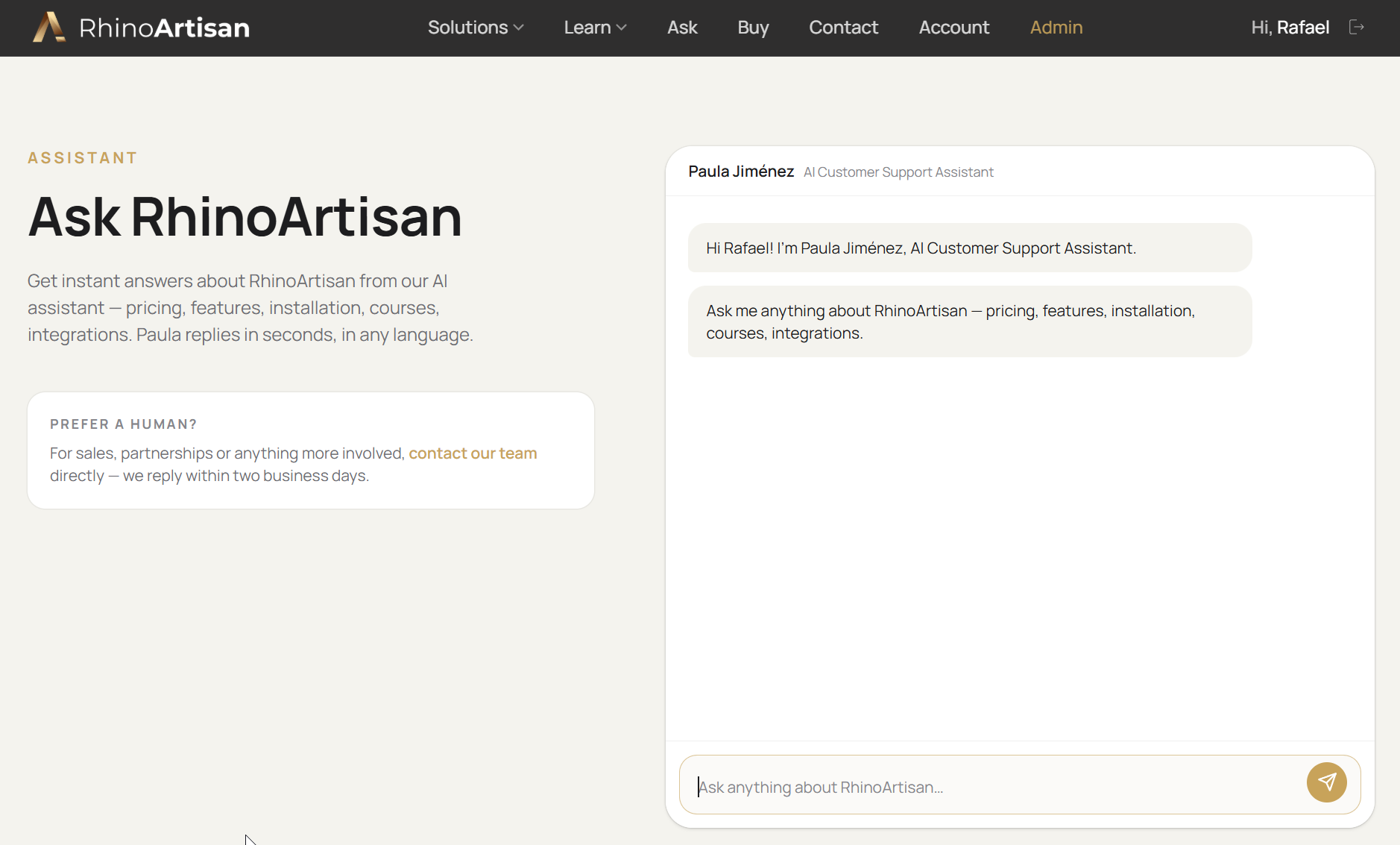
Paula answers in seconds, in any language
Diagnostics & Repair
A tool that comes in very handy on occasion — above all when Rhino won’t load a plugin, or when it’s running slow.
Some updates or plugins leave residual entries in Rhino’s registry, which can lead to conflicts and unexpected behaviour. Over time those leftovers may interfere with newer versions of the software, or cause instability when loading third-party extensions.
How to run it:
- Open the Launcher and click Diagnostics & Repair, at the bottom of the sidebar.
- When asked “Do you want to clean Windows registry of Rhino and Artisan?”, answer Yes.
- When asked “Do you want to delete the Artisan user folder?”, answer Yes.
- When asked “Do you want to check your connection to the Artisan license server?”, answer Yes — this checks whether a firewall is blocking the license verification.
Once the process finishes, restart Rhino. It will launch as if it were a fresh installation, clearing any registry issues that were stopping the RhinoArtisan plugin from loading properly.
For the whole troubleshooting path — checking your Rhino version, sending us your system information, and reinstalling Rhino — see Rhino doesn’t load RhinoArtisan. What can I do? in the FAQ.