AI in RhinoArtisan
Accounts and API Keys
Two accounts cover every AI feature, and you set them up once. Both are pay-as-you-go: you add credit up front and it draws down as you use the tools.
Which account each tool needs
| Tool | OpenRouter | fal.ai |
|---|---|---|
| Assistant | ✓ | |
| Flow Studio AI | ✓ | |
| File Search, ✦ Smart mode | ✓ | |
| Generative AI Studio | ✓ |
You only need the account for the tools you actually use: if you never open Generative AI Studio, you never need fal.ai. RhinoArtisan MCP needs neither, because it works through the AI app you connect to it.
1. OpenRouter
- Create an account at openrouter.ai.
- Add credit to the balance. Start small; you can top up at any time.
- Open Keys in your account menu, create a key and copy it. It looks like
sk-or-v1-…. Copy it immediately: providers show a key once and cannot show it again afterwards. If you lose it, you delete it and create another.
2. fal.ai
- Go to fal.ai and click Login.
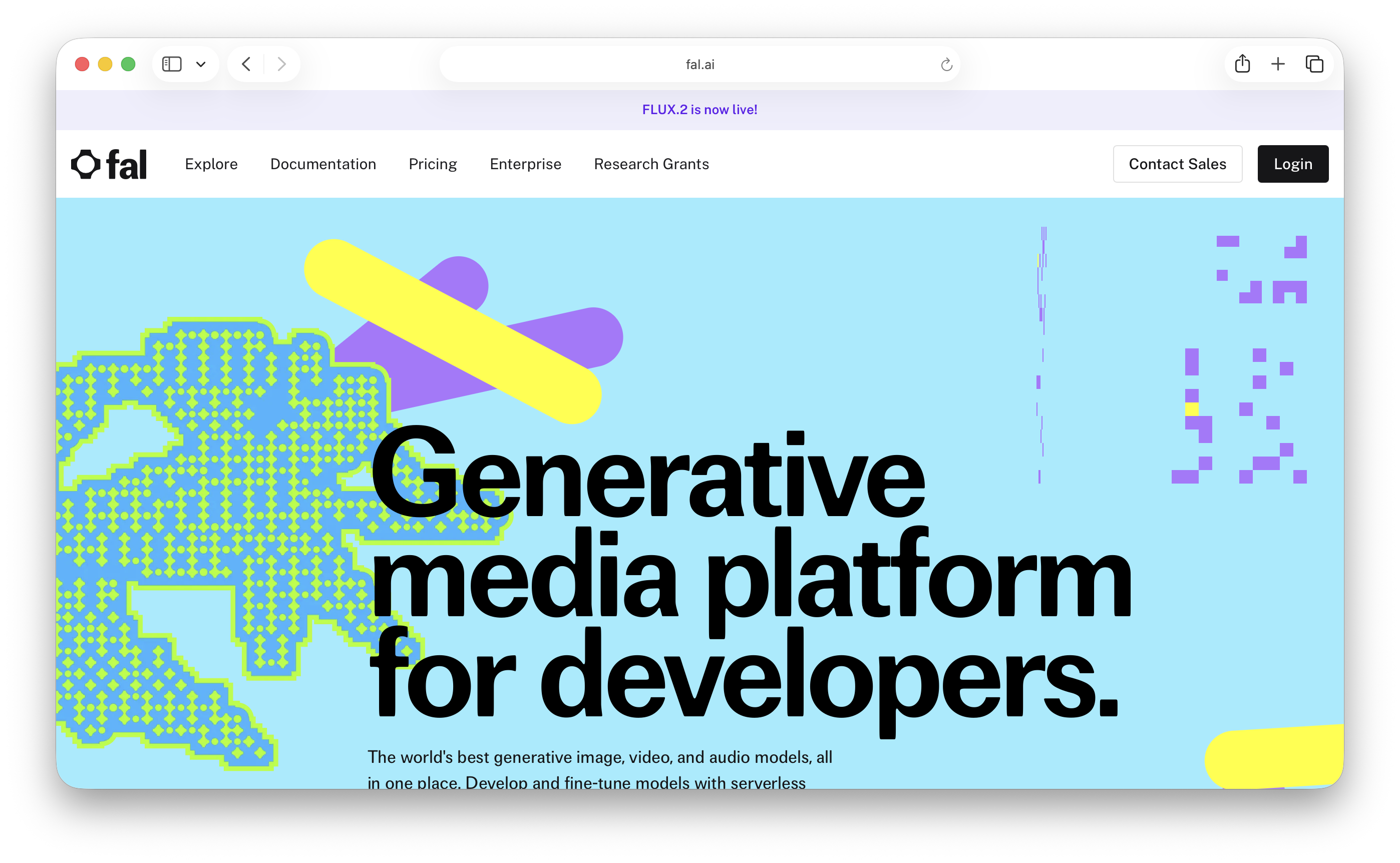
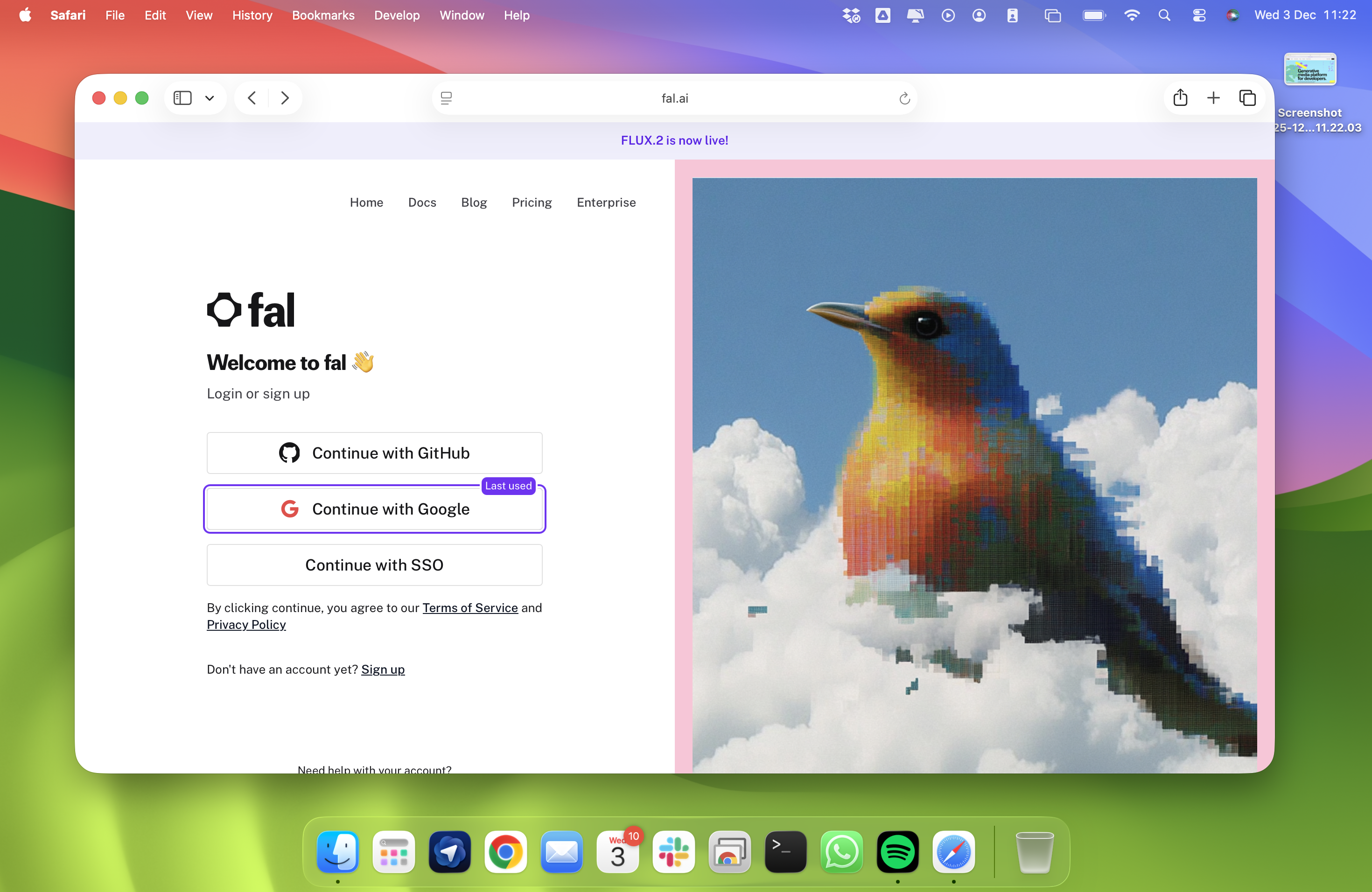
- Sign up with Google, GitHub or an email and password.
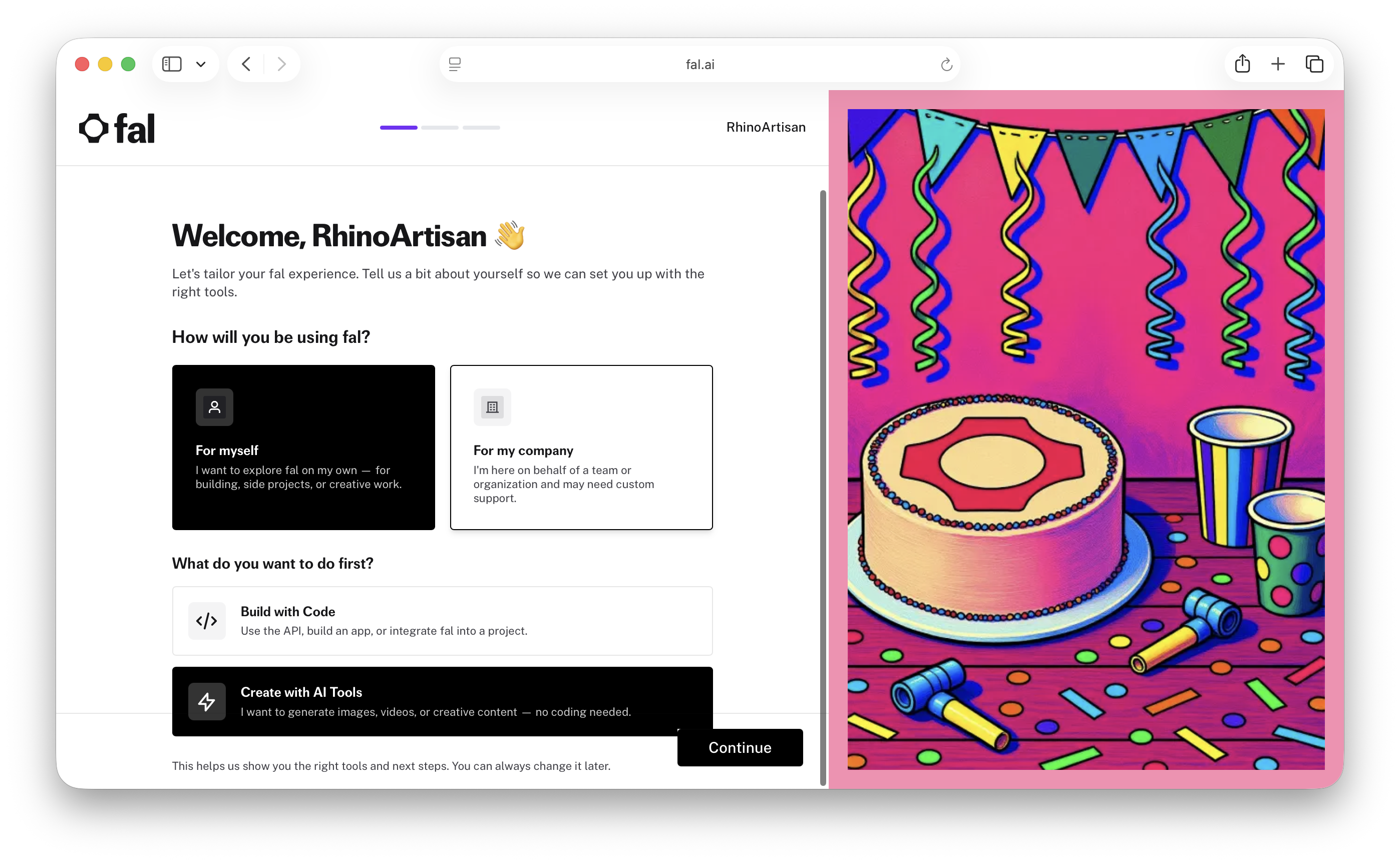
- fal.ai then asks “How will you be using fal?” Any answer works: it is only for fal.ai’s statistics and does not affect your account, features or pricing.
- Add credit to the balance.
- Open the Dashboard, then Manage → API Keys. A default key is created for you; click Add key if you prefer one just for RhinoArtisan.
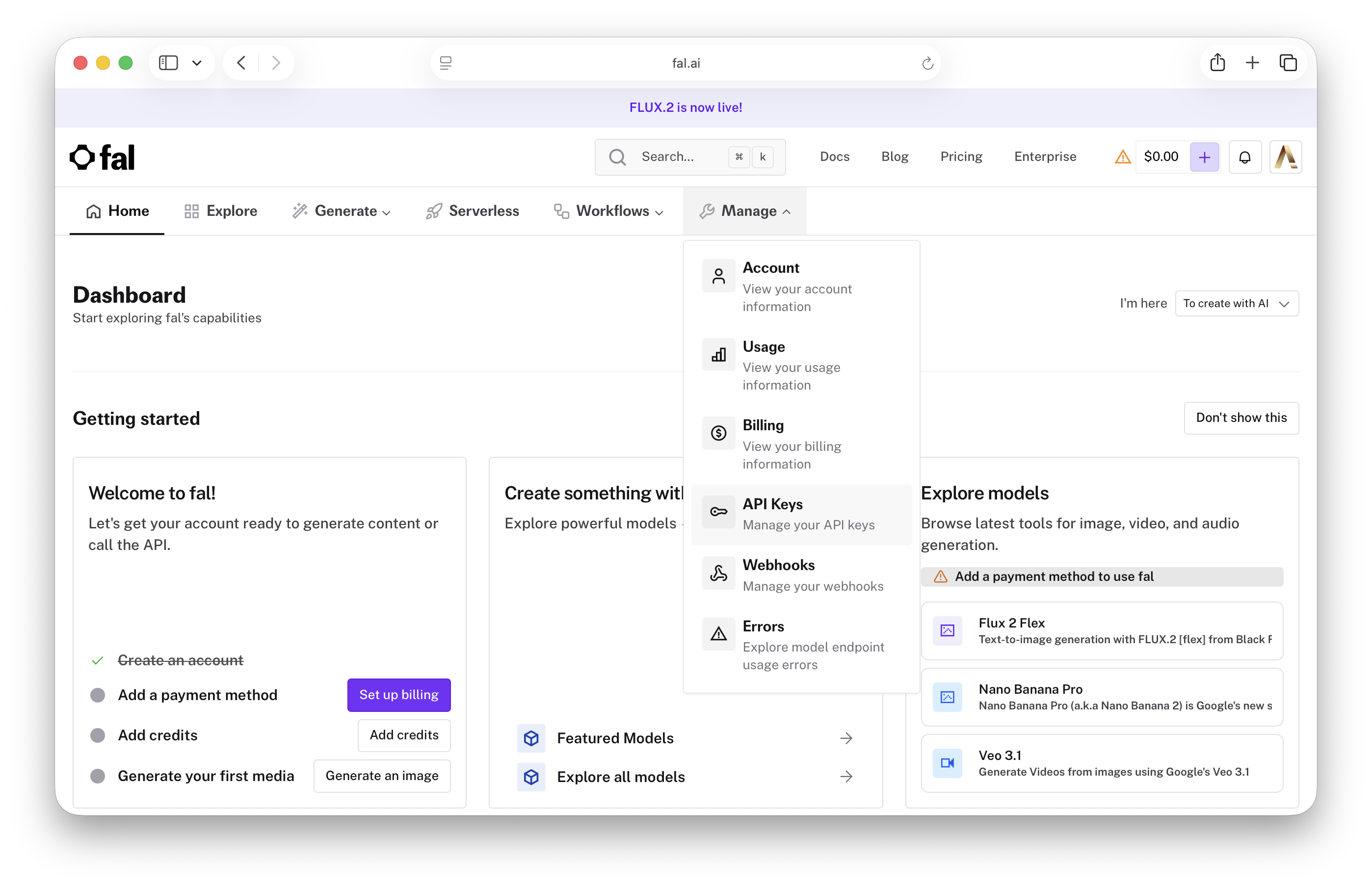
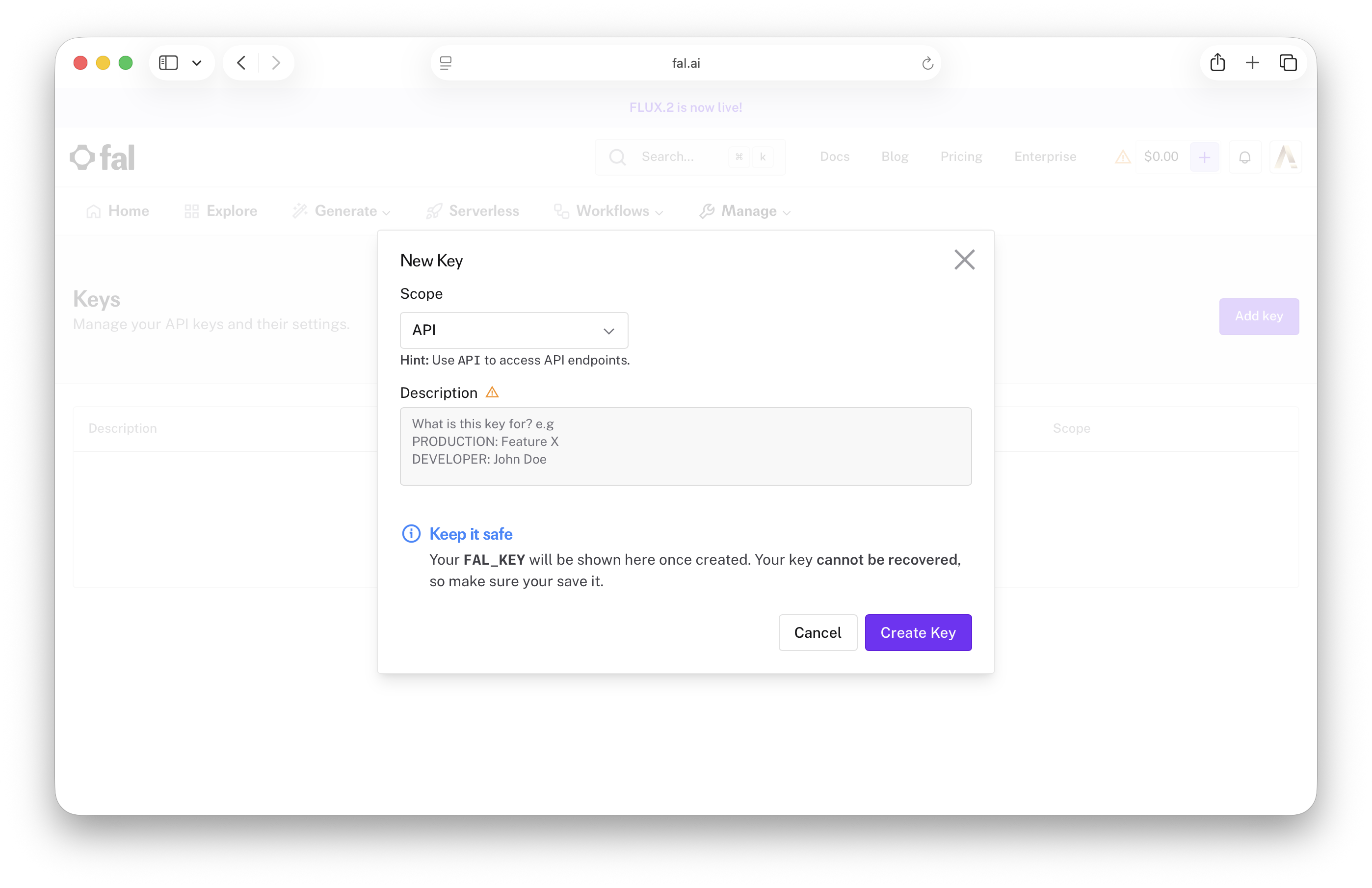
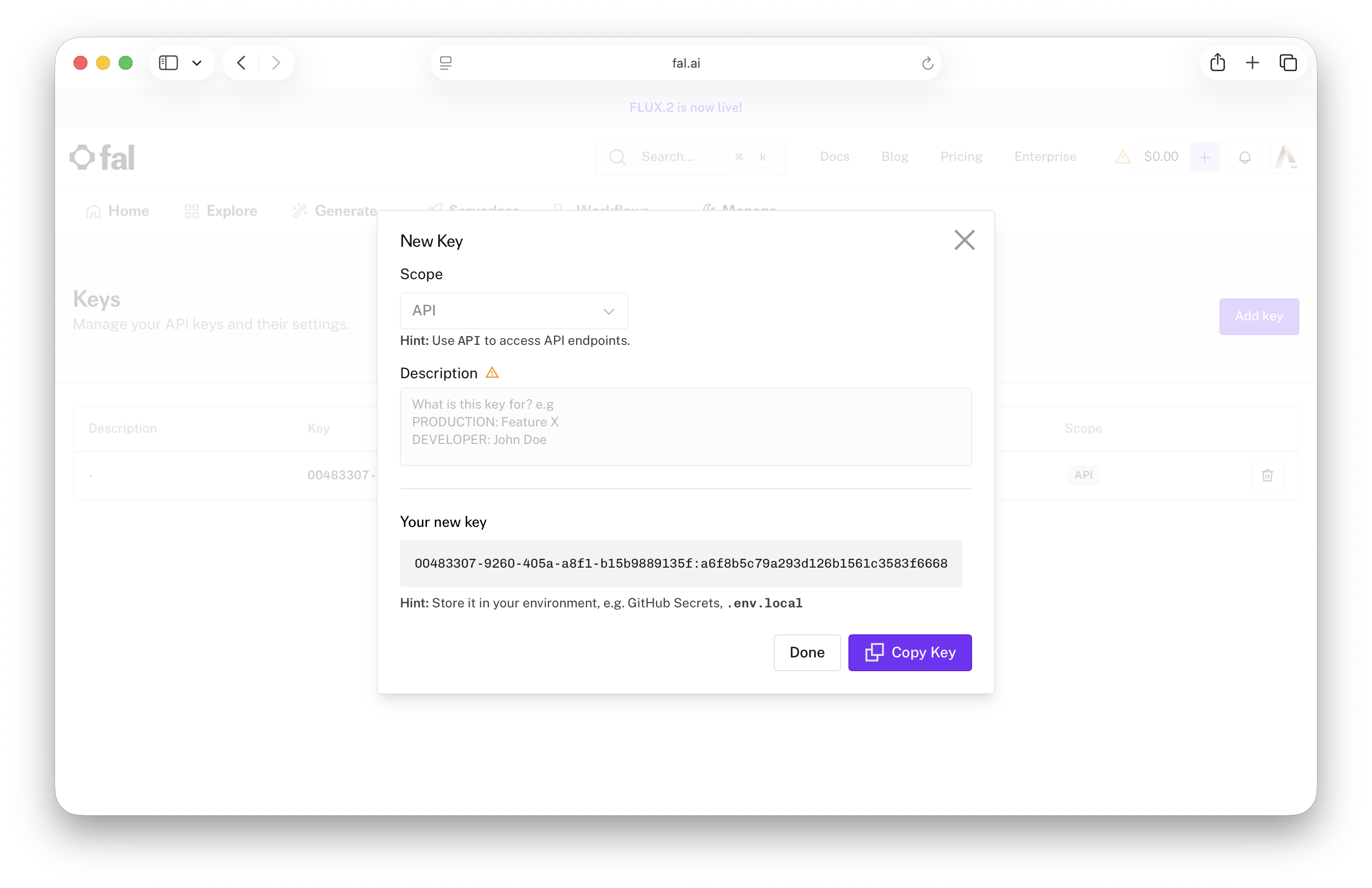
- Click Copy key. The key looks like
fal_sk_…, and the same caution applies: keep it private.
3. Paste the keys into RhinoArtisan
Both keys go on the same page, so they are set once and every tool that needs them simply works: no panel will ever stop to ask you for a key in the middle of a job.
- Open the options: click the Settings icon under the File tab of the
ribbon, or run Rhino’s
Optionscommand.
.png)
- In the sidebar, select Artisan.
.png)
- Open its Integrations sub-page.
.png)
- Paste each key into its group:
- OpenRouter → API Key: your OpenRouter key.
- Generative AI (fal.ai) → API Key: your fal.ai key.
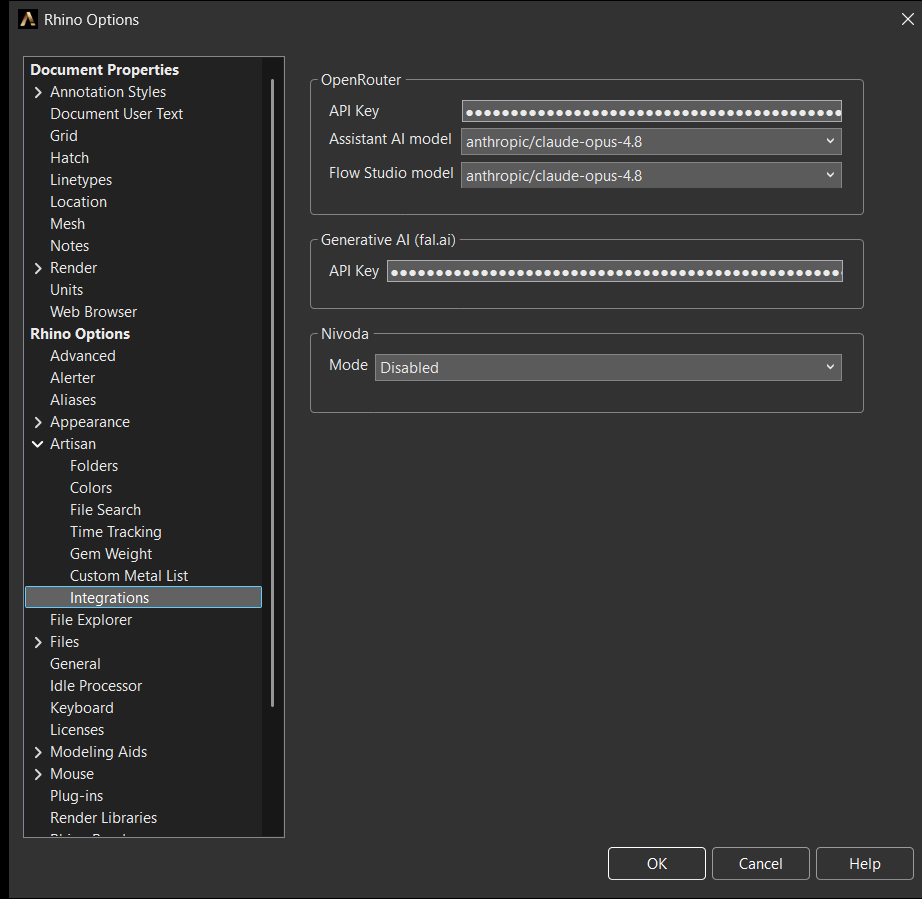
Options → Artisan → Integrations
- Click OK. RhinoArtisan may ask you to restart so the change is picked up everywhere.
The same page sets the model each tool uses; the defaults are a good start, and Choosing models explains when to change them. Both keys are stored as password fields rather than plain text.
4. Check that it works
- OpenRouter: open the Assistant panel and
type
Hi!. A reply means the key, the balance and the model are all in order. If the key is missing, the Assistant answers “OpenRouter API key not configured. Set it in Options > Integrations.” - fal.ai: open Generative AI Studio. If you see the prompt bar and the mode chip at the bottom of the window, you are connected; without a key the Studio shows a notice in their place.
If something fails, check in this order: the key is pasted in full, the account has credit, and the machine can reach the internet through any corporate proxy or firewall.