User Interface
Middle Button
Press the wheel of your mouse in the viewport and the Middle Button toolbar opens at the cursor: the visibility, locking, grouping, selection and view commands you use all the time, one click away, plus a strip of your own shortcuts at the bottom. You can also open it with F5.
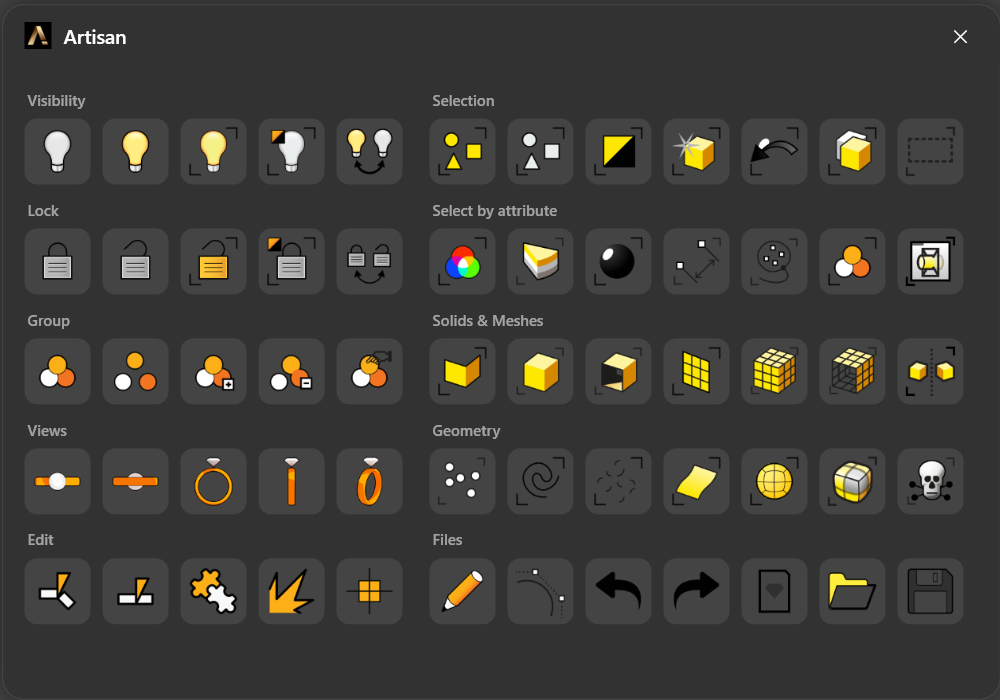
Clicking an icon runs its command. Selection commands run transparently, so you can use them in the middle of another command.
Your shortcuts
The strip at the bottom of the Middle Button is yours: pin to it any command of the RhinoArtisan ribbon, and it is always one wheel click away, whatever tab you are on.
- Add a command: right-click any ribbon button (the big icon buttons, the text buttons and the entries inside the drop-down submenus) and choose Add to Middle Button. The shortcut copies the button’s icon and tooltip, and runs exactly the same command.
- Reorder: drag a shortcut along the strip; a line shows where it will land.
- Separate: right-click a shortcut and choose Add separator to split the strip into groups.
- Remove: right-click a shortcut and choose Remove from Middle Button.
The strip is remembered between sessions. While it is empty it reminds you how to fill it.
It works like the Quick Bar at the bottom of the ribbon, and the two go both ways: the same right-click on a ribbon button offers Add to Quick Bar too, and right-clicking any button of the Middle Button toolbar adds it to the Quick Bar.
The toolbar
Visibility

- Hide objects: Hides the selected objects. More info
- Show objects: Shows every hidden object. More info
- Show selected objects: Shows only the hidden objects you pick. More info
- Isolate: Hides everything that is not selected.
- Swap hidden and visible objects: Hides what is visible and shows what was hidden. More info
Lock

- Lock objects: Locks the selected objects. More info
- Unlock objects: Unlocks every locked object. More info
- Unlock selected objects: Unlocks only the locked objects you pick.
- Isolate (lock unselected objects): Locks everything that is not selected. More info
- Swap locked and unlocked objects: Locks what is unlocked and unlocks what was locked. More info
Group
.png)
- Group objects: Groups the selected objects. More info
- Ungroup objects: Ungroups the selected objects. More info
- Add to group: Adds objects to an existing group. More info
- Remove from group: Takes objects out of their group. More info
- Set group name: Names the selected group. More info
Views

- Set top view, Set bottom view, Set front view, Set left view, Set perspective view: Switch the active viewport to that world view. More info
Edit

- Trim: Cuts away the part of an object beyond another. More info
- Split: Splits an object with another. More info
- Join: Joins objects that touch into one. More info
- Explode: Breaks an object into its parts. More info
Selection

- Select all: Selects every object. More info
- Select none: Deselects everything. More info
- Invert selection: Selects what was not selected, and the other way round. More info
- Select last created objects: Selects the objects the last command made.
- Select previous selection: Recalls the previous selection.
- Select exact duplicate objects: Selects objects that are exact copies of another.
- Select rectangular region: Selects with a window drawn in the viewport.
Select by attribute

- Select by color: Selects objects of the colour of the one you pick.
- Select by layer: Selects every object on the layers you choose.
- Select text dots: Selects the text dots.
- Select dimensions: Selects dimensions and text.
- Select by lasso: Selects with a freehand outline.
- Select group: Selects a whole group by name.
- Select clipping planes in viewport: Selects the clipping planes active in the viewport.
Solids and meshes

- Select solids: Selects polysurfaces.
- Select closed solids / Select open solids: Only the closed ones, or only the open ones.
- Select meshes: Selects meshes.
- Select closed meshes / Select open meshes: Only the closed ones, or only the open ones.
- Select mirrored blocks: Selects block instances that were mirrored.
Geometry

- Select points, Select curves, Select surfaces, Select SubD: Select every object of that type.
- Select short curves: Selects curves shorter than a length you give.
- Select faces to boundary: Selects the SubD faces inside a boundary of selected edges.
- Select bad objects: Selects invalid objects that need repairing. More info
Files

- Center objects: Moves the selected objects so their centre sits on the origin (Center, also F4).
- Edit: Opens the panel of the selected RhinoArtisan object to edit it (
ArtisanEdit, also F6). - Control points on: Shows the control points of the selected objects.
- Undo / Redo: Steps back or forward through your changes.
- New document, Open, Save: The file commands.