User Interface
Quick Bar
The Quick Bar is a strip of favourite buttons that sits at the bottom of the RhinoArtisan ribbon, under every tab. Whatever you put there stays there — it does not change when you switch from Shanks to Diamonds to Manufacturing — so the ten or fifteen commands you actually use all day are always one click away.
It is your own toolbar, built by you, and it is remembered between sessions.
Adding a command
Right-click any button in the ribbon and choose Add to Quick Bar.
That works everywhere in the ribbon: on the big icon buttons, on the buttons with text, and on the entries inside the drop-down submenus — so a command you can only reach through a popup, like Boolean Union (Rhino), can still become a one-click favourite.
The Quick Bar copies the button’s icon and its tooltip, so the favourite looks and behaves exactly like the original.
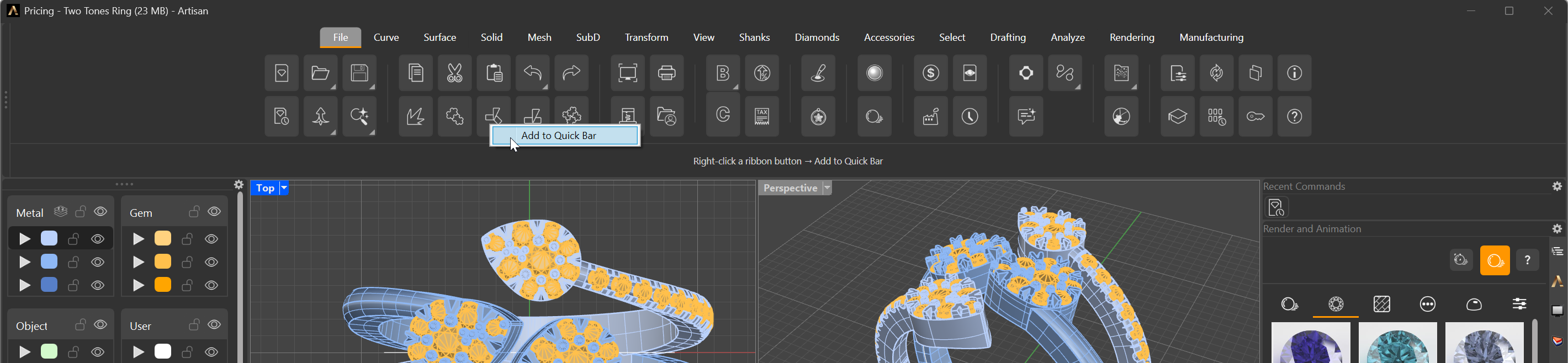
Right-click any ribbon button → Add to Quick Bar
You can also add commands from the Middle Button floating toolbar: right-click any of its buttons and the same Add to Quick Bar option appears. That is how selection, visibility, locking, grouping and view commands — SelAll, Hide, Lock, Group, Top view — end up on the bar next to your RhinoArtisan commands.
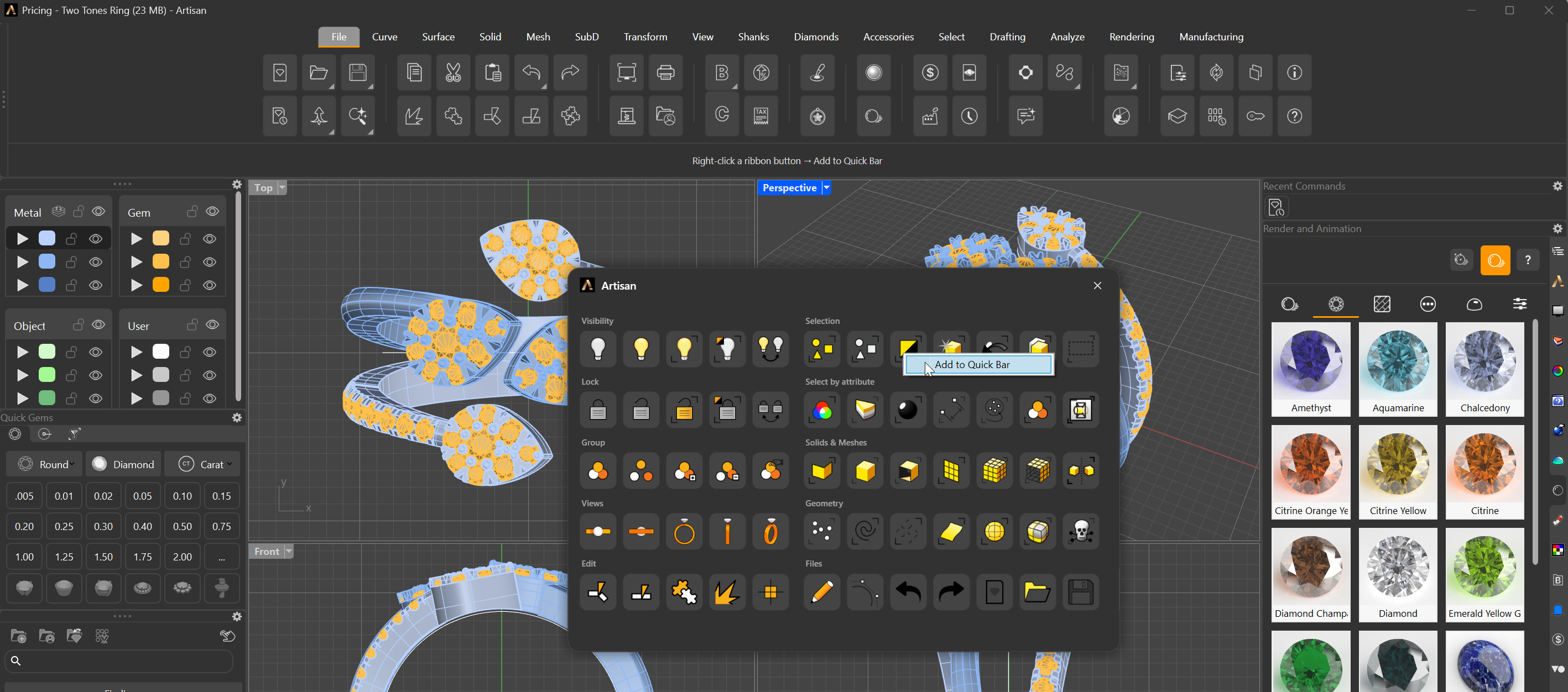
The same option, from the Middle Button floating toolbar
Organising the bar
- Run a command — left-click its button.
- Reorder — drag a button left or right. A gold insertion line shows exactly where it will land, and dropping it on the empty area of the bar sends it to the end.
- Add a separator — right-click a button and choose Add separator. A thin vertical divider is inserted after it, so you can group your favourites by task: modelling here, stone setting there, manufacturing at the end.
- Remove — right-click a button and choose Remove from Quick Bar, or right-click a separator and choose Remove separator.
Separators can be dragged around like any other item.
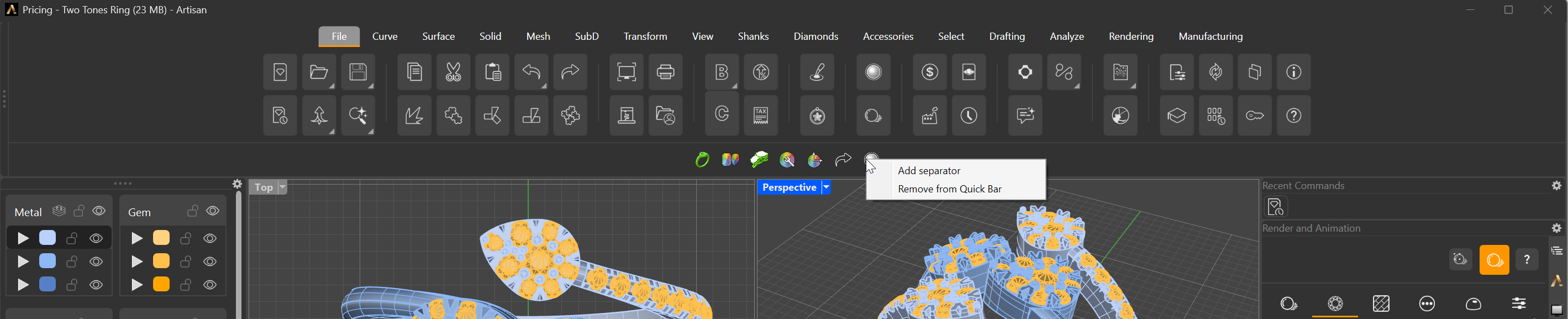
Right-click a favourite to add a separator or remove it
Showing and hiding the bar
The Show / hide Quick Bar button lives in the File tab of the ribbon, next to Settings, Update, License and Support. Click it to collapse the strip when you need the extra vertical space, and again to bring it back.
The visibility state is saved with your settings, so the bar comes back the way you left it.
Notes
- The Quick Bar is centred in the ribbon and scrolls horizontally when you add more favourites than fit the width of the panel — nothing is ever lost off the edge.
- Favourites and visibility are stored in your RhinoArtisan settings, not in the
.3dm, so they follow you across every document on that machine. - An empty Quick Bar shows the hint “Right-click a ribbon button → Add to Quick Bar” instead of an empty strip.
- Each favourite stores the macro the original button runs, so it does exactly
what the ribbon button did — including commands that are really Rhino macros,
like
SelAllorSetView.