User Interface
Artisan
The root page of the RhinoArtisan branch in Rhino Options. It gathers the settings you are most likely to change once, when you set up your machine the way you like it.
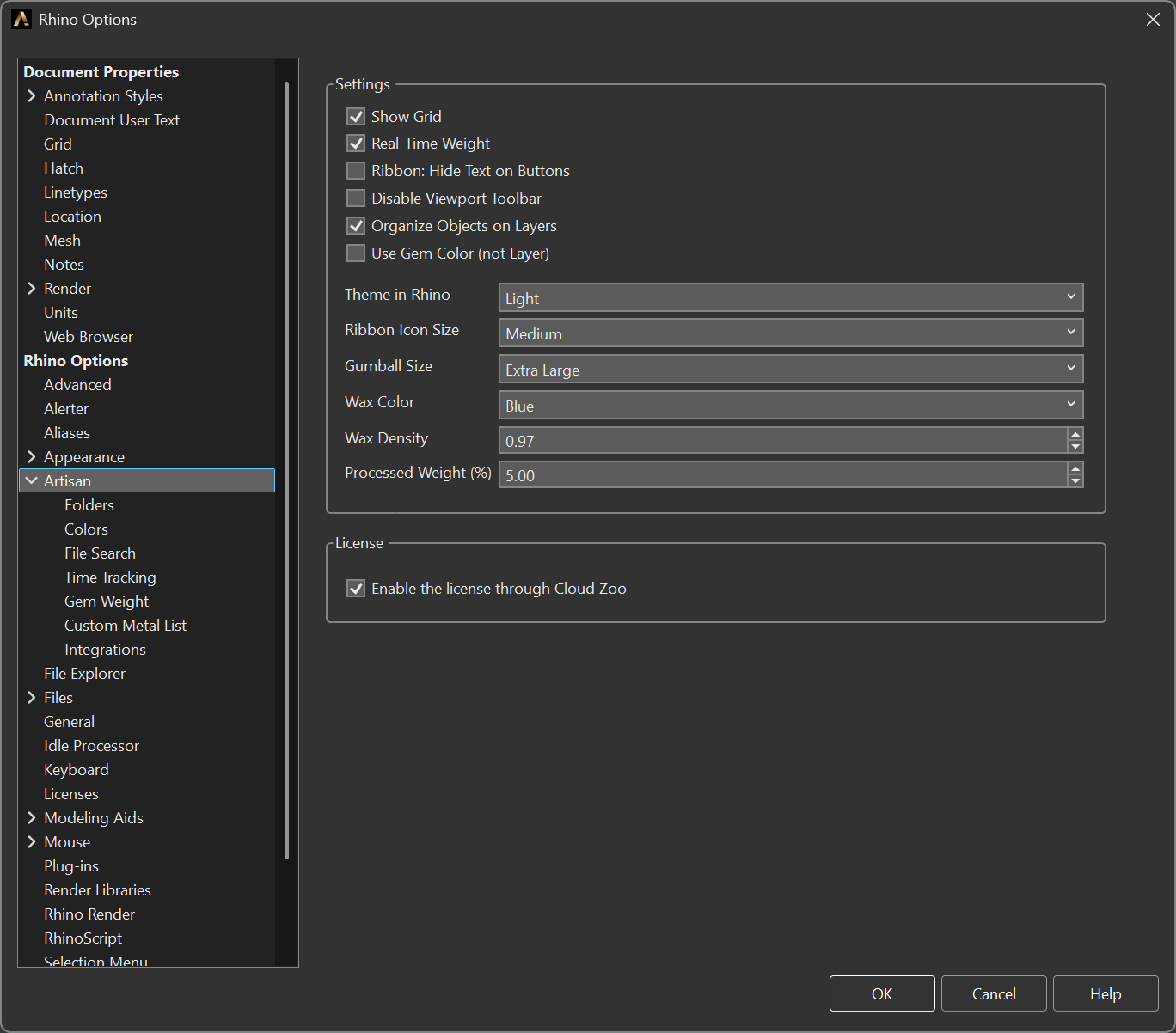
Options > Artisan, the root page
Settings
Interface and viewport
- Show Grid — draws the construction grid in the viewports. Enabled by default.
- Real-Time Weight — draws a bubble in the viewport, pointing at the object, with its weight updated live as you model. Enabled by default. It exists so you can see a piece drifting over its target weight while you are still shaping it, instead of discovering it in the report.
- Ribbon: Hide Text on Buttons — hides the caption under each ribbon icon. Disabled by default. Made for laptops and low-resolution screens, where the vertical space the ribbon takes matters more than the labels. Requires a restart.
- Disable Viewport Toolbar — turns off the floating toolbar that RhinoArtisan draws over the viewport. Disabled by default. Useful if you already work with Rhino’s own toolbars and want the viewport clean. Requires a restart.
Layers and colour
- Organize Objects on Layers — when on, commands file the geometry they create into a layer structure (metals, gems, objects) instead of dropping everything on the current layer. It defaults to on in the RhinoArtisan scheme and off in plain Rhino, so the plugin never rearranges the layers of someone who opened Rhino to do something else. The colours of that structure are set in Colors.
- Use Gem Color (not Layer) — gems are drawn with their own colour instead of the colour of their layer. Disabled by default. Turn it on when you want to read stone sizes at a glance in the viewport; leave it off when your layer colours carry the meaning.
Sizes and theme
| Setting | Values | Default |
|---|---|---|
| Theme in Rhino | Use Rhino Theme · Light · Dark | — |
| Ribbon Icon Size | Small (24 px) · Medium (32 px) · Large (40 px) | Medium |
| Gumball Size | Small · Medium · Large · Extra Large | Medium |
- Theme in Rhino controls how the RhinoArtisan panels are painted when the plugin runs inside standard Rhino, so they do not clash with a dark Rhino setup.
- Ribbon Icon Size applies immediately, without restarting — the ribbon repaints as soon as you change the value.
- Gumball Size exists because jewellery is small: on a 4K screen the default gumball can be larger than the ring you are editing, or too small to grab.
Weight and wax
- Wax Color — Purple, Orange, Green or Blue. The colour used to display a design once it is converted for 3D printing, matching the resin you actually print with.
- Wax Density — the density used for wax and resin weight calculations in the
reports.
0.97by default. - Processed Weight (%) — the extra percentage added on top of the raw weight
to account for finishing, polishing and casting losses.
5by default, accepted between 0 and 100. It exists so the weight you quote to a customer is the weight the piece actually ends up costing you.
License
- Enable the license through Cloud Zoo — takes the licence from Cloud Zoo instead of the local activation. Disabled by default. Requires a restart. See Cloud Zoo.