Productivity
Assistant
The Assistant, powered by the best models available.
The Assistant is an intelligent companion inside RhinoArtisan: a layer that supports, guides and automates the tasks that surround creation, and that builds and changes the design when you ask it to.
It understands your libraries, walks you through workflows, retrieves technical information, checks production details, prepares reports and helps you reuse what already exists.
The best models available
The Assistant reaches its models through OpenRouter, with your own key: Anthropic’s Claude by default, and models from OpenAI, xAI, DeepSeek, Qwen and Mistral. Pick the model that fits the task, the budget or your company’s policy; see Choosing models.
Because the model runs online, the Assistant runs on any computer. No workstation, no dedicated GPU, no local setup — if RhinoArtisan runs, the Assistant runs.
What it actually does
The Assistant is not a chatbot bolted onto the side of RhinoArtisan: it reads the design you have open and it runs the same commands you do.
- It knows the piece. Every message carries a snapshot of the current design — type, metals, ring size, layers — and the Assistant can pull the full picture on demand: elements and their parameters, the pricing breakdown, the Boutique data.
- It answers questions. How many stones does it have? What does it weigh? What’s the price in 18k white?
- It changes the design. Ring size, metal, stone shape and carat, prong count, element parameters — described in plain language, applied to the real parametric model.
- It builds. Shanks and complete rings, settings such as halos, bezels, prongs and baskets, gems, and gems along a curve or pavé on a surface — with the same parametric builders you use, one step at a time.
- It prepares the work. Reports, dimensions, STL export for printing, production setup, the breakdown to Excel, render materials and view.
- It sees pictures and makes them. Attach a photo or a sketch and talk about it, or build from it; ask for a photorealistic render or a try-on image of your design.
- It knows RhinoArtisan itself. How do I…? questions are answered from the official documentation, with links to the pages it used.
- It follows your rules. Write your company’s standards once — minimum prong sizes, default metals, production steps — and the Assistant applies them whenever it builds; see Company standards.
- You choose how changes are applied. Questions are answered straight away. Changes run as soon as the Assistant makes them in Auto mode, which is on by default; scripts, deletions and new company standards still wait for your Apply. Turn Auto off and every change is proposed first, with Apply and Cancel. Either way, one click under the answer undoes everything it changed; see The Assistant panel.
- You see what it costs. The panel shows what each conversation has cost, and you can set a daily spending limit.
Quick start
- Connect your OpenRouter key in Options → Artisan → Integrations, as described in Accounts and API keys. The Assistant’s models are in Options → Artisan → Assistant; the defaults are a good start.
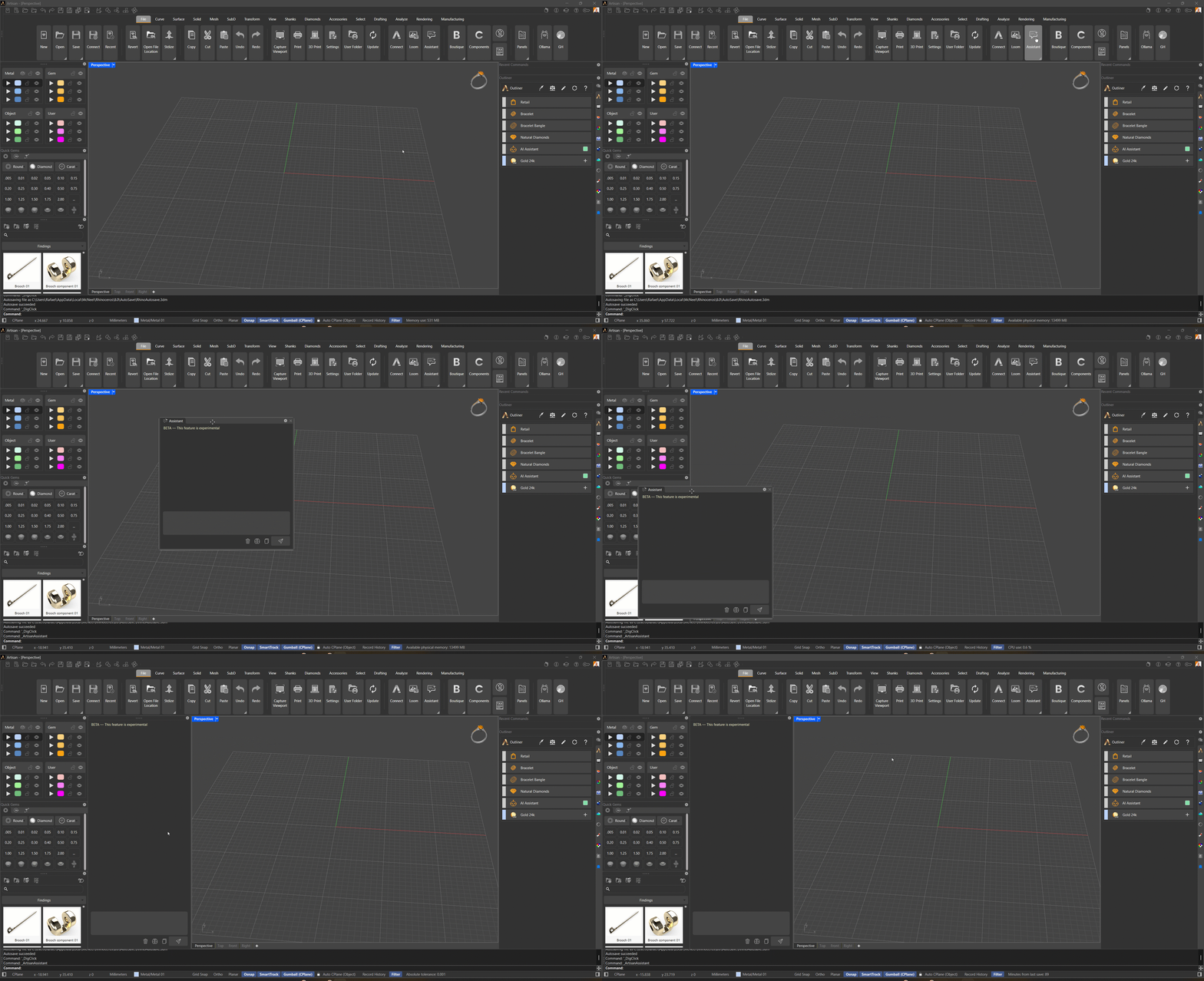
- Open the panel: File tab → Assistant, or run
ArtisanAssistant. - Open a design — from Boutique, Curator or your own archive.
- Type what you want in plain language and press Send.
In this section
- Setting Up the Assistant — the API key, choosing a model, and docking the panel where it belongs.
- The Assistant panel — every control in the panel, Auto mode, and how a conversation flows.
- What you can ask — everything the Assistant can read and every action it can run for you.
- Company standards — the rules your company always follows, written once and applied whenever the Assistant builds.
- Your first interaction — a guided walkthrough on a real ring, step by step.
The keys, models, costs and privacy shared by every AI tool are in AI in RhinoArtisan.