Twist Bezel Ring
Lesson 40 of 62
Reference Cylinder and Pull
Sign in to access this lesson
This lesson is part of Precision & Detail Design, which can come bundled with a RhinoArtisan Commercial license subject to current promotions. Log in with your customer account, or get in touch and we'll set you up.
Customers only
Solo para clientes
This lesson is part of Precision & Detail Design, which can be included with a RhinoArtisan Commercial license subject to current promotions. If you've already purchased and don't see it in your account, get in touch.
Objective: Learn how to build the reference cylinder and project the shank curve onto it.
Shaded Mode
At the bottom of the viewport, switch the display mode to Shaded. If you hold Shift and click on a display mode, it updates in all viewports at once.
Extrude the Cylinder
Go to the “Surface” tab and use the “Extrude” command

to create a reference solid from the circle you just created.
- In the command bar, make sure the BothSides option is activated.
- It can be a solid or not, since we’ll only use it for reference.
- From the top view, make sure it covers and slightly extends beyond the curve.
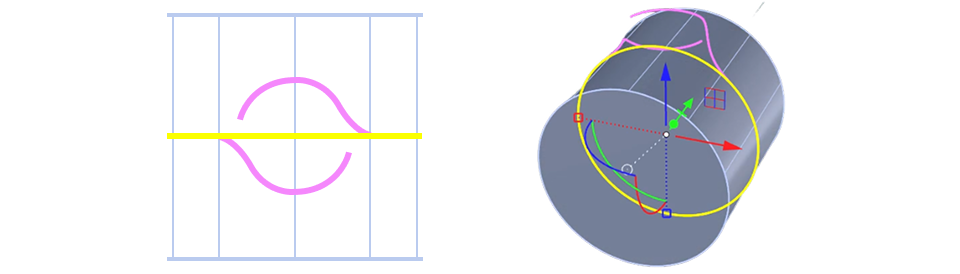
Pull the Curve
Select the other curve, go to the “Curve” tab and use the “Pull” command.

Click on the cylinder you created and a new curve is projected onto its surface.
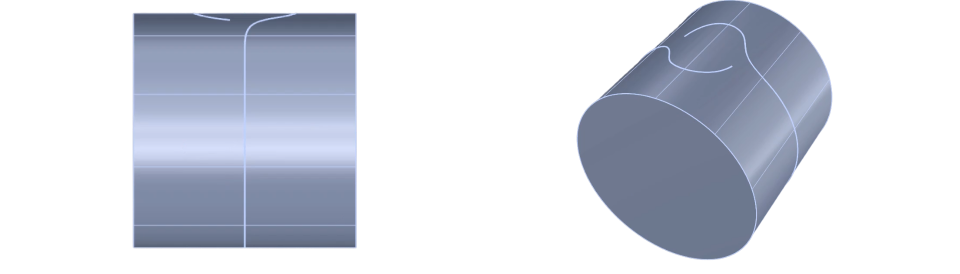
Use the third user layer to hide the curves you’re not using. This way you can work without getting confused by unnecessary elements.
Video Lesson
Next Step
Next, we’ll create the center gem.
Almost there — you still have some lessons to complete. Jump to the next one →
Impersonating — progress and reviews are disabled.
Course completed
You've completed Precision & Detail Design 🎉
Great work. Get your certificate of completion and, if you have a minute, let other jewelers know what you thought of the course.