Hoop Earrings
Lesson 2 of 62
Earring Base Solid
Sign in to access this lesson
This lesson is part of Precision & Detail Design, which can come bundled with a RhinoArtisan Commercial license subject to current promotions. Log in with your customer account, or get in touch and we'll set you up.
Customers only
Solo para clientes
This lesson is part of Precision & Detail Design, which can be included with a RhinoArtisan Commercial license subject to current promotions. If you've already purchased and don't see it in your account, get in touch.
Objective: Learn how to build the solid ring that forms the body of the hoop earring and how to open its top.
Create the Base Circle
Go to the “Curve” tab and click on the “Circle” command. Work from the front view.

- Type
0in the command bar to set the center. Press Enter. - Type
25 mm. Press Enter.

Offset the Circle
Select the circle you just created and click on the “Offset” command.

- Type
2.5 mmin the command bar. - From the front view, click on the outer side of the circle to place the offset.

Extrude the Solid
Select both circles, go to the “Surface” tab and click on the “Extrude” command. In the command bar:

- Set Solid to
Yes. - Set BothSides to
Yes. - Type
1.25and press Enter.
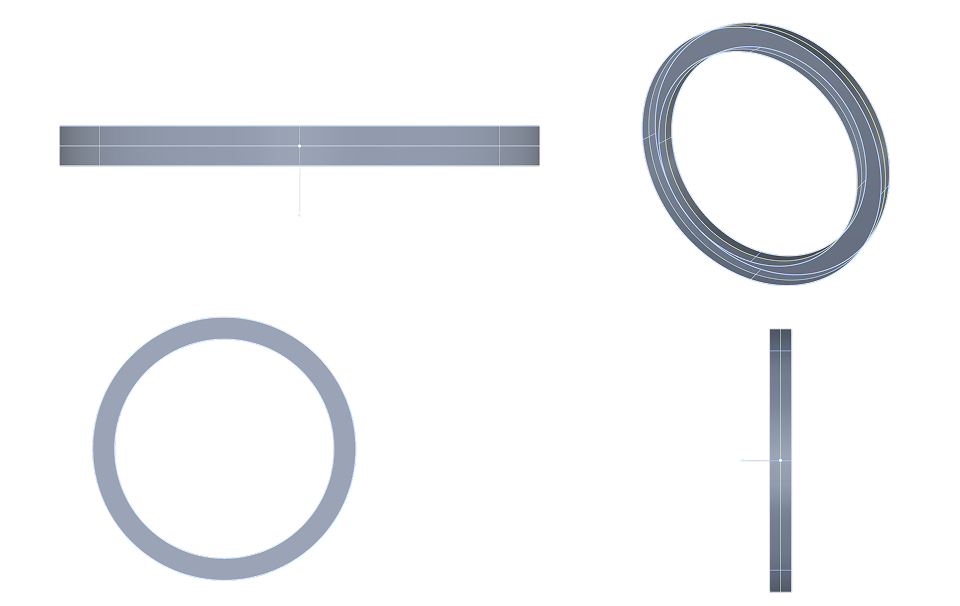
Shaded Mode in All Viewports
Zoom in on the lower part of any viewport and, while holding Shift, click on the shaded button. All viewports switch to shaded mode at once.

Open the Top
Switch to the front view, go to the “Curve” tab and click on the “Rectangle” command. Activate the grid snap option.

Using the grid as reference, draw a rectangle 6 mm wide (six squares) and 7 mm high. It has to be centered and cross the top part of the earring.
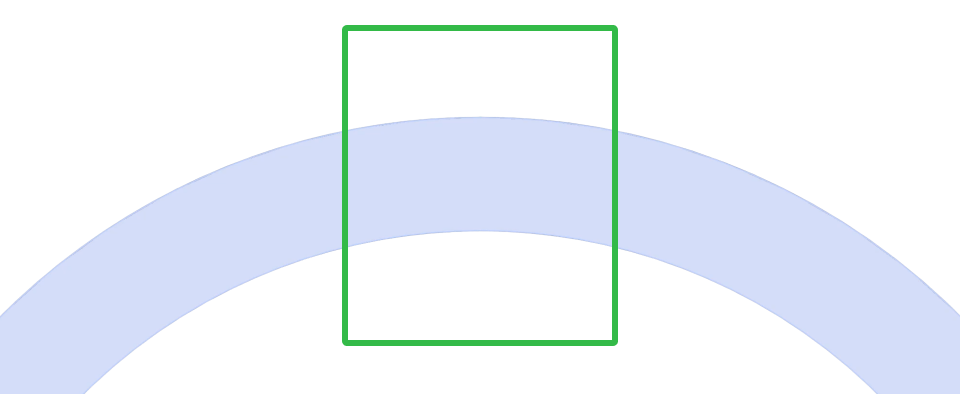
Cut the Solid
Go to the “Solid” tab and use the “Cut” command.

Select the rectangle, press Enter, and then select the solid. Restore all views when the cut is done.
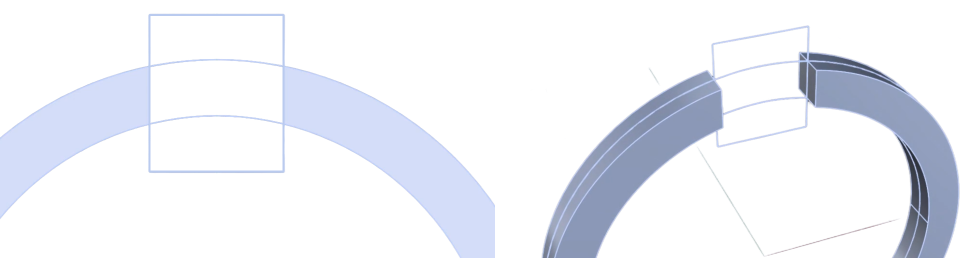
Video Lesson
Next Step
The base of the earring is ready. Next, we’ll create the reference curves that guide every operation from here on.
Almost there — you still have some lessons to complete. Jump to the next one →
Impersonating — progress and reviews are disabled.
Course completed
You've completed Precision & Detail Design 🎉
Great work. Get your certificate of completion and, if you have a minute, let other jewelers know what you thought of the course.