Moebius Diamond Pendant
Lesson 59 of 62
Gems, Prongs and Cutters
Sign in to access this lesson
This lesson is part of Precision & Detail Design, which can come bundled with a RhinoArtisan Commercial license subject to current promotions. Log in with your customer account, or get in touch and we'll set you up.
Customers only
Solo para clientes
This lesson is part of Precision & Detail Design, which can be included with a RhinoArtisan Commercial license subject to current promotions. If you've already purchased and don't see it in your account, get in touch.
Objective: Learn how to fill the channel with gemstones and how to keep the back cutters from intersecting the solid.
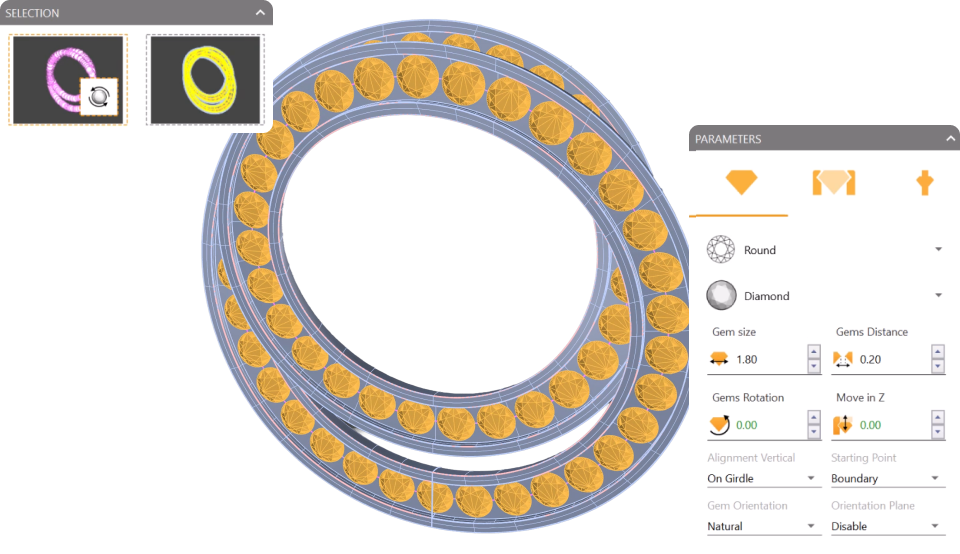
Gems on Curve
Go to the “Diamond” tab and use the “Gems on Curve” command.

- Add the curve to the curve selector in the command panel.
- Select the channel surface as the reference surface for gemstone orientation.
- Change the gemstone size to
1.8.
Prongs
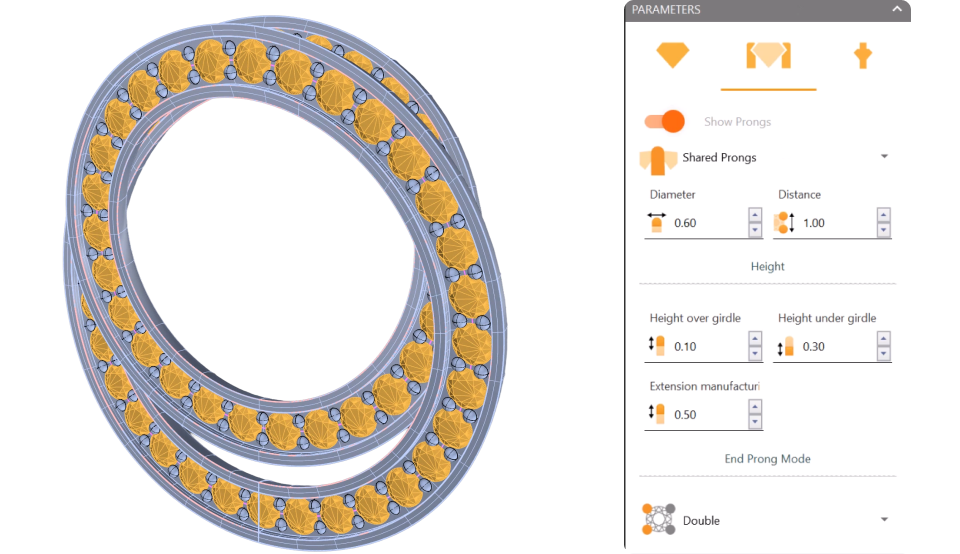
In the “Prongs” tab, activate them and adjust the parameters:
- Diameter:
0.6 mm. - Spacing:
1. - Height over girdle:
0.1 mm. - Height under girdle:
0.3 mm.
Cutters
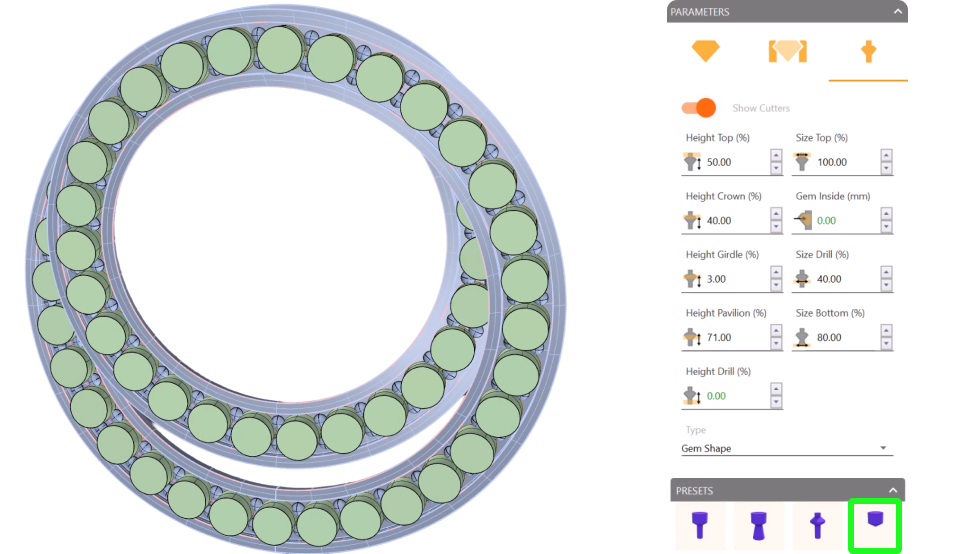
In the “Cutters” tab, select the fourth preset and activate it.
This step is important: the back cutters cannot intersect with the solid in front of them.
To adjust this, reduce the height top and examine different parts of the model to make sure nothing is touching. In this case we set it to 50, since at that value no cutter intersects the solid.
Once everything is adjusted, accept the command.
Video Lesson
Next Step
Next, we’ll subtract the cutters from the solid.
Almost there — you still have some lessons to complete. Jump to the next one →
Impersonating — progress and reviews are disabled.
Course completed
You've completed Precision & Detail Design 🎉
Great work. Get your certificate of completion and, if you have a minute, let other jewelers know what you thought of the course.