In development
RhinoArtisan for Mac is in development, and so is this documentation. Any part of it may be inaccurate or change as the product evolves.
Windows page
This page was written for RhinoArtisan 7 for Windows and has not been reviewed for Mac yet. Screenshots and some details may differ in Rhino for Mac.
Transform
Align Gems
 Align Gems
The Align Gems command allows users to quickly align gems in the viewport to a selected surface, providing flexibility in positioning and orientation.
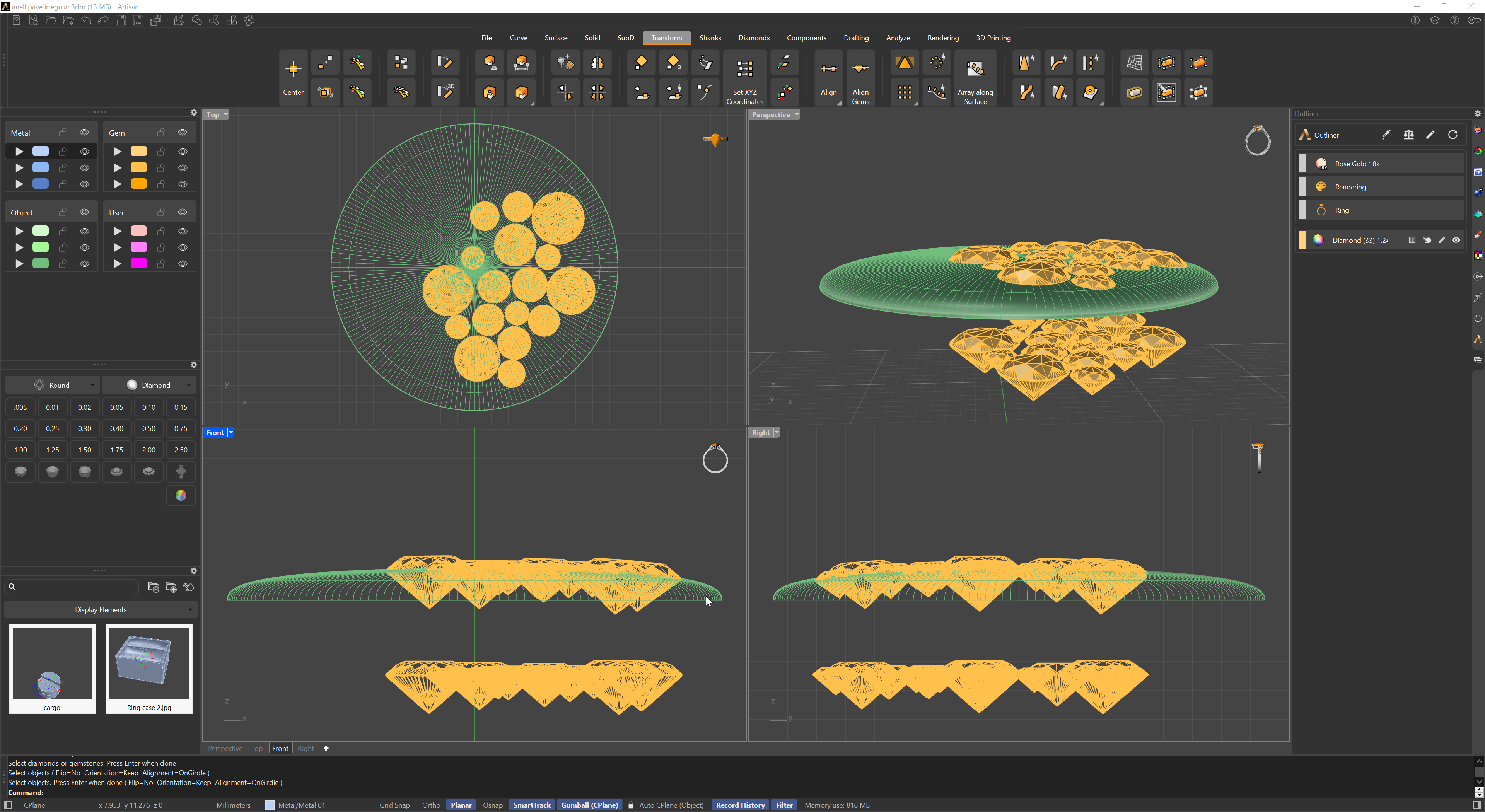
Key features:
- Surface Alignment: Select a surface to which the gems will be aligned.
- Flip Option: Toggle the orientation of the gems for optimal placement.
- Adapt or Keep Orientation:
- Adapt to Object: The gems will adjust their orientation to match the surface.
- Keep Orientation: The gems will maintain their current orientation while aligning to the surface.
- Alignment Modes:
- Align from the Table: Aligns the gems with the table (the top, flat facet).
- Align from the Girdle: Aligns the gems with the girdle (the widest part of the gem).
This command simplifies gem alignment, ensuring precision while offering customizable orientation options.