RhinoArtisan for Mac is in development, and so is this documentation. Any part of it may be inaccurate or change as the product evolves.
This page was written for RhinoArtisan 7 for Windows and has not been reviewed for Mac yet. Screenshots and some details may differ in Rhino for Mac.
Accessories
Components
 Components
Where Boutique offers complete designs, Components offers the parts: bezels, baskets, classic and cathedral shanks, ornaments, findings, and more — the building blocks a custom piece is assembled from, with professional geometry and consistent quality.
How it works
The first time you open Components, RhinoArtisan offers to download the component collections; they install into your user folder and appear as covers in the Components window. Click a collection to see its parts, each with a name and description, and click a part to insert it into the viewport, ready to position and combine into your design.
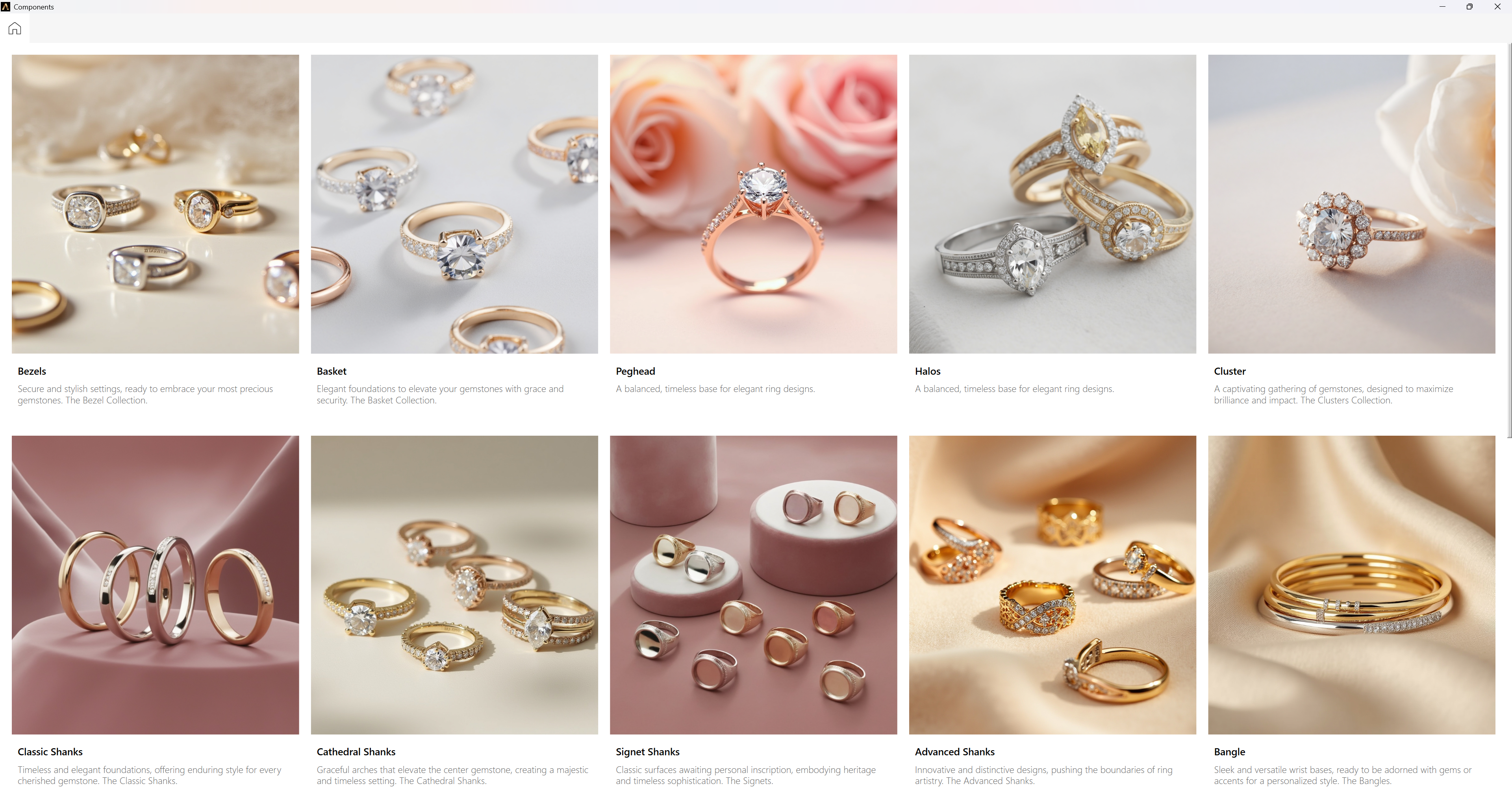
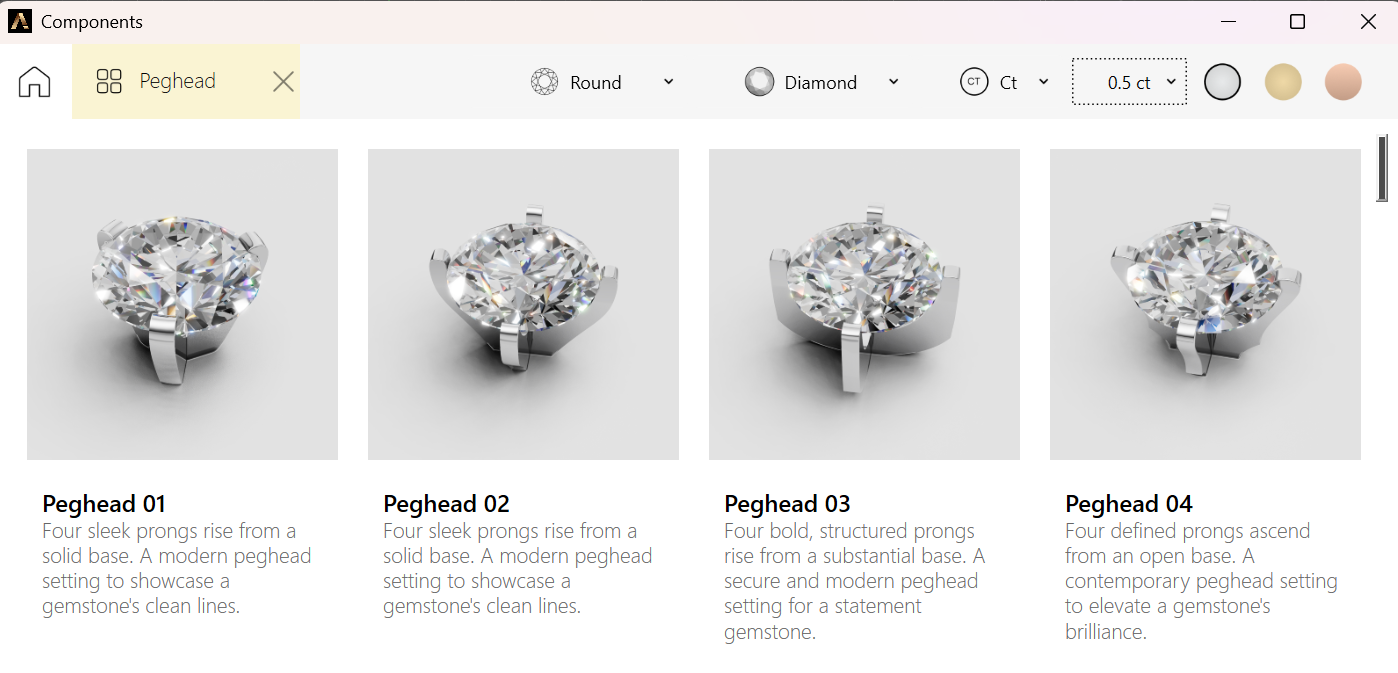
Two selectors, at the top right of each collection that supports them, adapt the part before it is inserted:
- In the ring collections, choose the finger size the design comes in at.
- In presets like Bezels, Baskets, Pegheads, Halos, and Clusters, choose the stone: its material and its measurements, in carats or millimeters.
The window stays open, so a whole piece — shank, head, accents — can be pulled together without leaving it.
Keyboard controls on Mac
Press ⌘F to show or hide the search box and ⌘R to reload the catalogue. With a collection or component card focused, press Return or Space to open the collection or insert the component.