RhinoArtisan for Mac is in development, and so is this documentation. Any part of it may be inaccurate or change as the product evolves.
This page was written for RhinoArtisan 7 for Windows and has not been reviewed for Mac yet. Screenshots and some details may differ in Rhino for Mac.
Diamonds and Gemstones
Pearl
 Pearl
The Pearl command allows you to create a realistic 3D representation of a pearl, complete with a supporting calotte and a wire for mounting. This versatile tool is ideal for jewellers designing earrings, pendants, or other pieces featuring pearls.
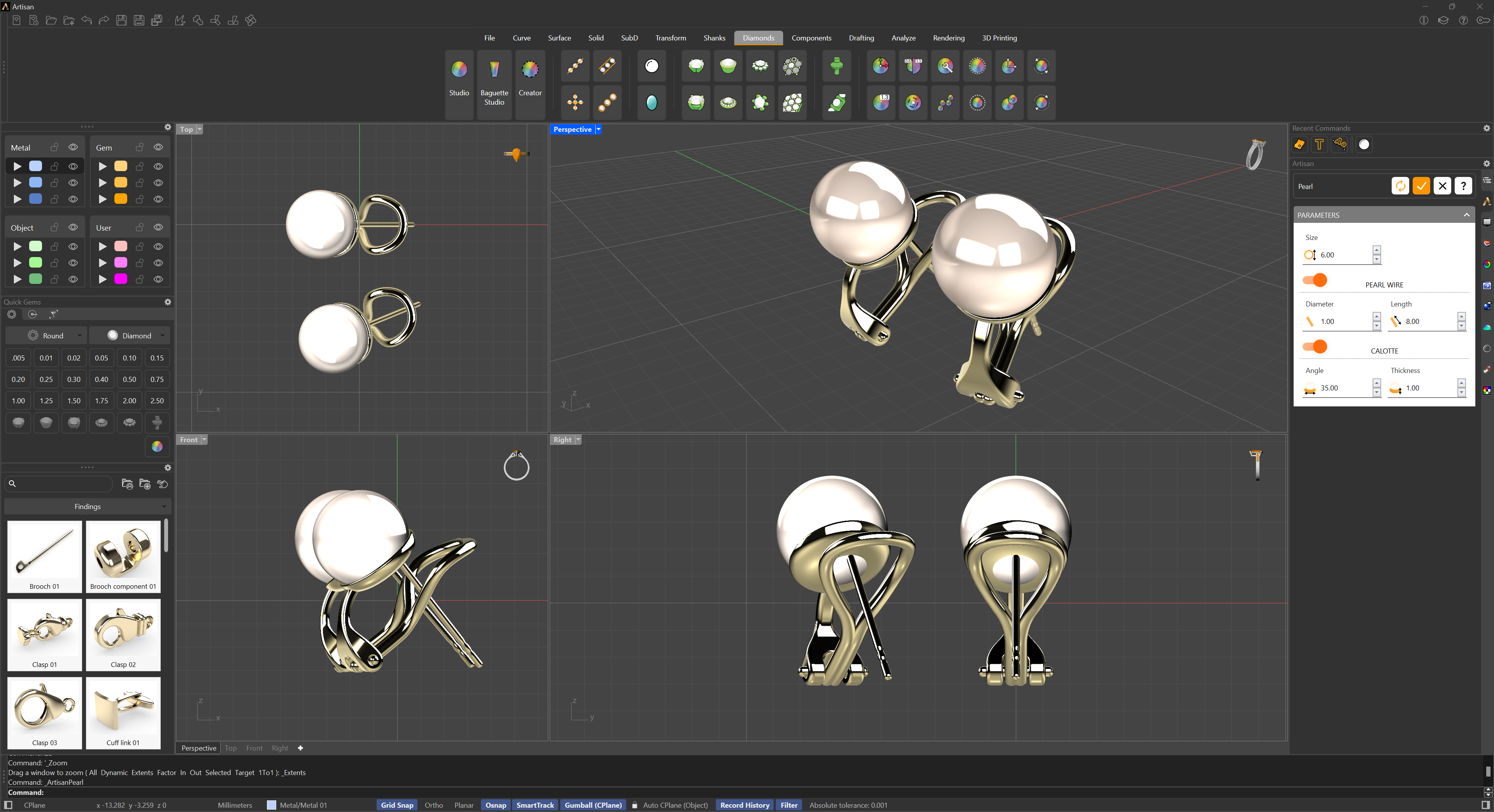
Parameters
- Size: The diameter of the pearl sphere.
The rest of the parameters are organized in two sections:
Pearl Wire
- Diameter: The thickness of the wire.
- Length: The length of the wire, which can be used as a post for earrings or for other mounting purposes.
Calotte
- Angle: The angle covered by the calotte — the curved cap that supports the pearl. A higher angle wraps further around the pearl, while a lower angle results in a flatter, more open cap.
- Thickness: The metal thickness of the calotte.
Usage
Adjust the parameters and watch the preview update: pearl size, wire diameter and length, and calotte angle and thickness. You can save your preferred configuration with the Save defaults button in the header (right-click it to clear the saved values), so every new pearl starts from your house specifications.