Cabochon Ring
Lesson 29 of 34
Setting Up the Shank
Sign in to access this lesson
This lesson is part of Timeless Jewels, which can come bundled with a RhinoArtisan Commercial license subject to current promotions. Log in with your customer account, or get in touch and we'll set you up.
Customers only
Solo para clientes
This lesson is part of Timeless Jewels, which can be included with a RhinoArtisan Commercial license subject to current promotions. If you've already purchased and don't see it in your account, get in touch.
Objective: Learn how to set up the shank for a cabochon ring using the Signet command and adjust its dimensions to fit the cabochon.
Begin in the Shanks Tab
In the Shanks tab (1), select the Signet (2) command in the Shanks tab.

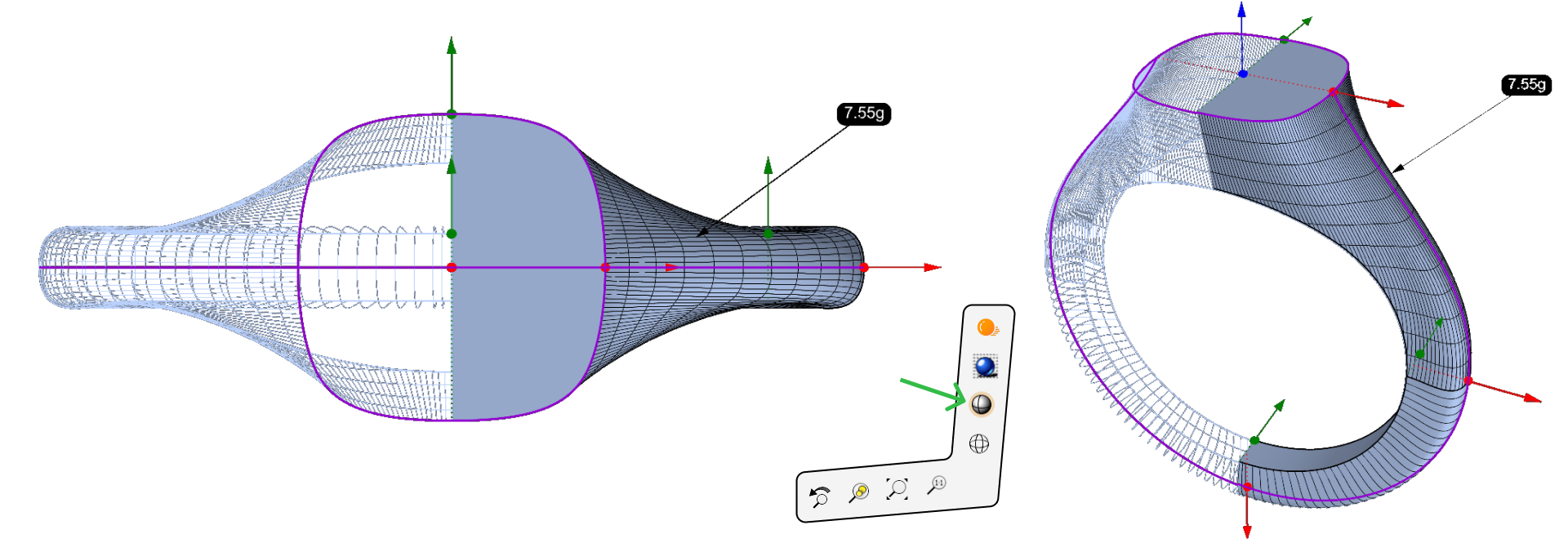
Switch to Shaded Mode
For better visualization, switch to Shaded Mode by clicking on the bottom-right corner of each viewport.
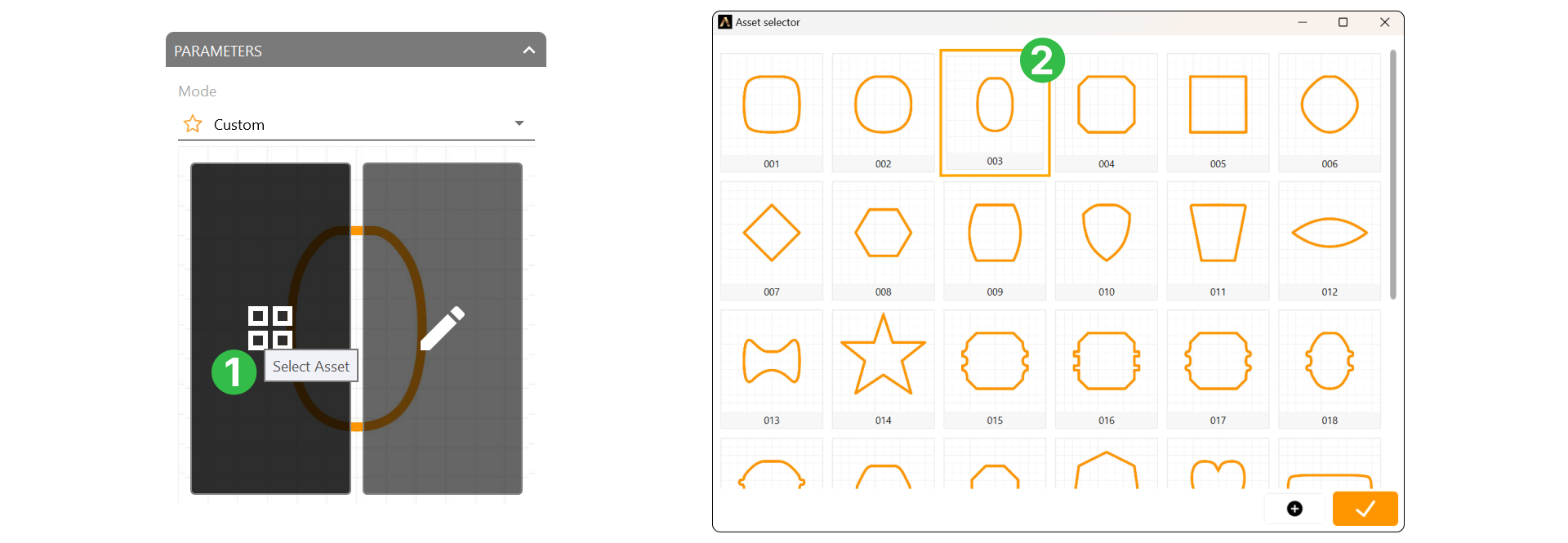
Edit Profile:
- Without selecting any element, click on Edit.
- Click the profile preview (1) and select Profile 003 (2).
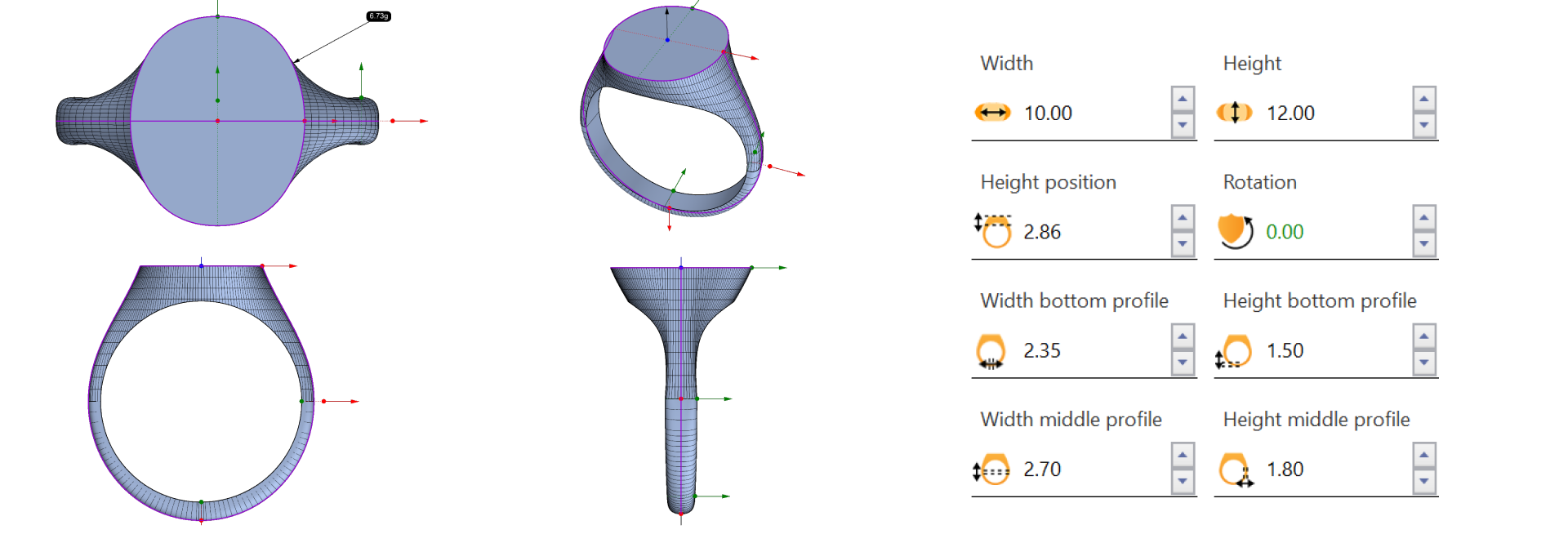
Set Dimensions:
- Width: 10 mm
- Height: 12 mm
- Height Position: 2.86 mm
- Bottom Width: 2.35 mm
- Bottom Height: 1.5 mm
- Middle Width: 2.7 mm
- Middle Height: 1.8 mm
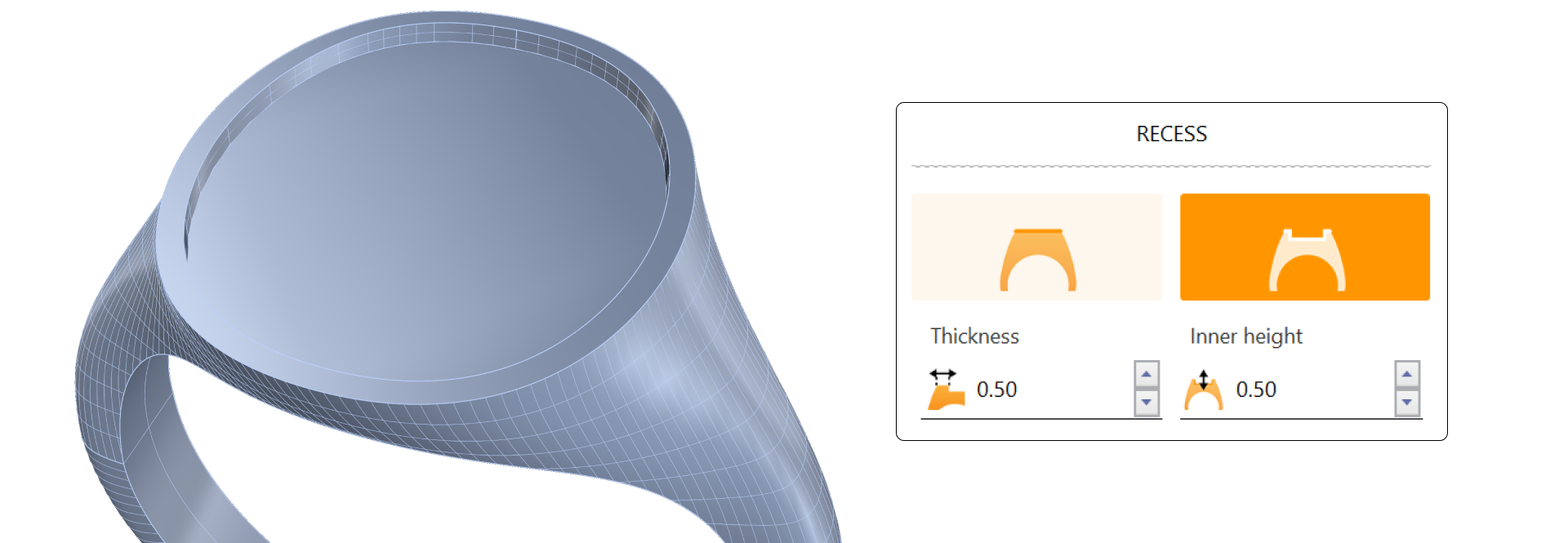
Recess Option: Note that the Recess feature is ideal for emblems or initials but for cabochon stones, we’ll use the Boolean method to achieve a snug fit.
Video Lesson: In this video, we will start by setting up a robust and balanced shank that will support the cabochon setting. You’ll learn to adjust the profile dimensions and parameters for an ideal fit.
Next Step: Now that the shank is ready, in the next lesson, we’ll create and position the cabochon.
Almost there — you still have some lessons to complete. Jump to the next one →
Impersonating — progress and reviews are disabled.
Course completed
You've completed Timeless Jewels 🎉
Great work. Get your certificate of completion and, if you have a minute, let other jewelers know what you thought of the course.