Classic Cluster
Lesson 25 of 34
Cutters
Sign in to access this lesson
This lesson is part of Timeless Jewels, which can come bundled with a RhinoArtisan Commercial license subject to current promotions. Log in with your customer account, or get in touch and we'll set you up.
Customers only
Solo para clientes
This lesson is part of Timeless Jewels, which can be included with a RhinoArtisan Commercial license subject to current promotions. If you've already purchased and don't see it in your account, get in touch.
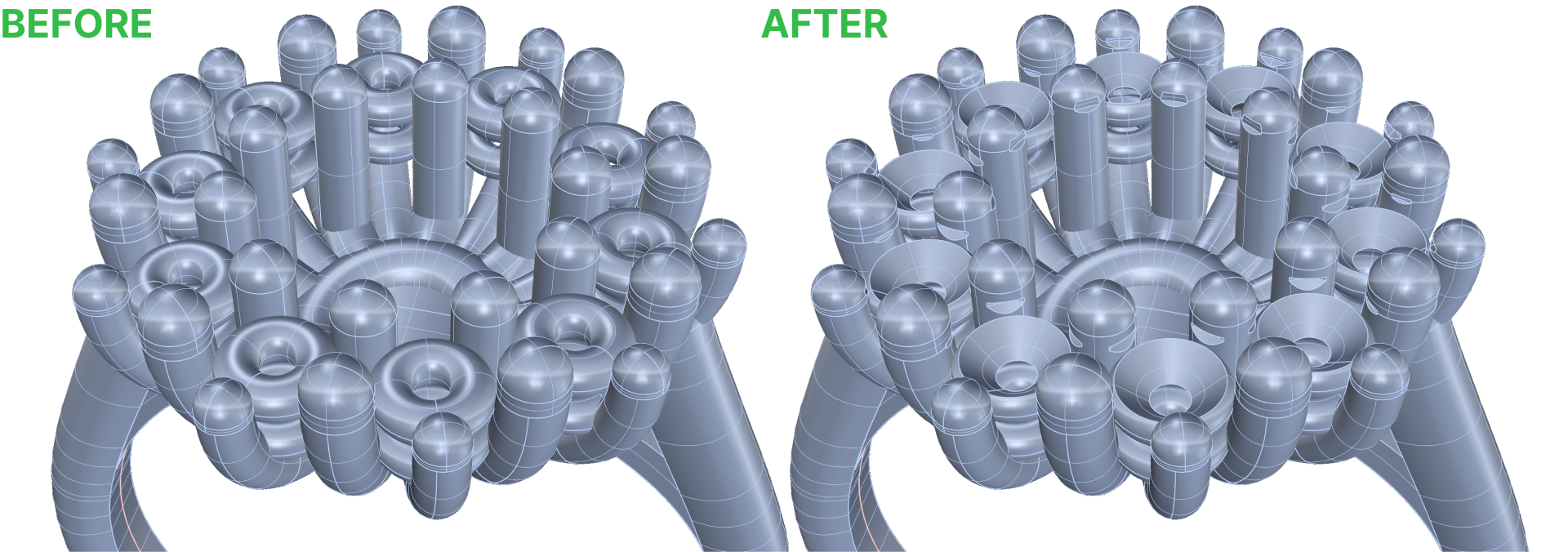
Before applying our materials, we will use cutters to remove the metal that intersects with the gems. This way, we will ensure that light interacts with the material properly, allowing us to see the sparkle of our gems.
In the Diamonds tab, click on the Cutter command.
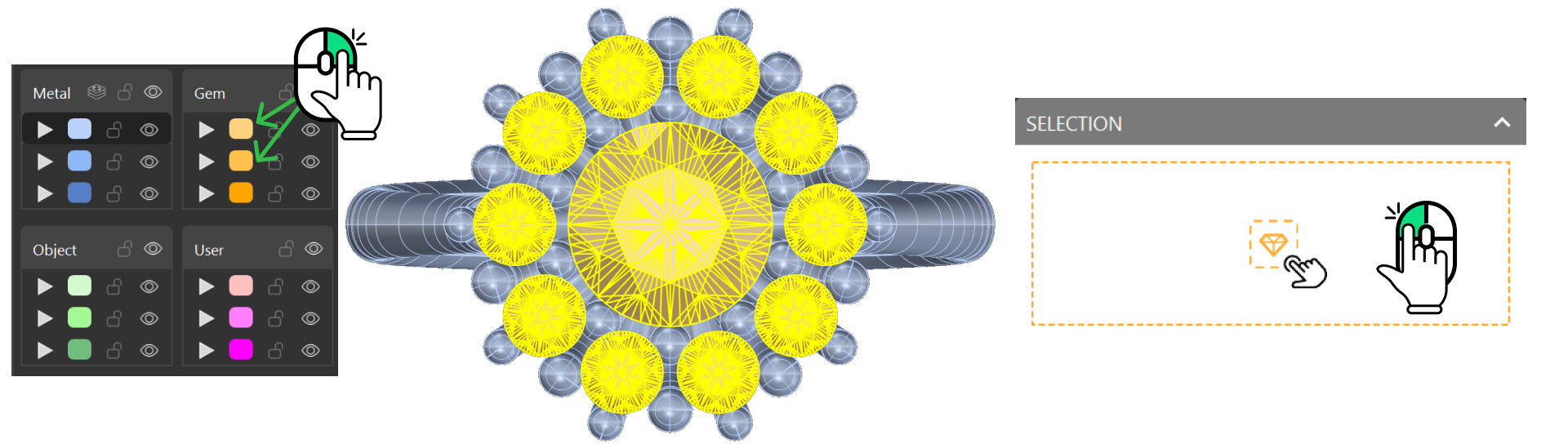
Now use the Layerspanel to select the gems. To do this, right-click on the colors designated for gems—specifically, the first two orange ones.
Once the gems are selected, click on the Selector.
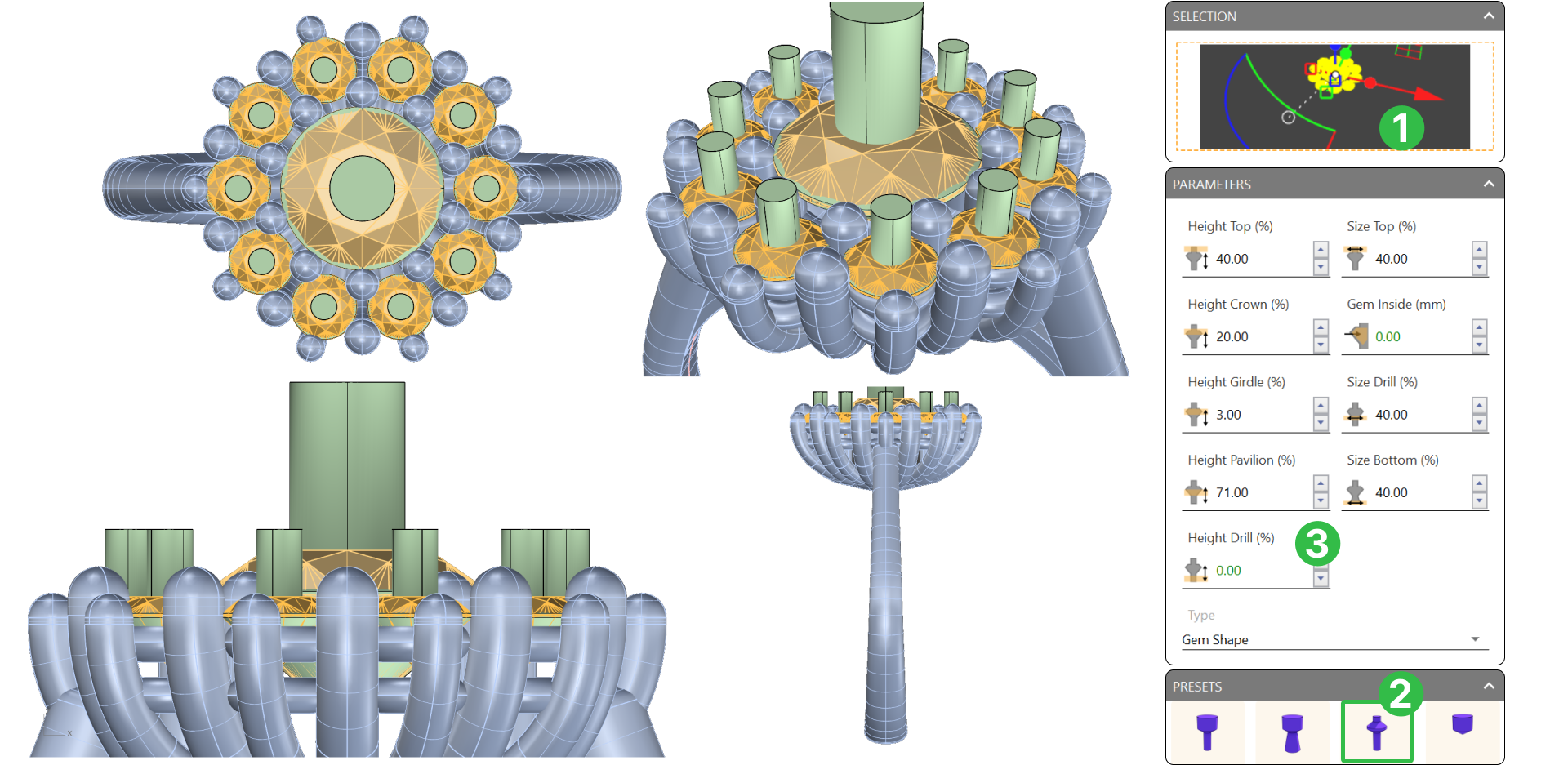
Once the gems are selected and added to the Selector(1), select the third preset (2). Then, change the Height Drill (%) to zero (3), so it doesn’t cut through the metal we don’t need. We just want it to cover the gem.
Now, we will select the metals by right-clicking on the Metal layer (blue color).
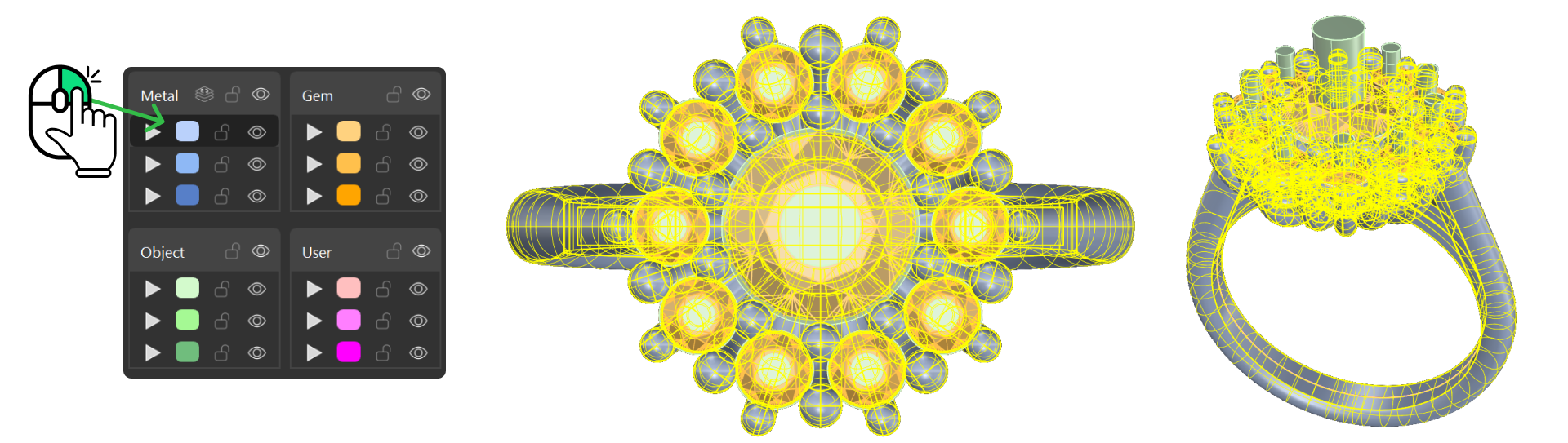
To cut the metal using our cutters, go to the Solidtab (1) and select the Boolean Difference command (2).

Then select the cutters by clicking on them, and finally press Enter again to apply the boolean operation.
Video Lesson
Next Step
Apply materials and rendering
Almost there — you still have some lessons to complete. Jump to the next one →
Impersonating — progress and reviews are disabled.
Course completed
You've completed Timeless Jewels 🎉
Great work. Get your certificate of completion and, if you have a minute, let other jewelers know what you thought of the course.