Organic Pendant
Lesson 13 of 38
Bezels & Final Touches
Sign in to access this lesson
This lesson is part of Modern Elegance: Fashion Jewelry Modeling, which can come bundled with a RhinoArtisan Commercial license subject to current promotions. Log in with your customer account, or get in touch and we'll set you up.
Customers only
Solo para clientes
This lesson is part of Modern Elegance: Fashion Jewelry Modeling, which can be included with a RhinoArtisan Commercial license subject to current promotions. If you've already purchased and don't see it in your account, get in touch.
20. Create and apply the bezel setting
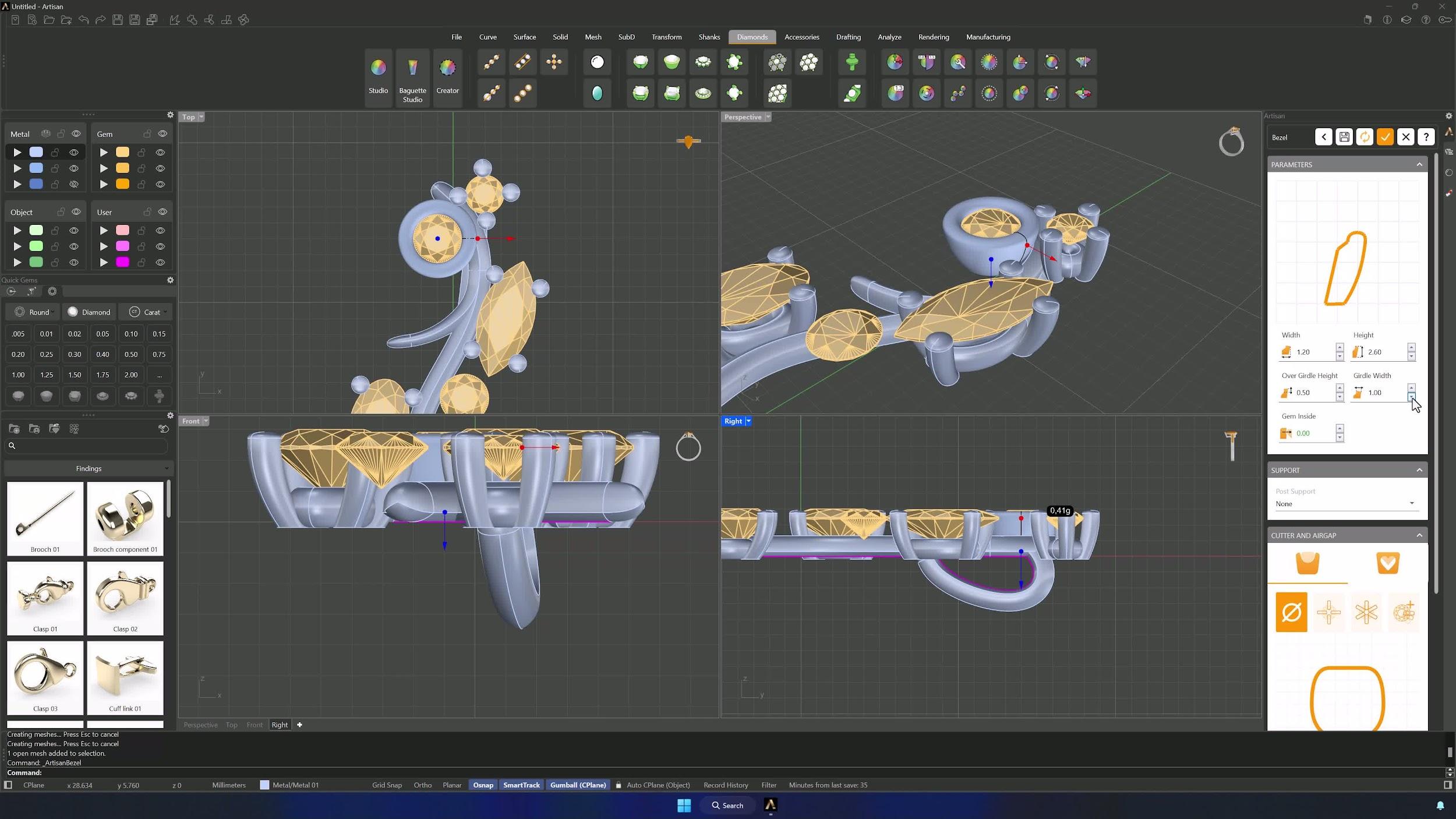
Select a gemstone that still has no setting and run Bezel. Edit without a preset: width 1.20 mm, height 2.60 mm, over girdle height 0.50 mm and girdle width 1.00 mm, then accept.
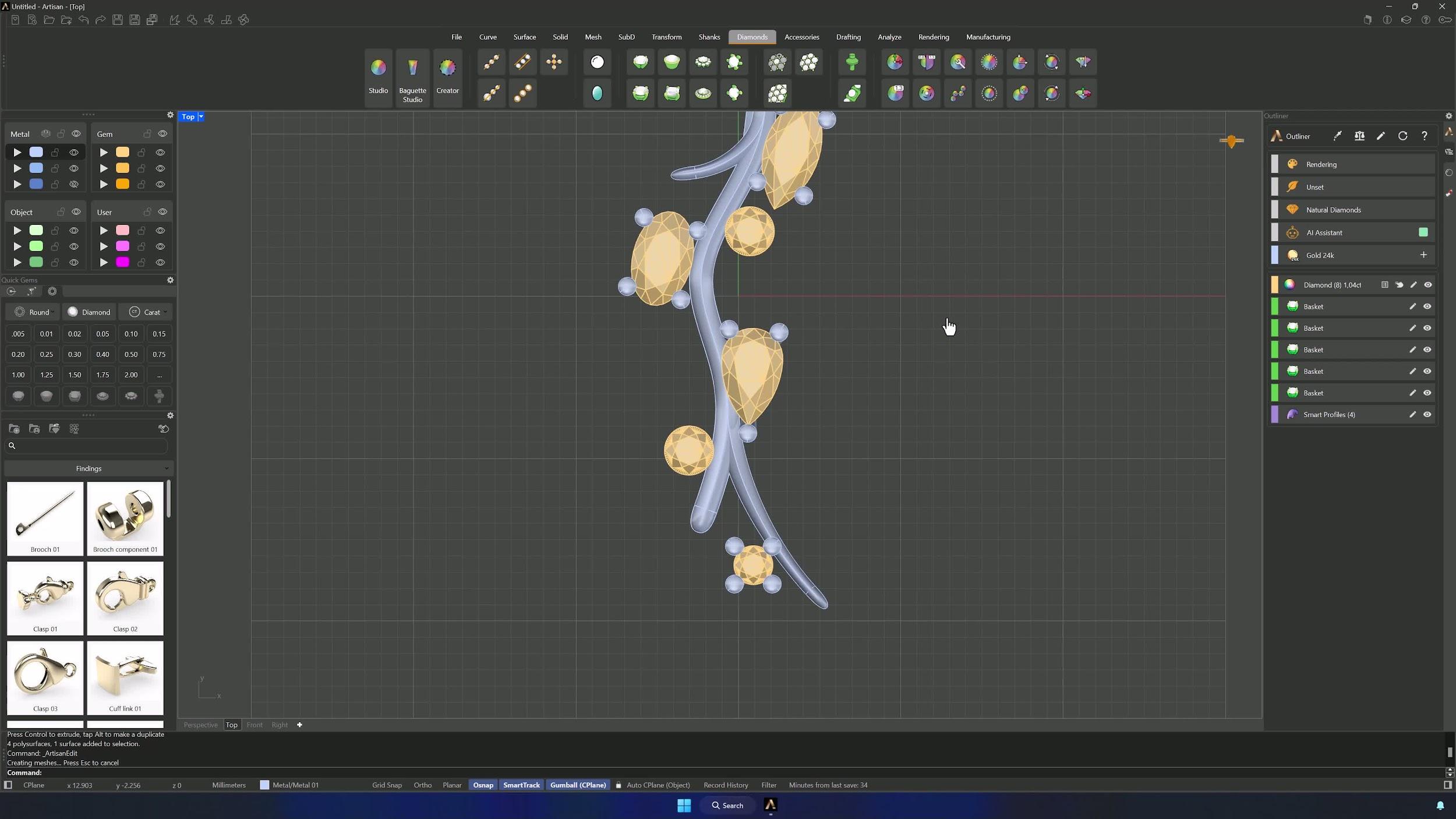
21. Apply the bezel to the remaining gemstones and finalize
Apply Element puts the bezel on the remaining stones. Review the whole model, adjusting position and rotation where it improves the composition — the pendant is complete once every setting is placed and aligned.
Tips for a clean result
- If a profile disappears when you add the reference surface, the surface is flipped — Flip it and re-add.
- It’s an organic model: measurements and placement can drift from the tutorial without being wrong.
- Disable Grid Snap for fine repositioning, and use Top view for placement, Perspective for depth.
- Double-check which profile, basket or bezel you’re applying to which gemstone.
- After big basket changes, Update regenerates all settings — do it before judging the result.
- Work in stages: profiles → stones → baskets → bezels. Each stage is easier on a finished previous one.
Almost there — you still have some lessons to complete. Jump to the next one →
Impersonating — progress and reviews are disabled.
Course completed
You've completed Modern Elegance: Fashion Jewelry Modeling 🎉
Great work. Get your certificate of completion and, if you have a minute, let other jewelers know what you thought of the course.