Diamond and Basket
Step 1: Gem Studio
In the Diamond tab (1), select Gems Studio (2).

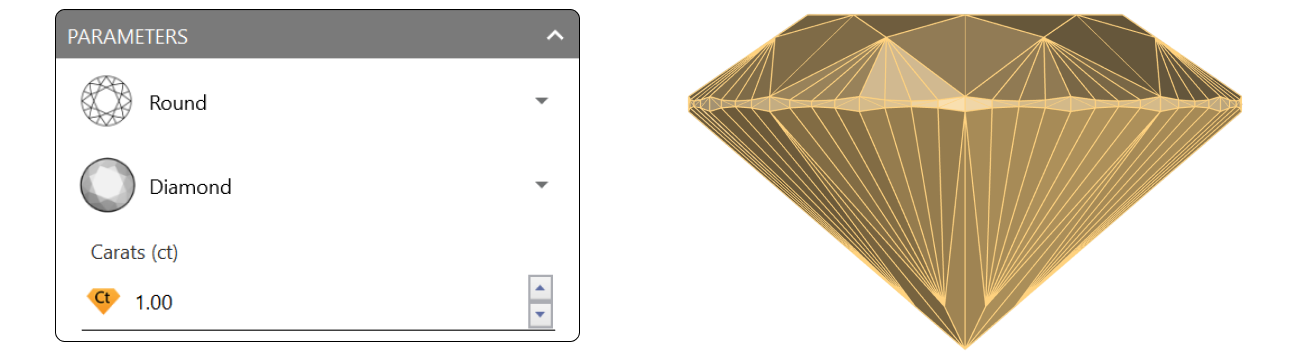
Create a 1-carat diamond and click Add.
Step 2: Pose
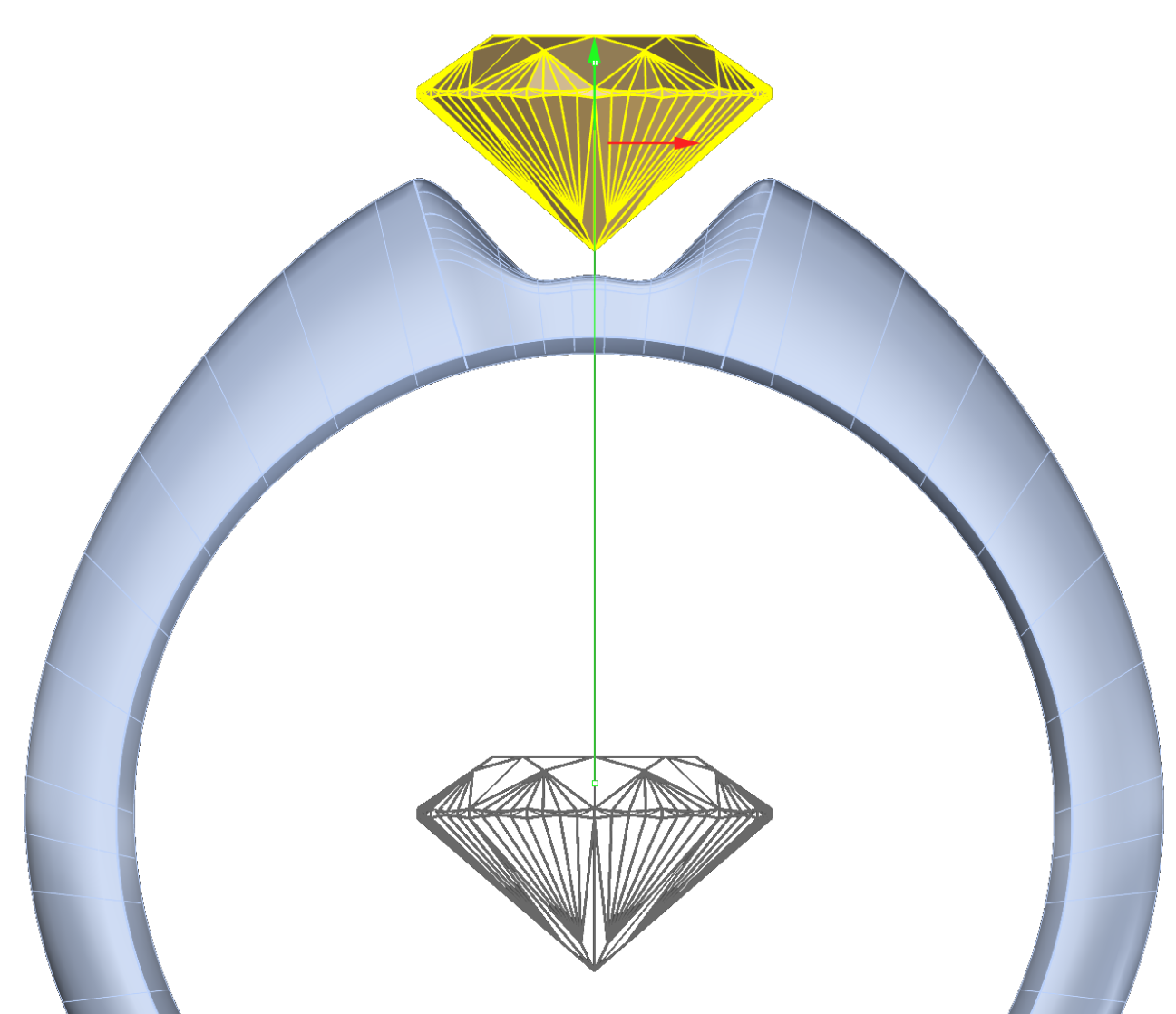
Using the Gumball in the front view, drag the green arrow to lift the diamond slightly above the ring.
Step 3: Add the Basket
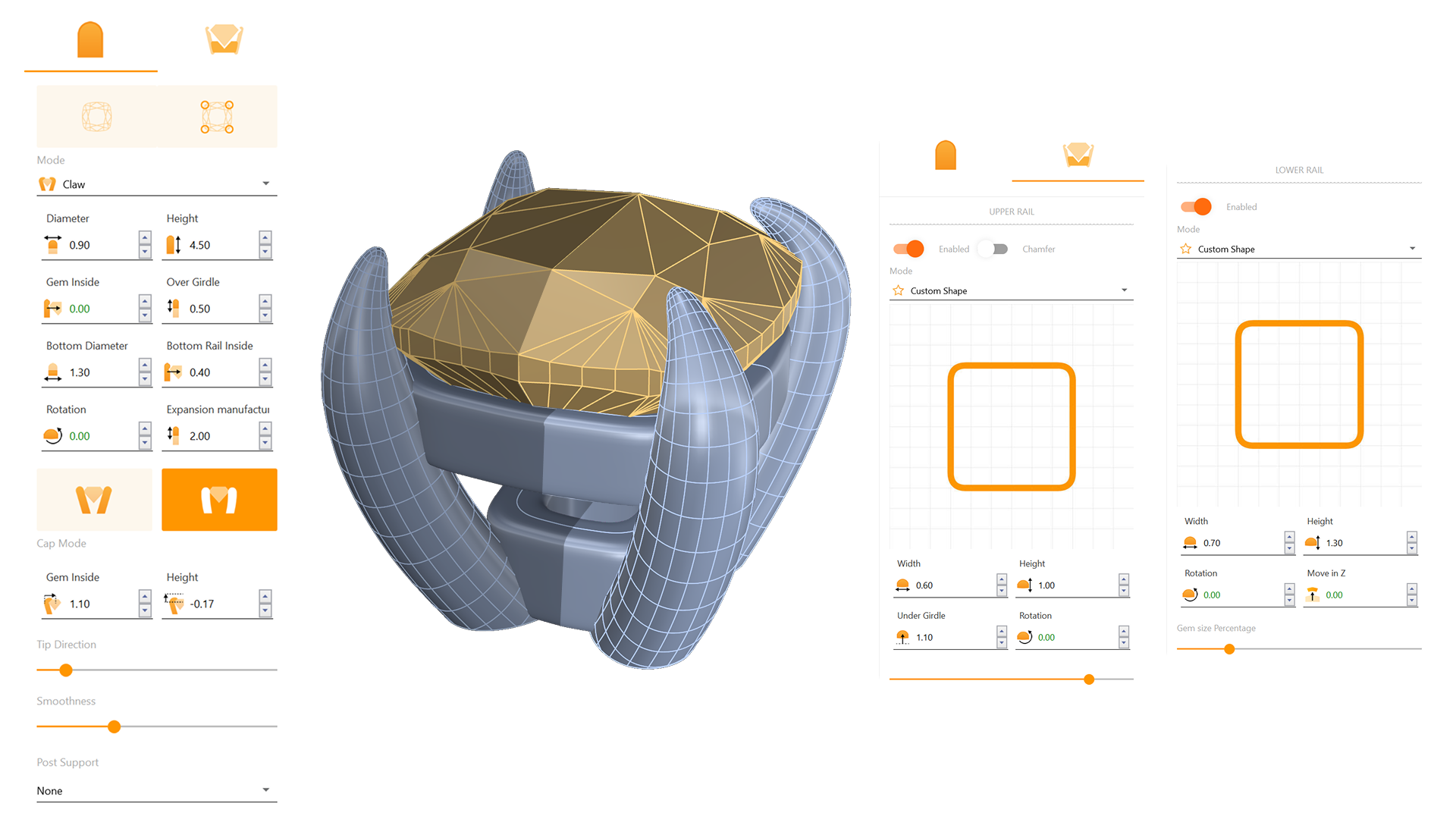
With the diamond selected, click Basket, choose BA001, and click the Pencil button to edit.
Step 4: Modify Basket Parameters
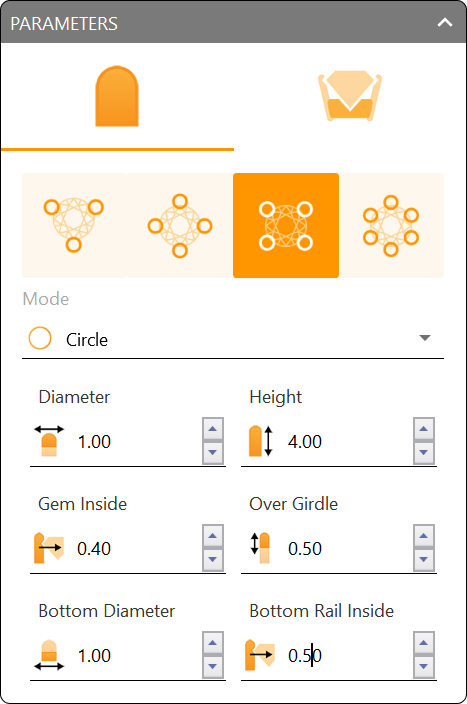
- Set Mode to Circle.
- Set Height to 4.0mm.
- Gem Inside: 0.4mm
- Over Girdle: 0.5mm
- Bottom Diameter: 1.0mm
- Bottom Rail Inside: 0.5mm
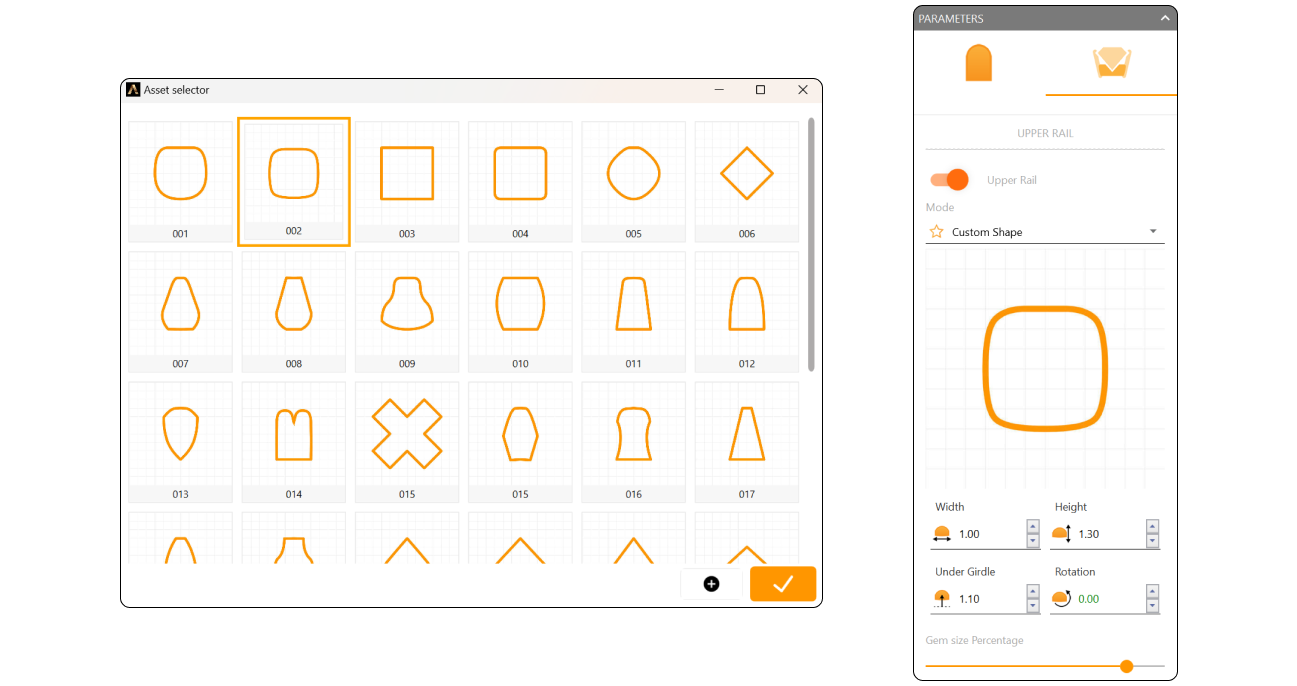
Step 5: Upper Rail Parameters
- Upper Rail Profile: Profile 002
- Width and Height: 1.0mm
- Height Under Girdle: 1.3mm
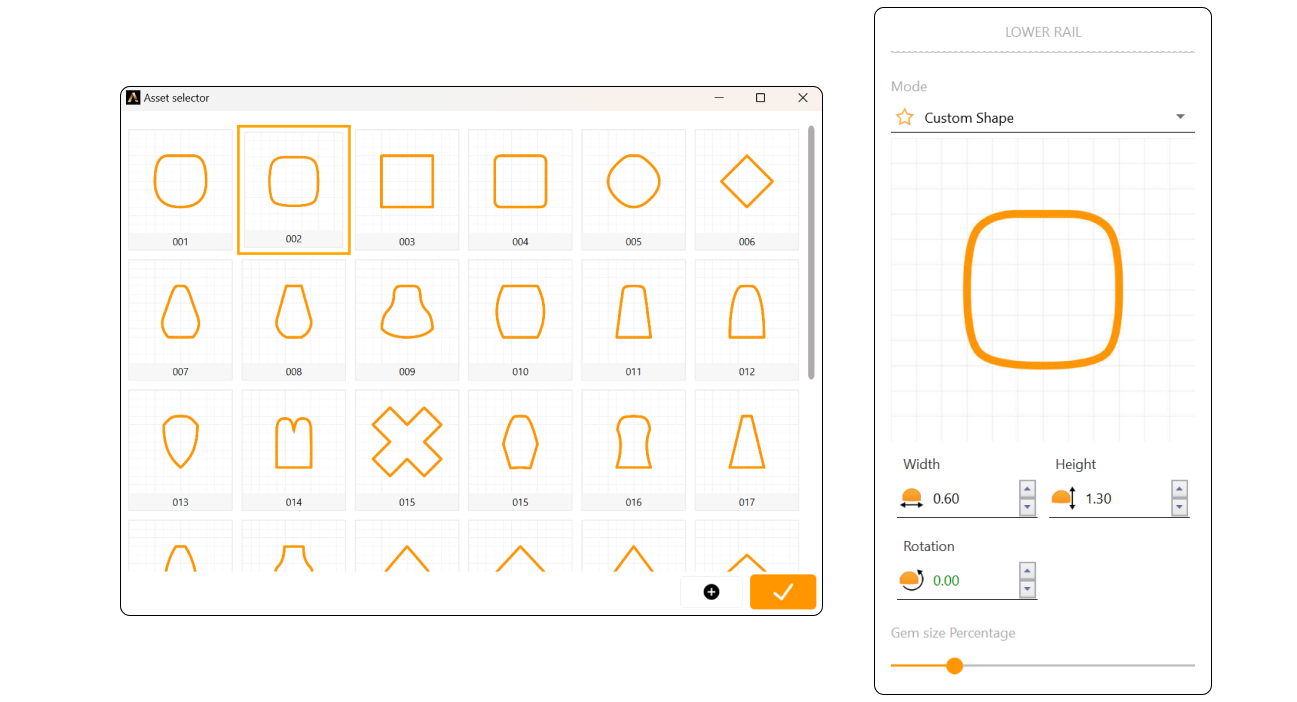
Step 6: Lower Rail Parameters
- Lower Rail Profile: Profile 002
- Width and Height: 0.6mm
- Height Under Girdle: 1.3mm
Step 7: Confirm
Click Confirm Changes to apply basket settings.
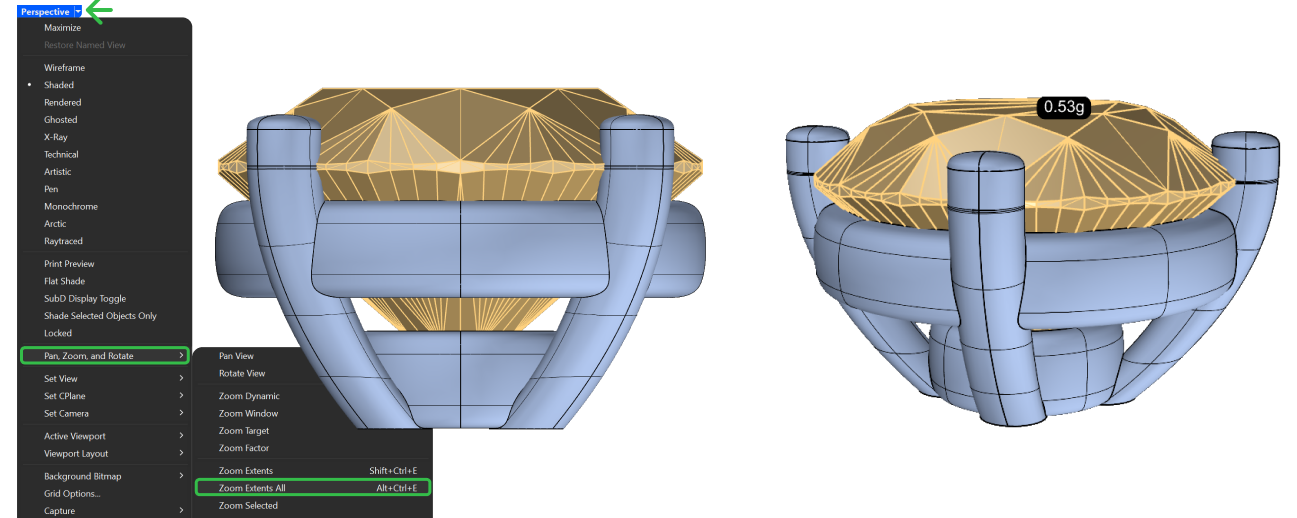
Step 8: Zoom Extents All
Use the pan, zoom, and rotate tools to fine-tune the basket’s position. Use Zoom Extents All to center all views.
Video Lesson
Next Step: In the following lesson, we’ll apply materials and set up the rendering.