Setting Up Your Shank
Step 1: Cathedral Command
Go to the Shanks tab (1), select the Cathedral (2) command, and click on Edit.

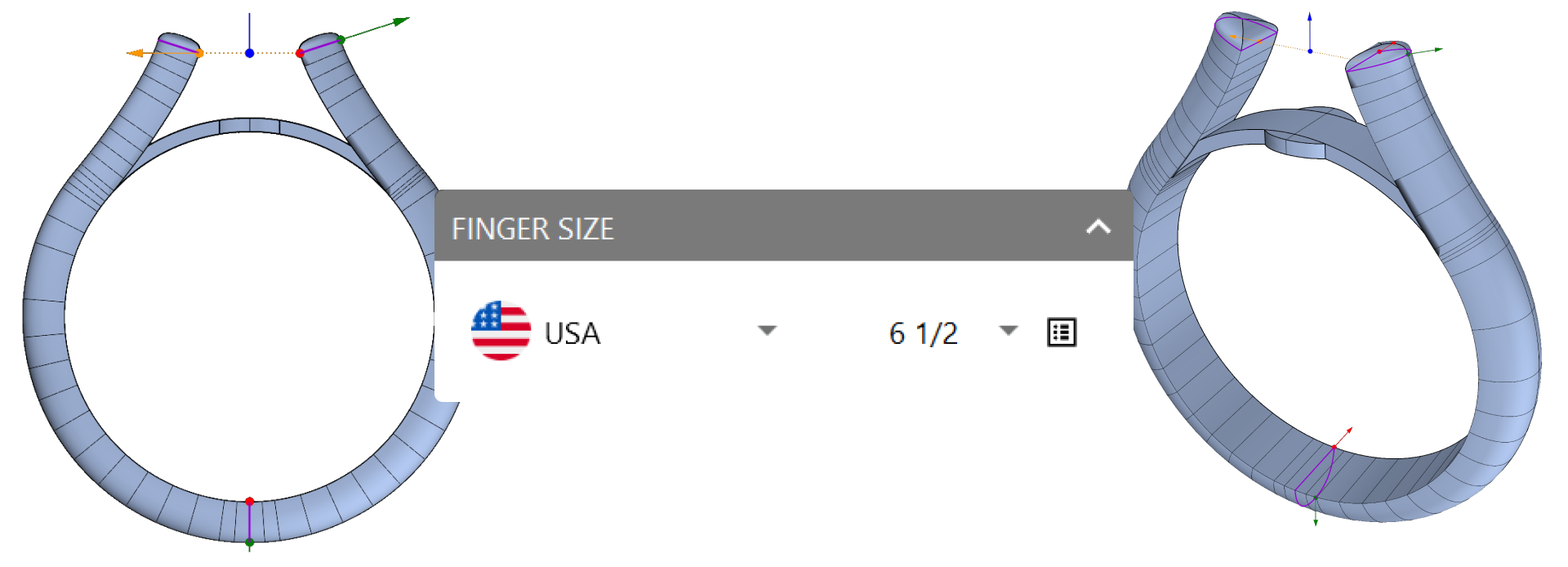
Step 2: Ring Size
Choose the United States region and select Finger Size 6 1/2.
Step 3: Shaded Mode
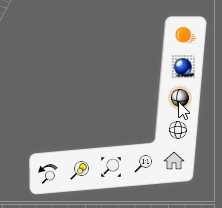
To improve model visibility, go to the bottom-right corner of the viewport and choose Shaded Display Mode.
Step 4: Profile Selector
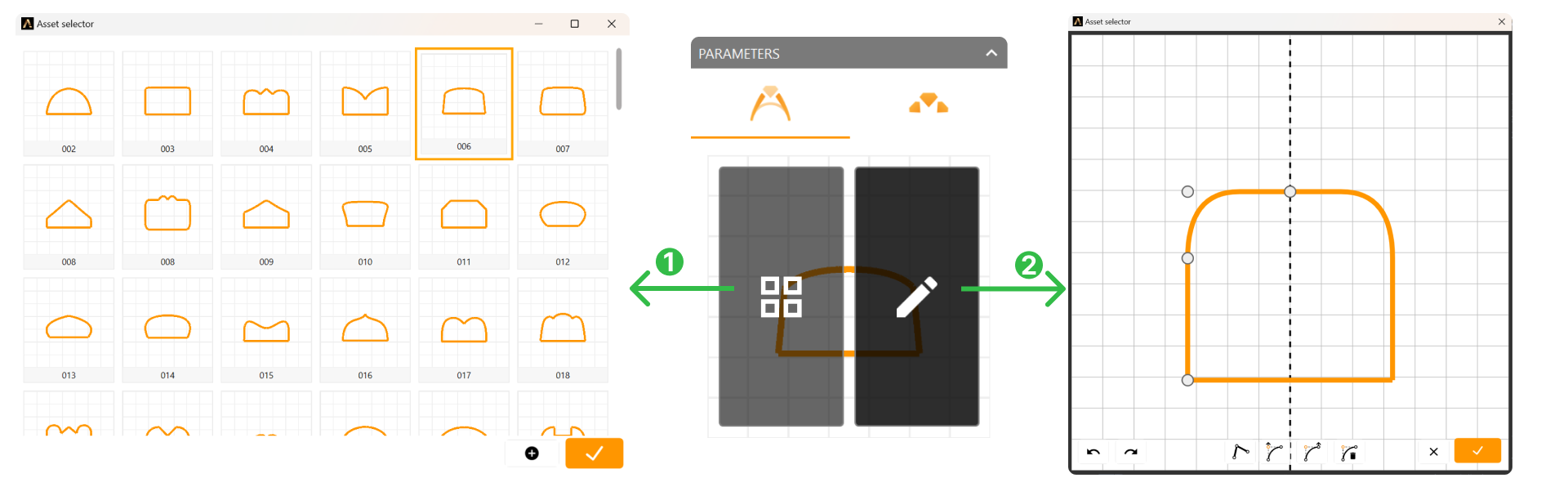
Click on the Profile preview. In the Asset Selector (1), select profile 006.
Click on edit the profile, and edit the profile to match the image.
Step 5: Adjust Parameters
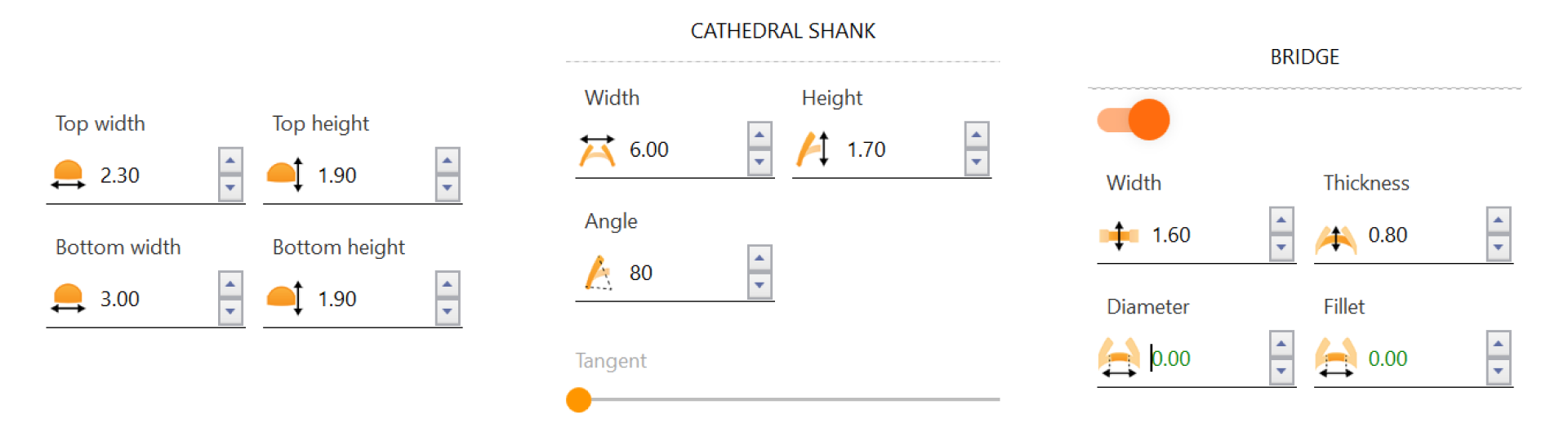
- Top width: 2.3 mm
- Top height: 1.9 mm
- Bottom width: 3.0 mm
- Bottom height: 1.9 mm
Step 6: Set Cathedral Shank
- Width: 6.0 mm
- Height 1.7 mm
- Angle: 80º
- Tangent to 0.
Step 7: Set Bridge Dimensions
- Configure Width to 1.6 mm
- Thickness to 0.8 mm
- Diameter to 0 mm.
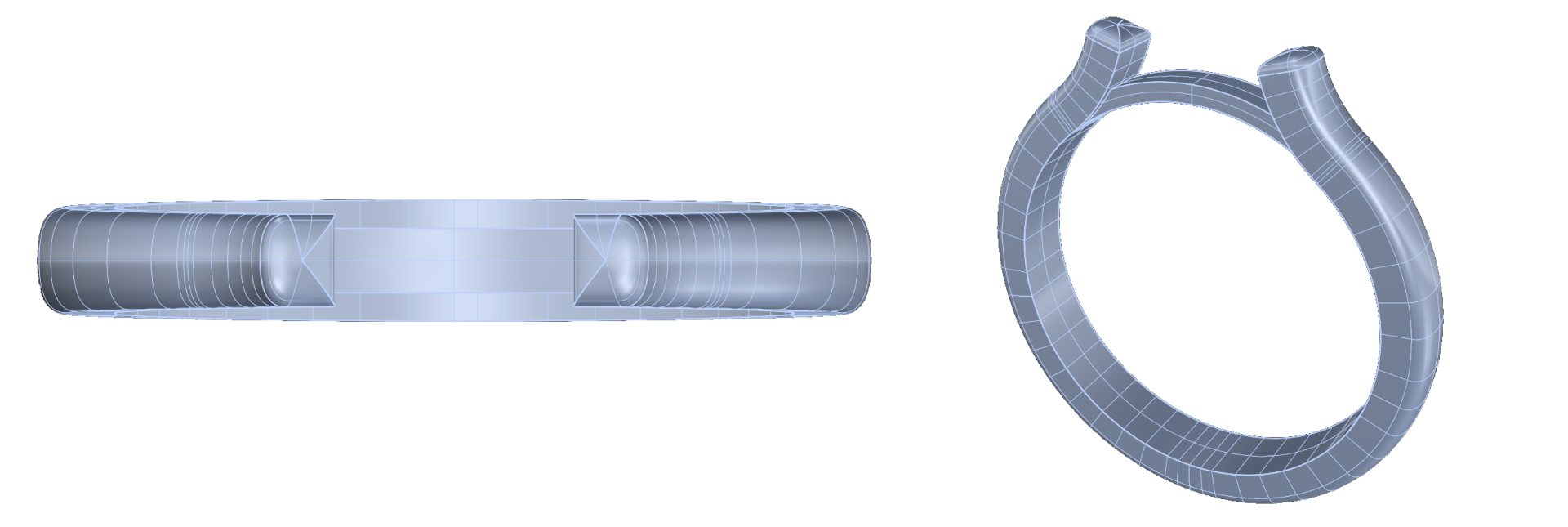
Click Accept in the top-right to save your modifications.
Video Lesson
Next Step
We’ll proceed to add a center diamond to our design in the following lesson.