Creating the Halo Setting
Step 1: Halo Command
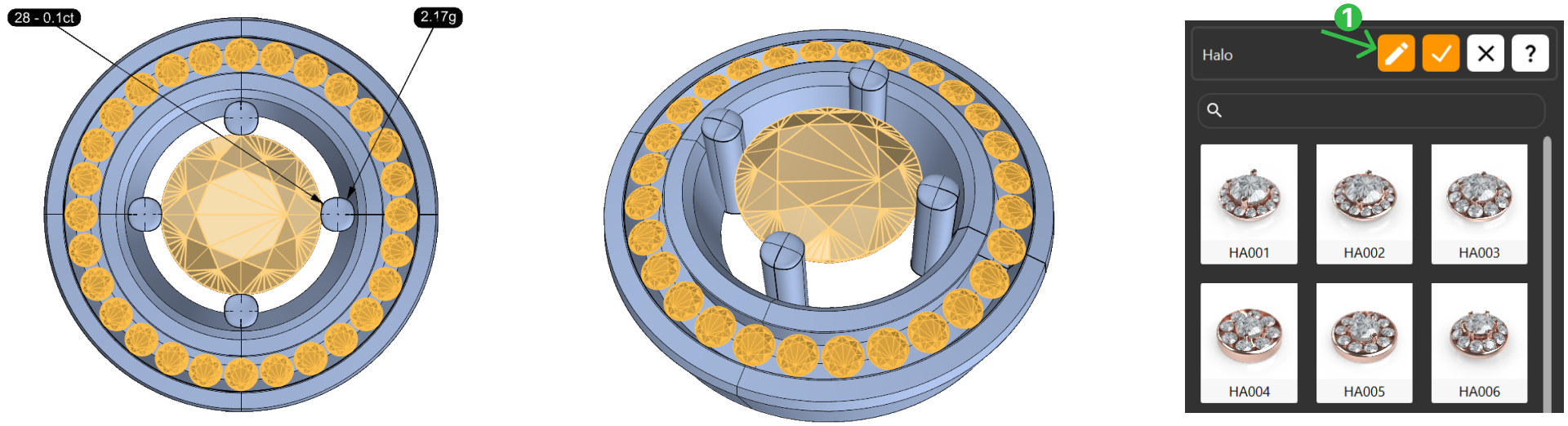
Go to the Diamonds tab, select Halo, then click on the Pencil icon (1) to start customizing.
Step 2: Metal Tab
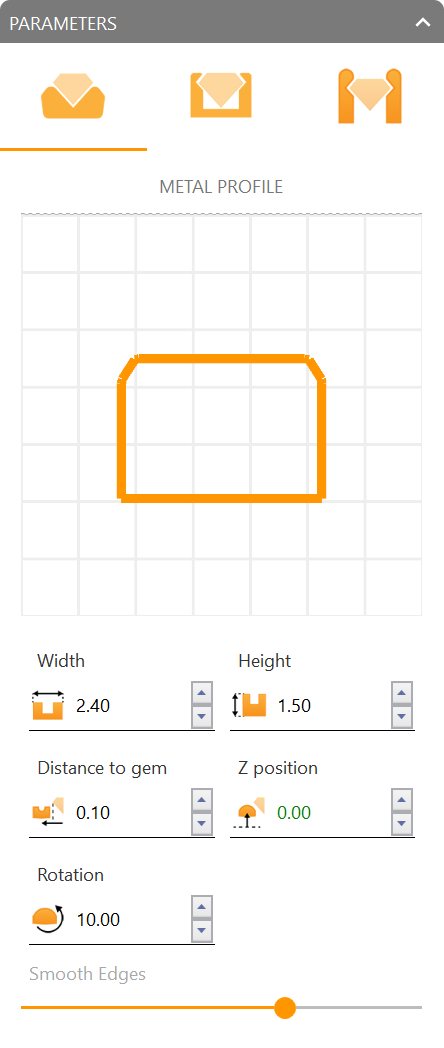
Go to the Metal Tab and adjust parameters
- Width: 2.4 mm
- Height: 1.5 mm
- Distance to Gem: 0.1 mm
- Z Position: 0
- Rotation: 10º
Step 3: Go to the Gems Tab
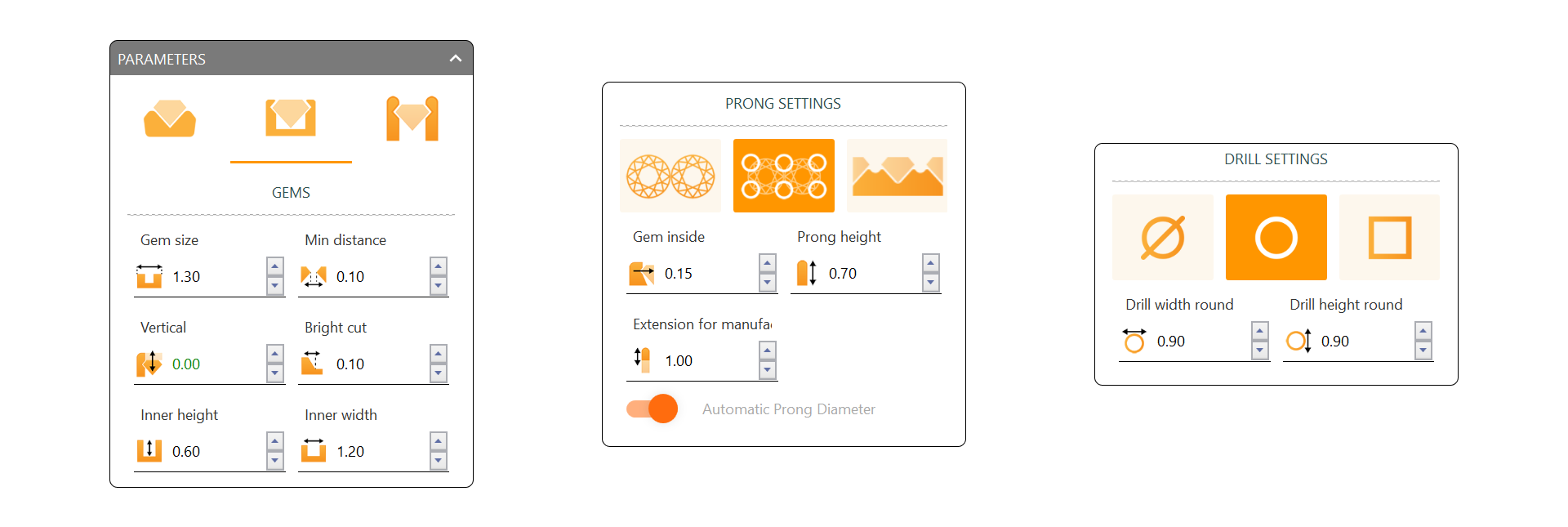
- Gem Size: 1.3 mm
- Minimum Distance: 0.1 mm
- Vertical: 0 mm
- Bright Cut: 0.1 mm
- Inner Height: 0.6 mm
- Inner Width: 1.2 mm
Step 4: Prong Settings
- Select the second option
- Gem Inside: 0.15 mm
- Prong Height: 0.7 mm
- Enable Drill Holes if desired, with Width and Height set to 0.9mm.
Step 5: Main Gem Tab
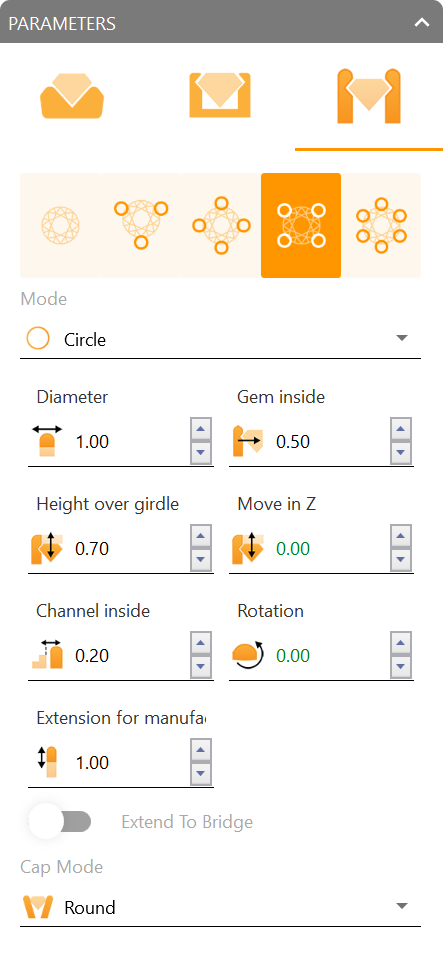
Adjust Parameters for the Main Gem
- Select the 4th option
- Mode: Circle
- Gem Inside: 0.5 mm
- Height Over: 0.7 mm
- Channel Inside: 0.2 mm
Video Lesson
Next Step
We’ll now proceed to rendering to bring the final design to life visually.