Turtle Pave Pendant
Lesson 13 of 29
References & the Shell
Sign in to access this lesson
This lesson is part of Living Jewels: SubD Creature Sculpting, which can come bundled with a RhinoArtisan Commercial license subject to current promotions. Log in with your customer account, or get in touch and we'll set you up.
Customers only
Solo para clientes
This lesson is part of Living Jewels: SubD Creature Sculpting, which can be included with a RhinoArtisan Commercial license subject to current promotions. If you've already purchased and don't see it in your account, get in touch.
Downloads
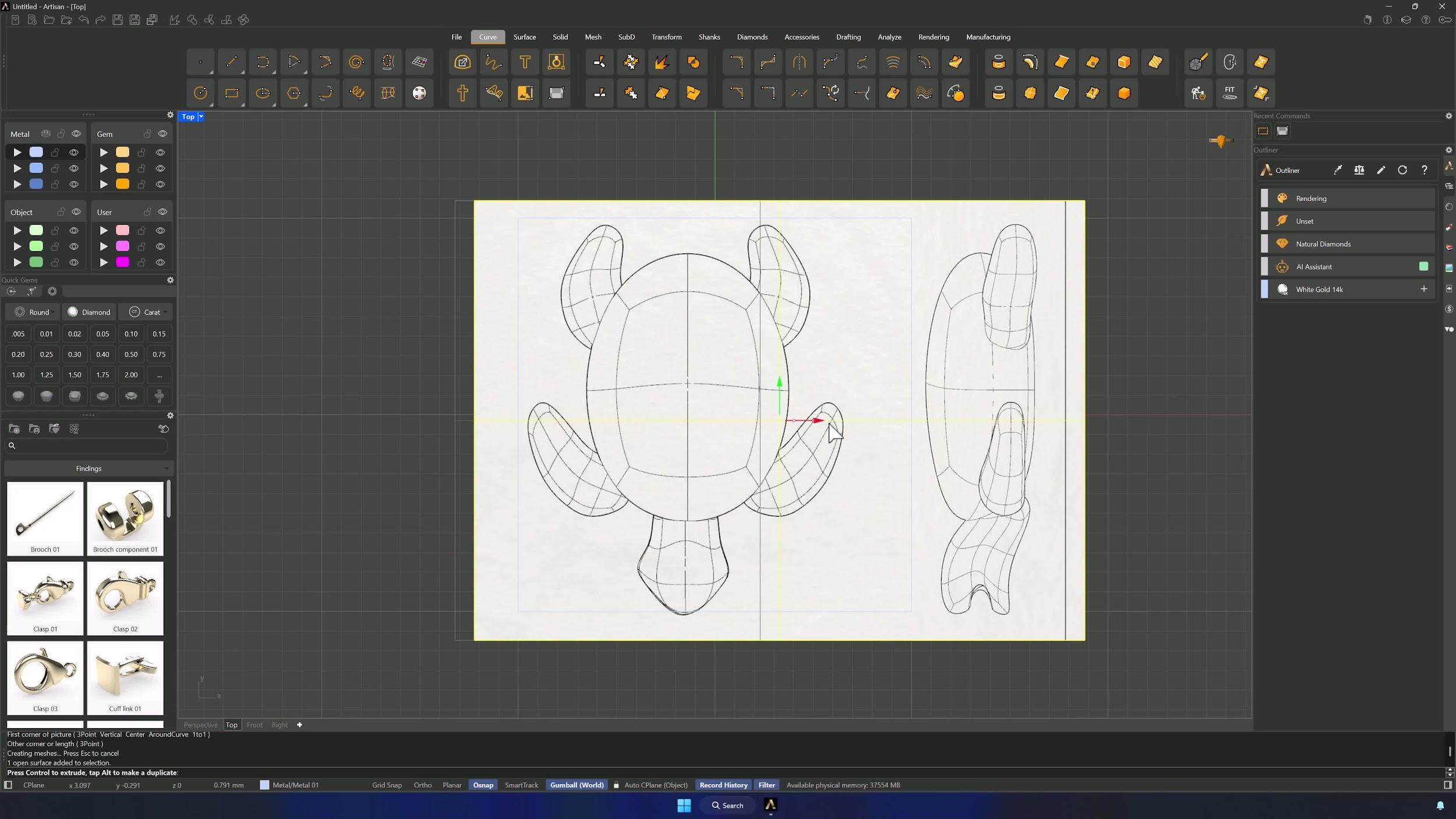
1. Set up the base reference and working canvas
Create a 20 × 20 mm Rectangle from Center (type 0, then 20 twice) in the Top view, and drag the reference image (Downloads below) into the viewport as a Picture, scaled to match the square.
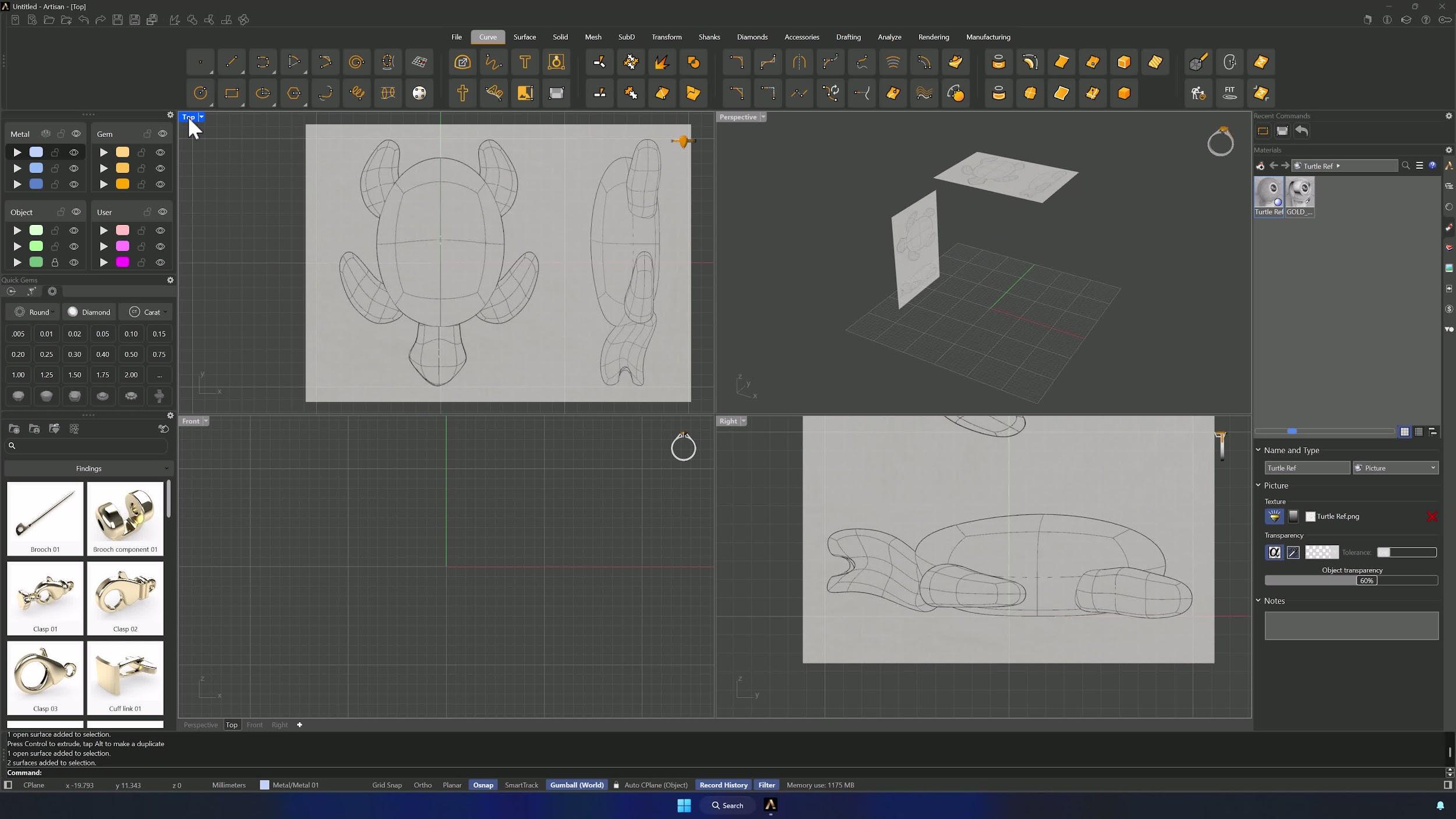
2. Improve image visibility and lock the reference
Raise the image’s transparency in the Materials panel and align it with the square. Alt-drag a copy downward, rotate it 90° on Y, and align both so the turtles ride the X axis — then park the images on a locked layer.
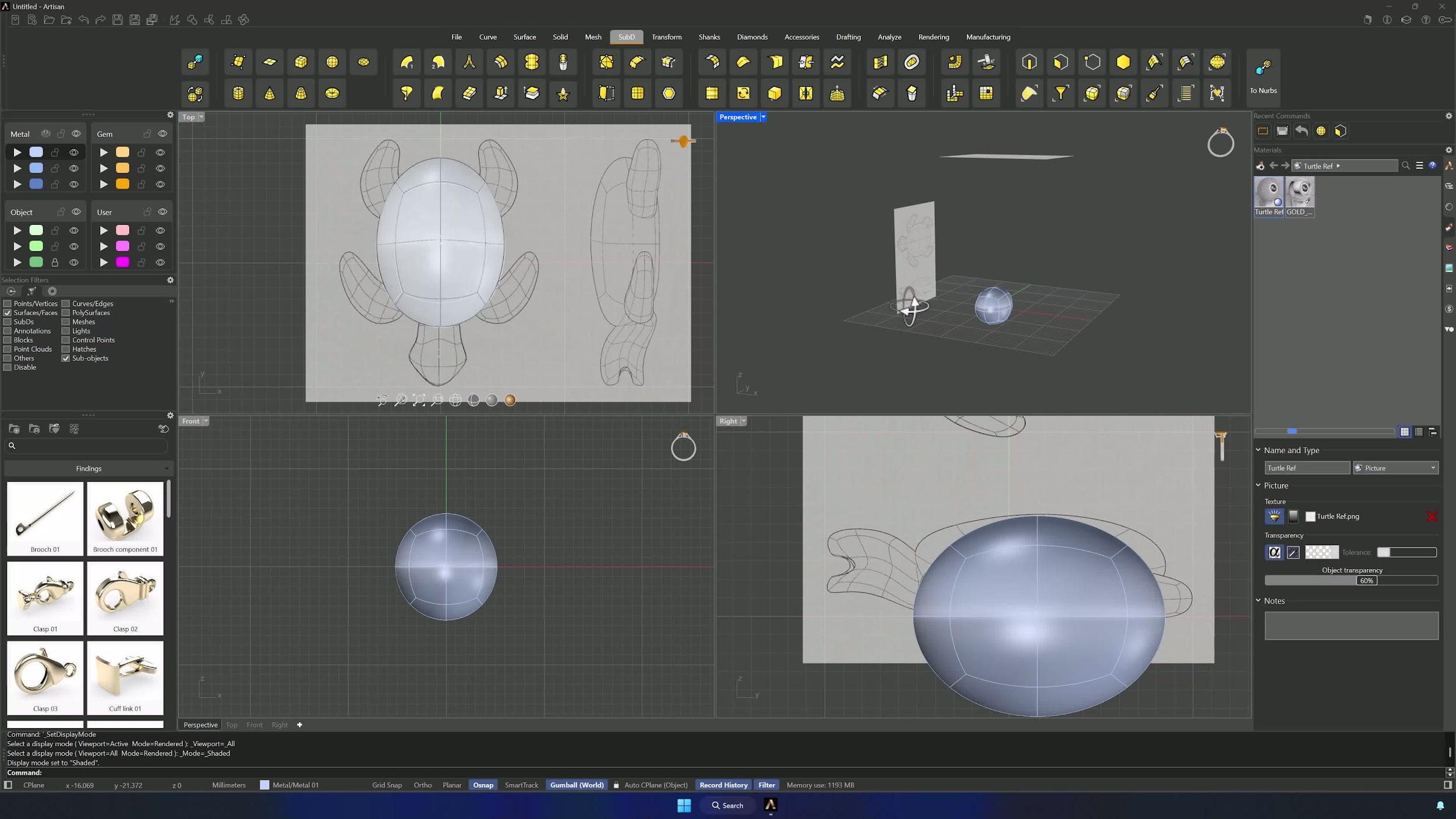
3. Create the main body with a symmetrical SubD sphere
A SubD Sphere from 0 (Shift for Ortho) becomes the shell: scale it in two directions against the reference, and switch to Face selection for precise shaping — always moving both sides equally.
4. Refine the body shape and add edge detail
Adjust height and position from the Right view, then activate Reflect from the Front view (Osnap on the top and bottom center points): the darker half mirrors, the lighter half is yours to edit. Shape with the Face filter, then add an edge loop below the central one with Insert Edge.
Almost there — you still have some lessons to complete. Jump to the next one →
Impersonating — progress and reviews are disabled.
Course completed
You've completed Living Jewels: SubD Creature Sculpting 🎉
Great work. Get your certificate of completion and, if you have a minute, let other jewelers know what you thought of the course.