Textured Snake Ring
Lesson 4 of 29
Flow & Ring Profiles
Sign in to access this lesson
This lesson is part of Living Jewels: SubD Creature Sculpting, which can come bundled with a RhinoArtisan Commercial license subject to current promotions. Log in with your customer account, or get in touch and we'll set you up.
Customers only
Solo para clientes
This lesson is part of Living Jewels: SubD Creature Sculpting, which can be included with a RhinoArtisan Commercial license subject to current promotions. If you've already purchased and don't see it in your account, get in touch.
7. Project the flat snake design onto the ring
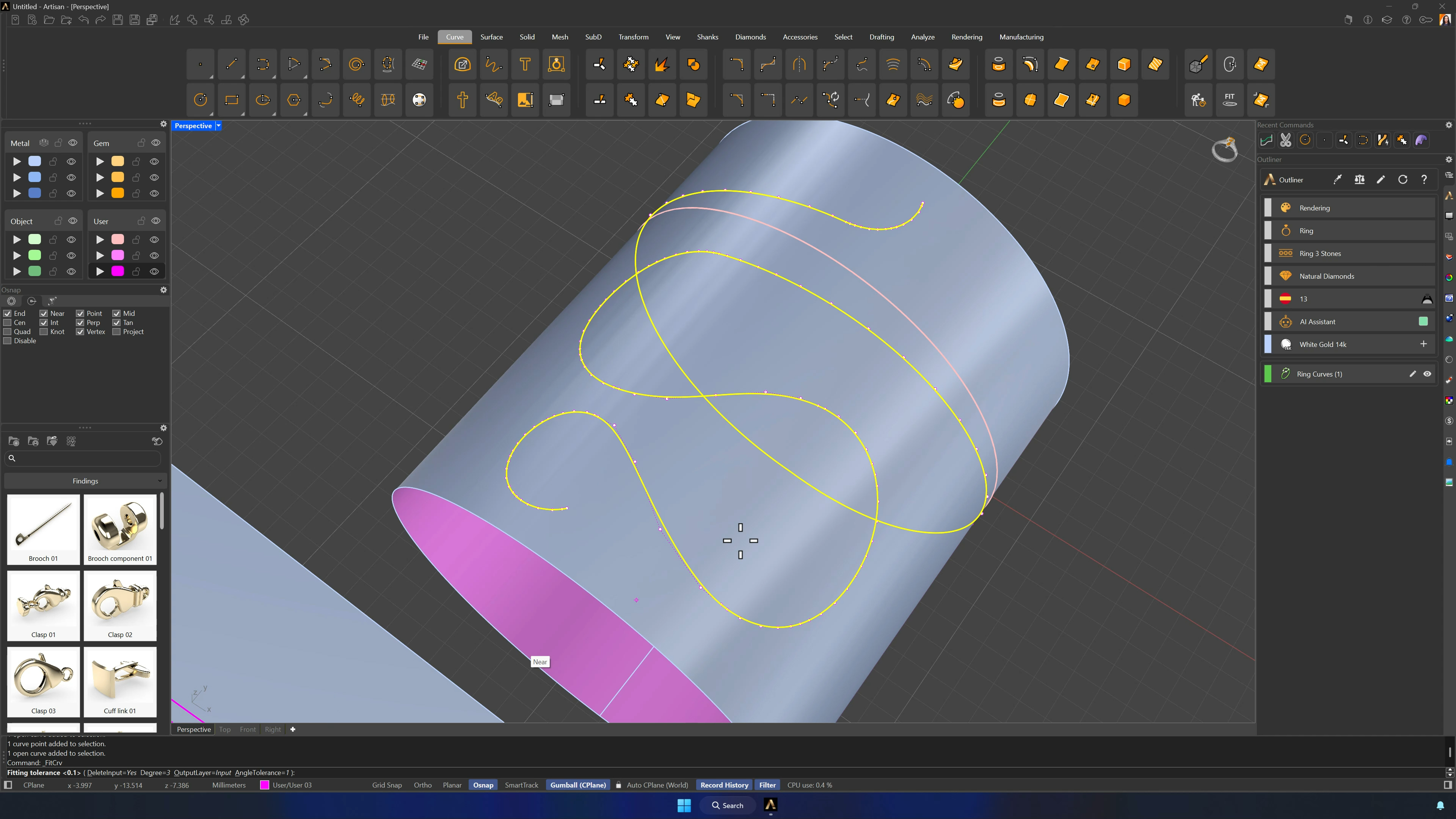
Quick Flow does the magic: the horizontal line on the flat surface as base curve, the ring curve on the cylinder as target, both snake curves as deformable objects. Check the preview, accept, Join the projected curves and simplify with Fit at 0.1.
8. Create and edit the ring profile
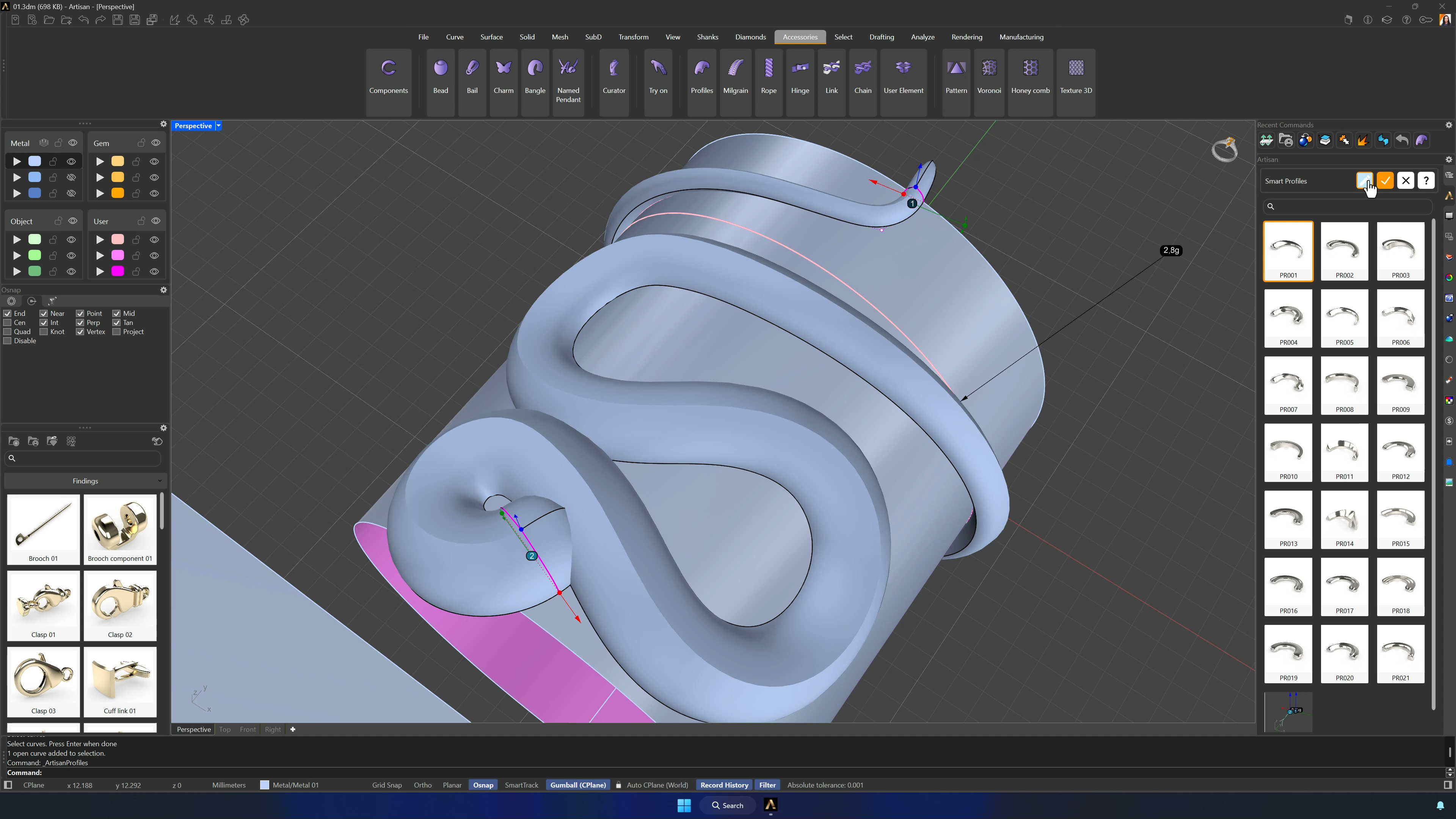
Open Profiles with a close preset and edit Profile 1: delete the left center point, level the remaining point with the middle one (no extra seam), set 2.5 mm × 1.7 mm, add the cylinder as reference and switch the type to Solid for a flat inner face. Profile 2 takes the same curve and settings.
Almost there — you still have some lessons to complete. Jump to the next one →
Impersonating — progress and reviews are disabled.
Course completed
You've completed Living Jewels: SubD Creature Sculpting 🎉
Great work. Get your certificate of completion and, if you have a minute, let other jewelers know what you thought of the course.