Introduction to RhinoArtisan
Lesson 1 of 43
Download and Activate the License
Sign in to access this lesson
This lesson is part of Kickstart: From idea to Creation, which can come bundled with a RhinoArtisan Commercial license subject to current promotions. Log in with your customer account, or get in touch and we'll set you up.
Customers only
Solo para clientes
This lesson is part of Kickstart: From idea to Creation, which can be included with a RhinoArtisan Commercial license subject to current promotions. If you've already purchased and don't see it in your account, get in touch.
Download RhinoArtisan Installer
- Visit the RhinoArtisan download page: RhinoArtisan
- Fill out the form with the required details to access the download.
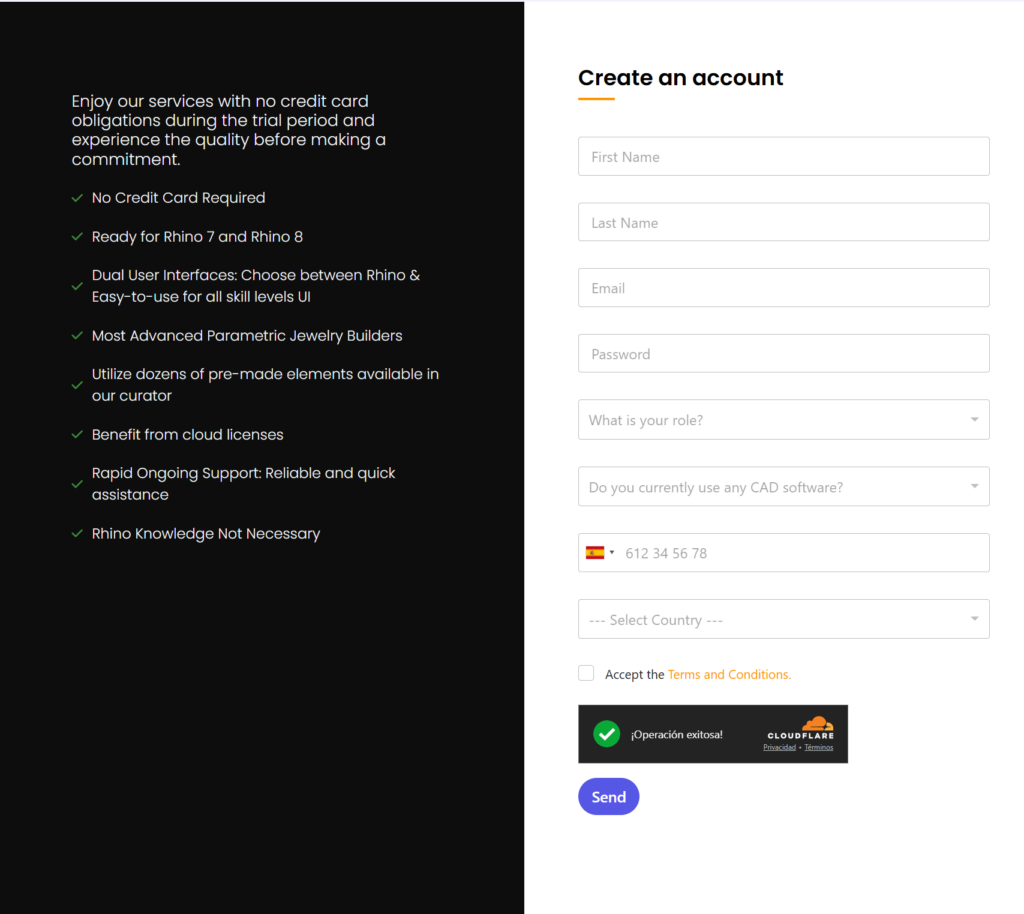
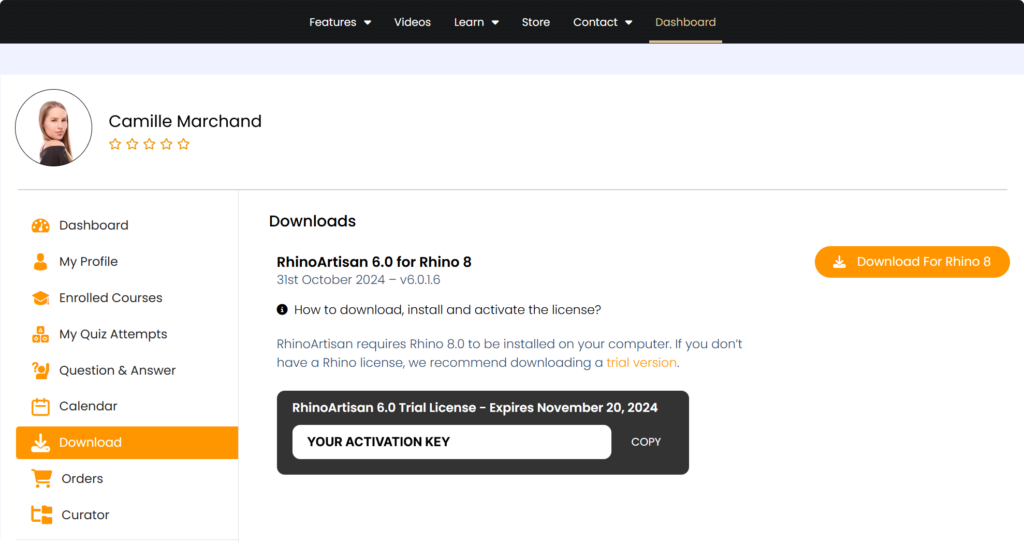
- Once you’ve created your account, go to your dashboard. From the dashboard, download the RhinoArtisan installer file to your computer.
Install RhinoArtisan
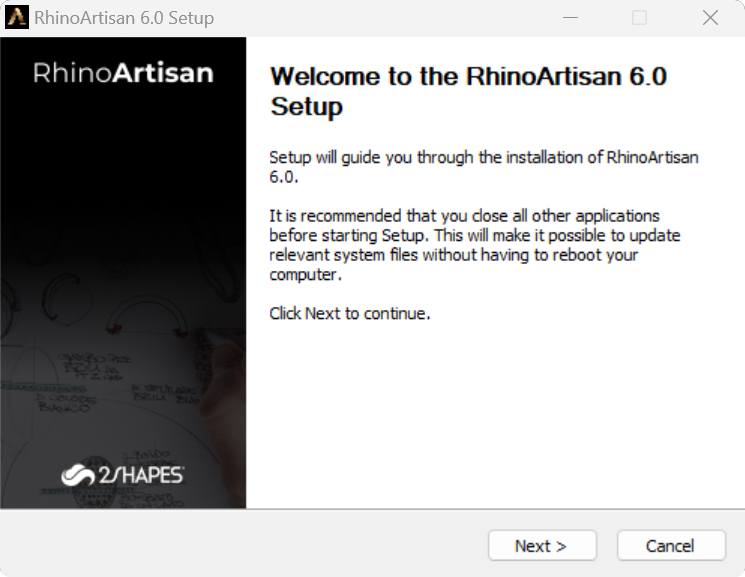
- Locate the downloaded installer file.
- Open the installer and follow the on-screen instructions to complete the installation.
Activate the License
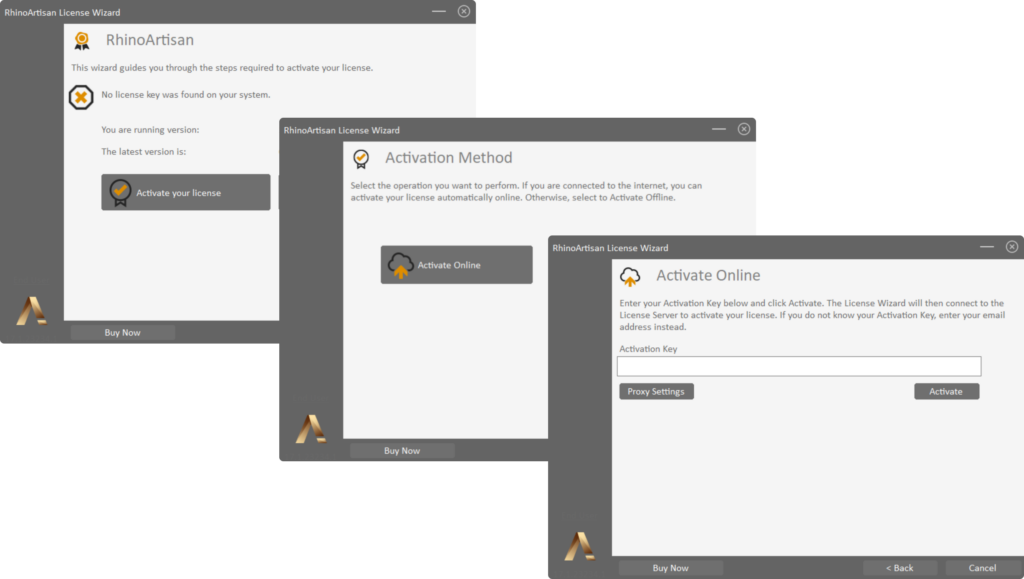
- Open Rhino and go to the RhinoArtisan toolbar. Click on the key icon to start the activation process.

- Select the “Activate your license” button, then choose “Activate Online”.
Retrieve and Enter Activation Key
- Check your email inbox for a message from RhinoArtisan with your activation key (you can also find it in your Dashboard).
- Copy the activation key from the email by right-clicking on it and selecting “Copy”.
- Return to the activation window in RhinoArtisan, right-click in the activation field, and select “Paste” to insert the key.
- Click the “Activate” button to complete the activation.
Launch RhinoArtisan with Its Custom Interface
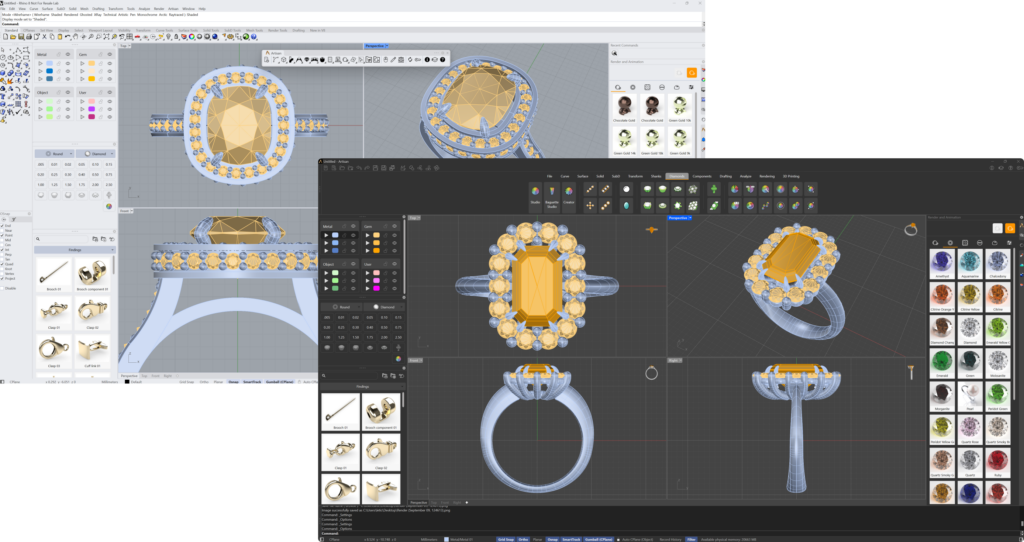
- To use RhinoArtisan with its dedicated interface, click the RhinoArtisan icon on your desktop.
Get Support if Needed
- If you have any questions or run into any issues, feel free to contact RhinoArtisan support for assistance: Contact Us
Almost there — you still have some lessons to complete. Jump to the next one →
Impersonating — progress and reviews are disabled.
Course completed
You've completed Kickstart: From idea to Creation 🎉
Great work. Get your certificate of completion and, if you have a minute, let other jewelers know what you thought of the course.