Tension Ring
Lesson 32 of 43
Cutter
Sign in to access this lesson
This lesson is part of Kickstart: From idea to Creation, which can come bundled with a RhinoArtisan Commercial license subject to current promotions. Log in with your customer account, or get in touch and we'll set you up.
Customers only
Solo para clientes
This lesson is part of Kickstart: From idea to Creation, which can be included with a RhinoArtisan Commercial license subject to current promotions. If you've already purchased and don't see it in your account, get in touch.
Objective: Create a precise cutter for the gemstone setting.
Cutter Command
Select the gem, then go to the “Diamonds” tab (1) and choose the “Cutter” command (2).

Parameters
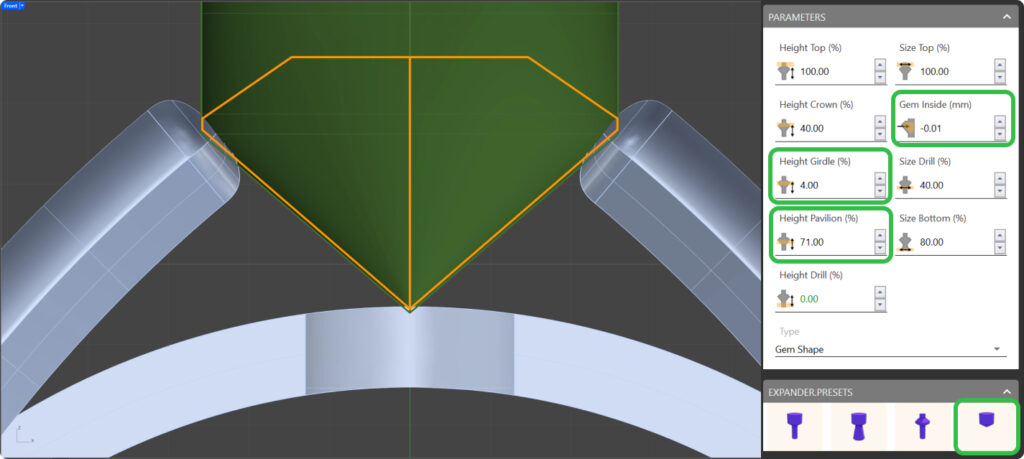
Adjust the cutter parameters:
- Set Girdle Height to 4%.
- Pavilion Height to 71%.
- Gem Inside to -0.01
- Activate the fourth cutter option to closely fit the cutter to the gem.
Boolean Difference
In the “Solid” tab (1), select the “Boolean Difference” command (2).

First, select the shank and press “Enter”. Then, select the cutter and press “Enter” again.
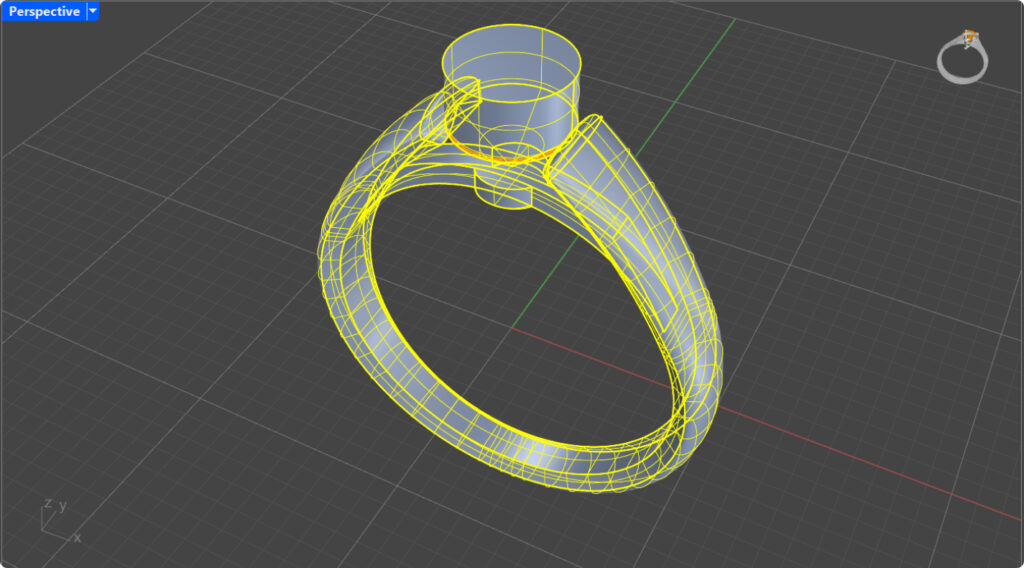
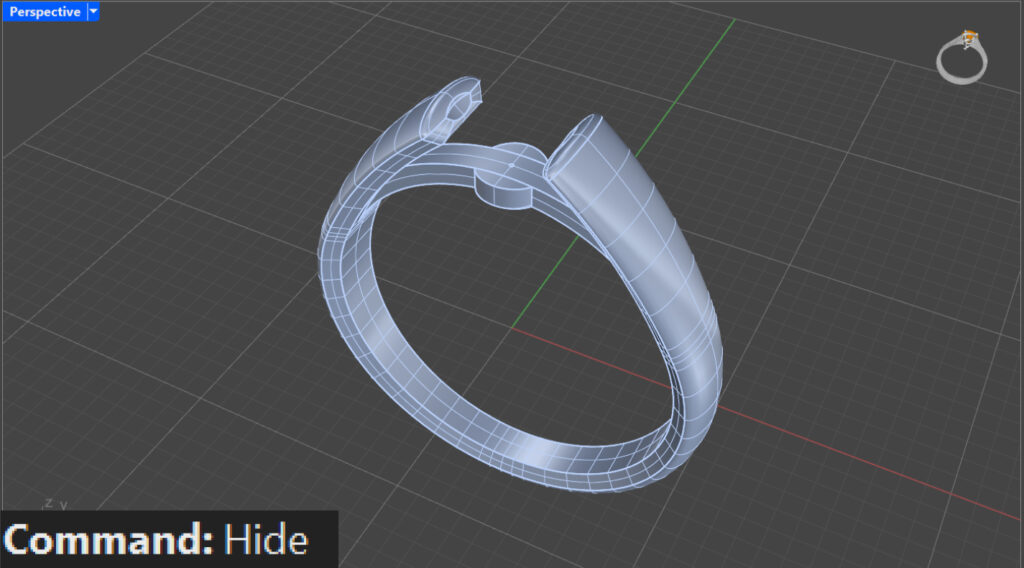
Use the “Hide” command to hide the gem and inspect the result.
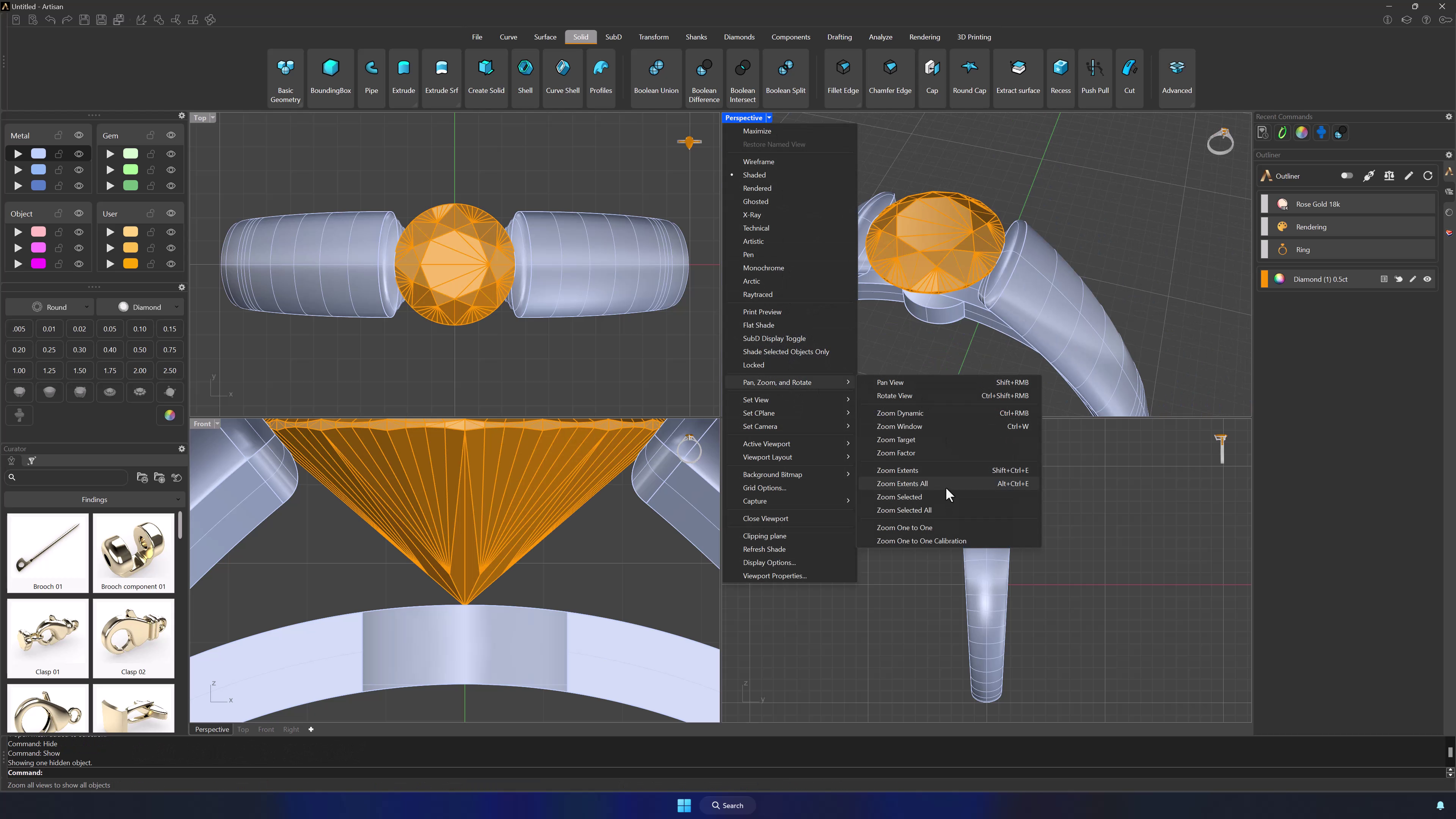
Then, use the “Show” command to make the gem visible again.
Center the views.
Video Lesson
Next Steps
Expand your design into a collection by creating multiple rings.
Almost there — you still have some lessons to complete. Jump to the next one →
Impersonating — progress and reviews are disabled.
Course completed
You've completed Kickstart: From idea to Creation 🎉
Great work. Get your certificate of completion and, if you have a minute, let other jewelers know what you thought of the course.