Ring Resizer
Lesson 11 of 18
Resizing Setup & Protected Zone
Sign in to access this lesson
This lesson is part of Jewelry Production & Manufacturing Essentials, which can come bundled with a RhinoArtisan Commercial license subject to current promotions. Log in with your customer account, or get in touch and we'll set you up.
Customers only
Solo para clientes
This lesson is part of Jewelry Production & Manufacturing Essentials, which can be included with a RhinoArtisan Commercial license subject to current promotions. If you've already purchased and don't see it in your account, get in touch.
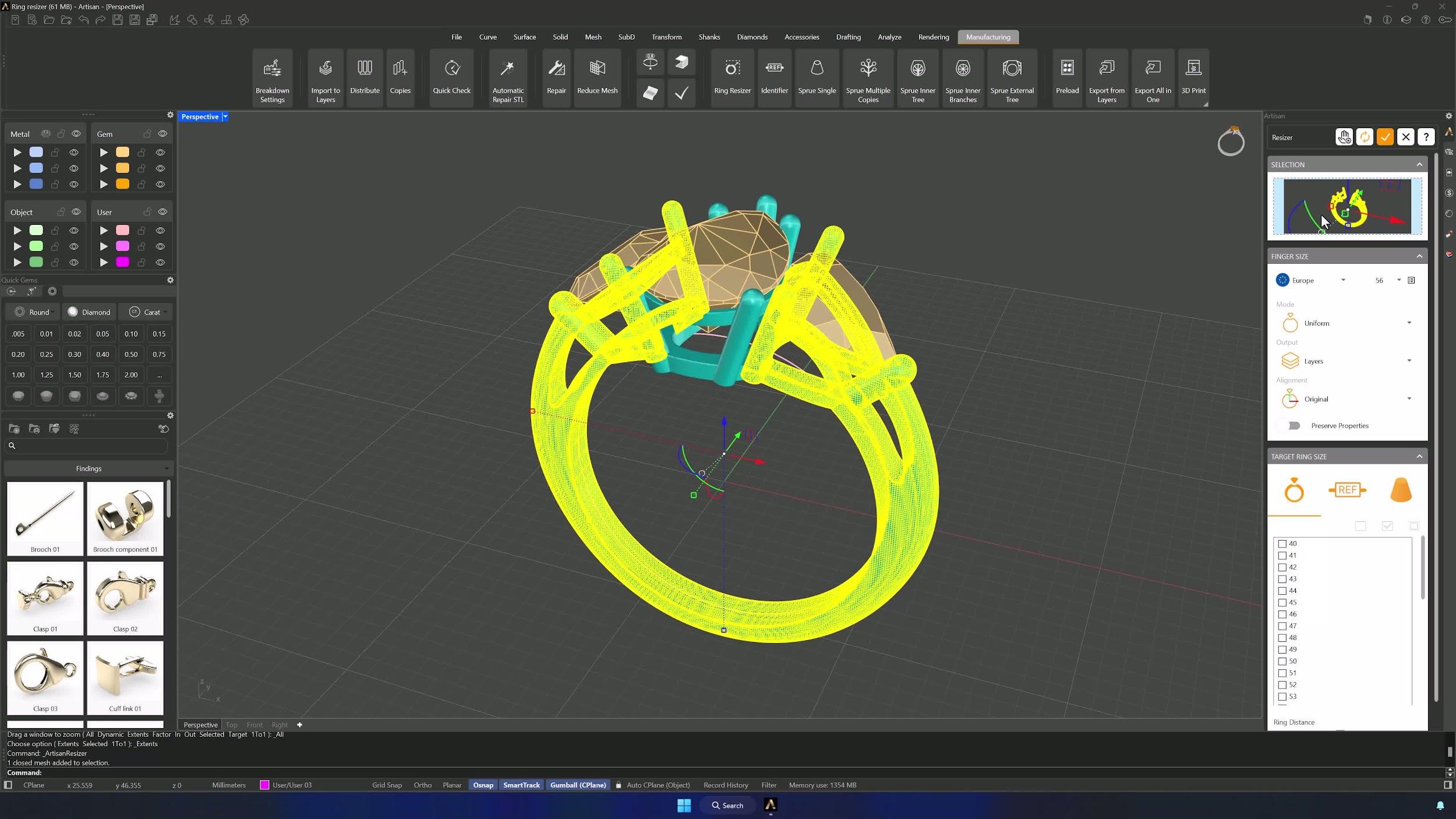
1. Open the Ring Resizer tool and select the ring shank
In the Manufacturing tab, open the Ring Resizer command, select the ring’s shank and add it to the selector — this defines exactly what will be resized.
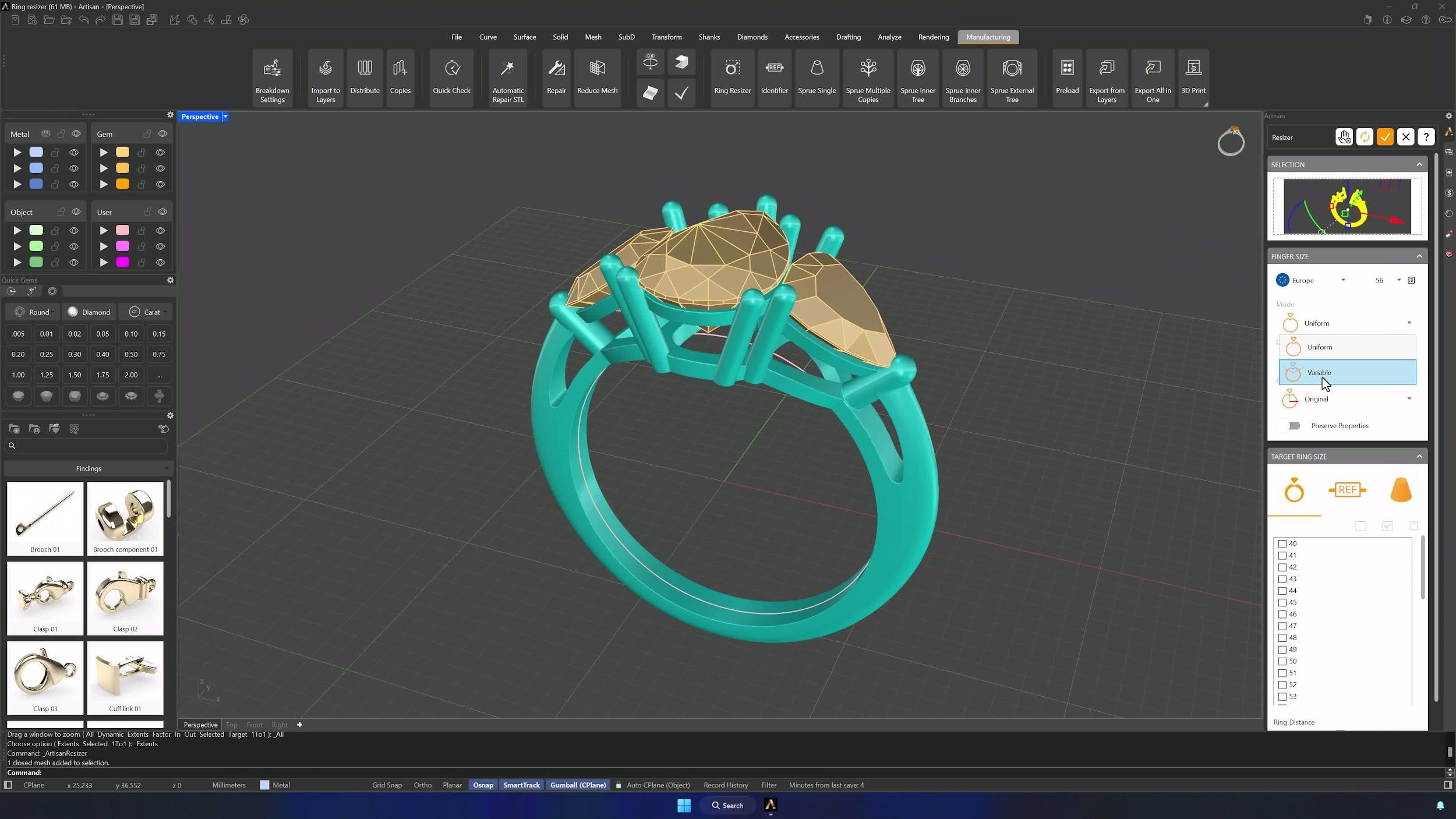
2. Switch to variable mode to protect the stone-setting area
Change the mode from the default to Variable — the Gumballs become available. Variable mode is the key when part of the ring must stay untouched: it resizes the shank without deforming the setting.
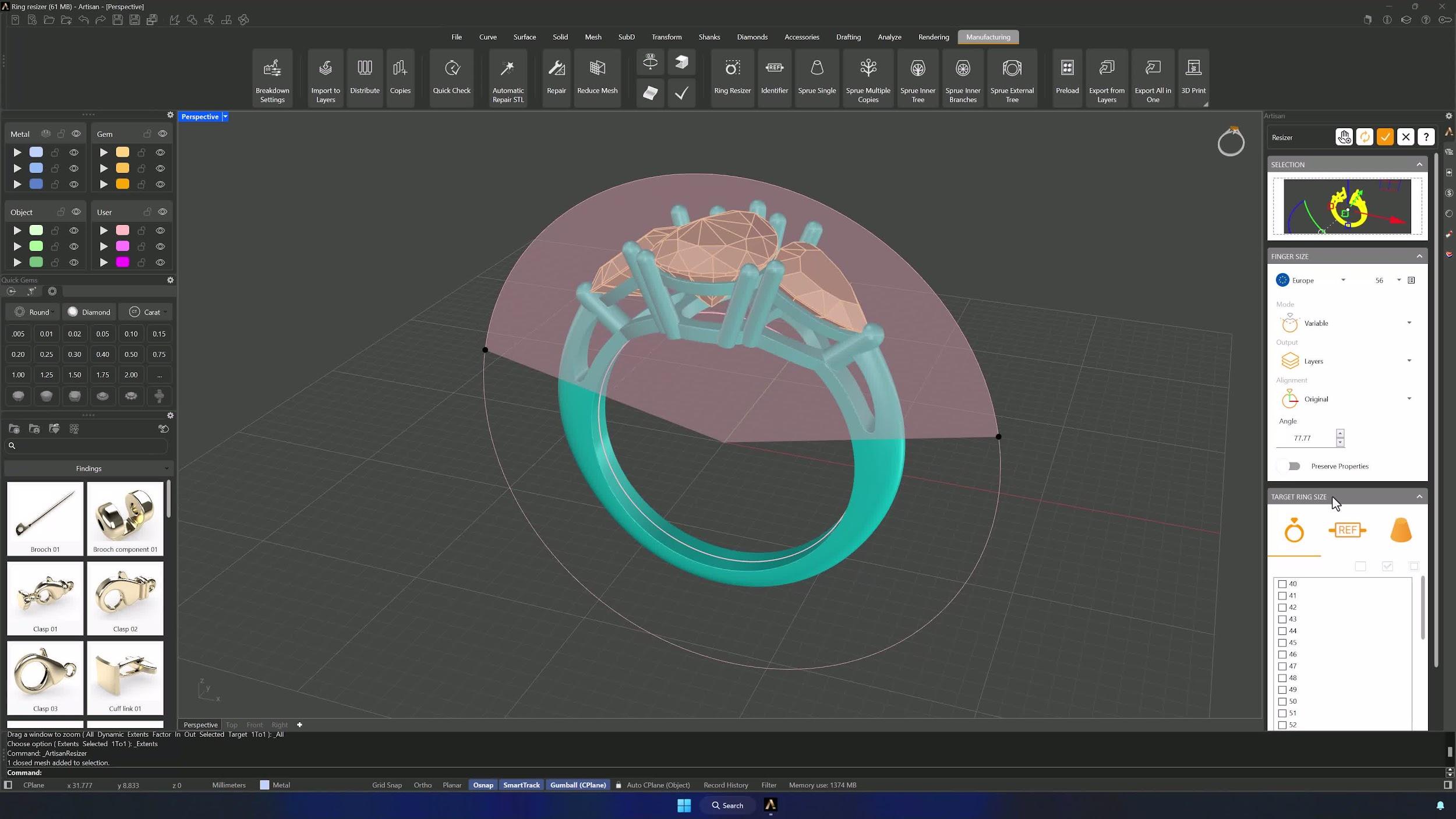
3. Define the protected portion of the ring
Use the Gumballs to set the angle of the section that stays unaffected — about halfway across the shank in this example. Check the gem-setting area is fully inside the protected zone before continuing.
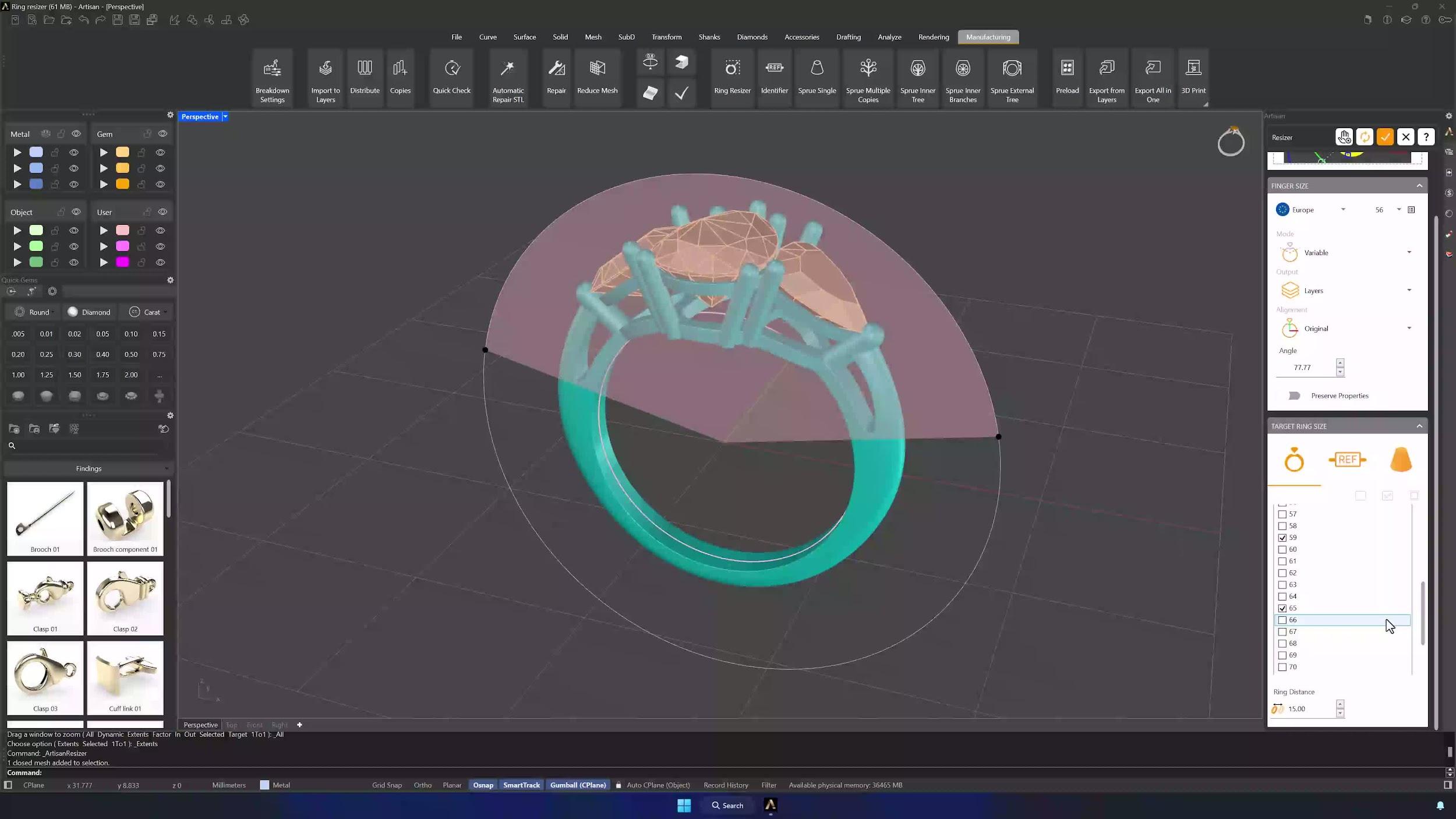
4. Select the target ring sizes
Enter every size you need in one pass — 51, 59 and 65 here — and confirm the list. Each one becomes its own resized copy.
Almost there — you still have some lessons to complete. Jump to the next one →
Impersonating — progress and reviews are disabled.
Course completed
You've completed Jewelry Production & Manufacturing Essentials 🎉
Great work. Get your certificate of completion and, if you have a minute, let other jewelers know what you thought of the course.