Creating Report Templates
Lesson 7 of 18
Fields, View Boxes & Alignment
Sign in to access this lesson
This lesson is part of Jewelry Production & Manufacturing Essentials, which can come bundled with a RhinoArtisan Commercial license subject to current promotions. Log in with your customer account, or get in touch and we'll set you up.
Customers only
Solo para clientes
This lesson is part of Jewelry Production & Manufacturing Essentials, which can be included with a RhinoArtisan Commercial license subject to current promotions. If you've already purchased and don't see it in your account, get in touch.
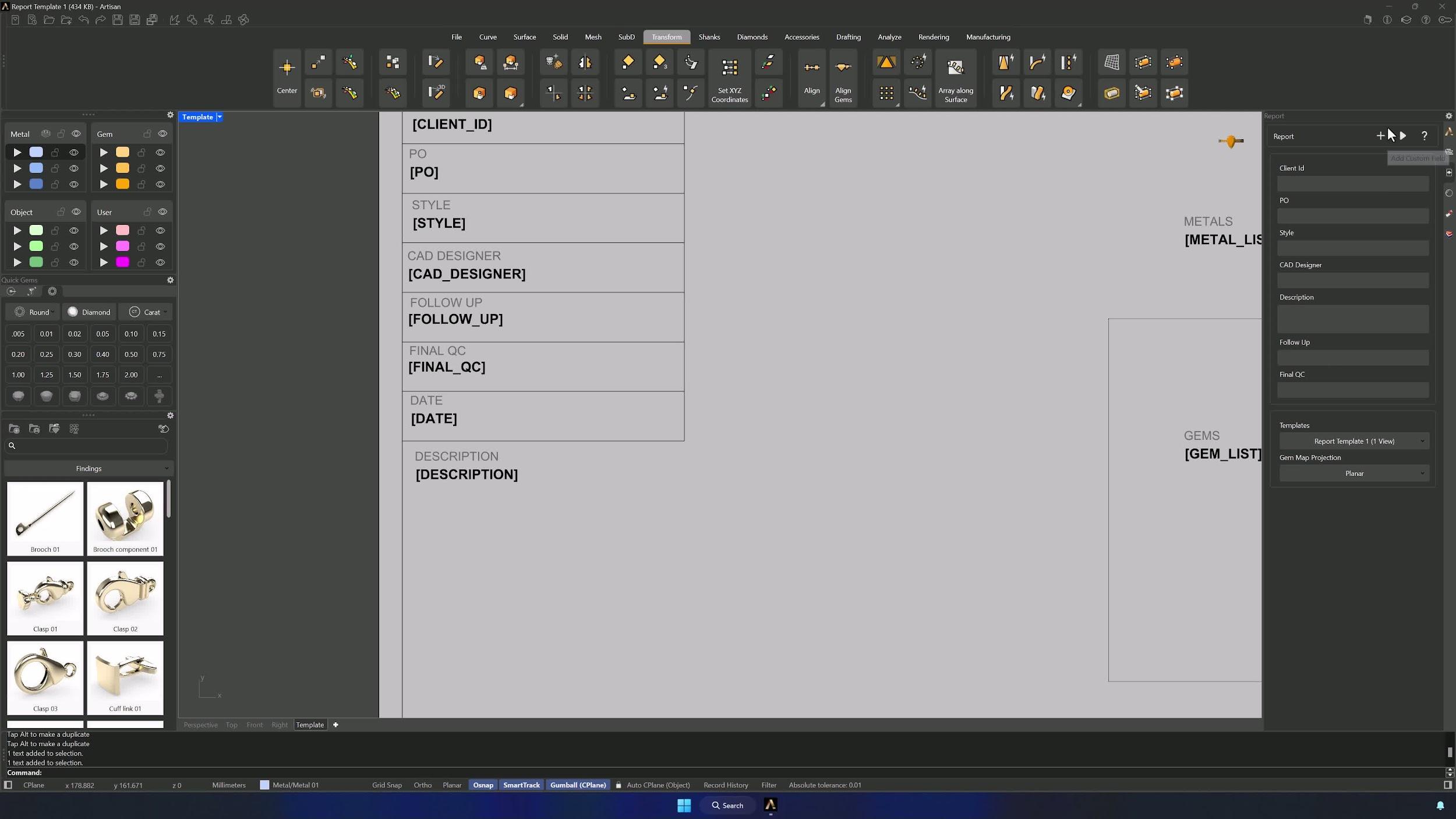
5. Add New Report Fields if Needed
Need a field the report doesn’t have? Open the Report panel, click the plus icon, name the field and OK — it appears in the layout ready to position like the others.
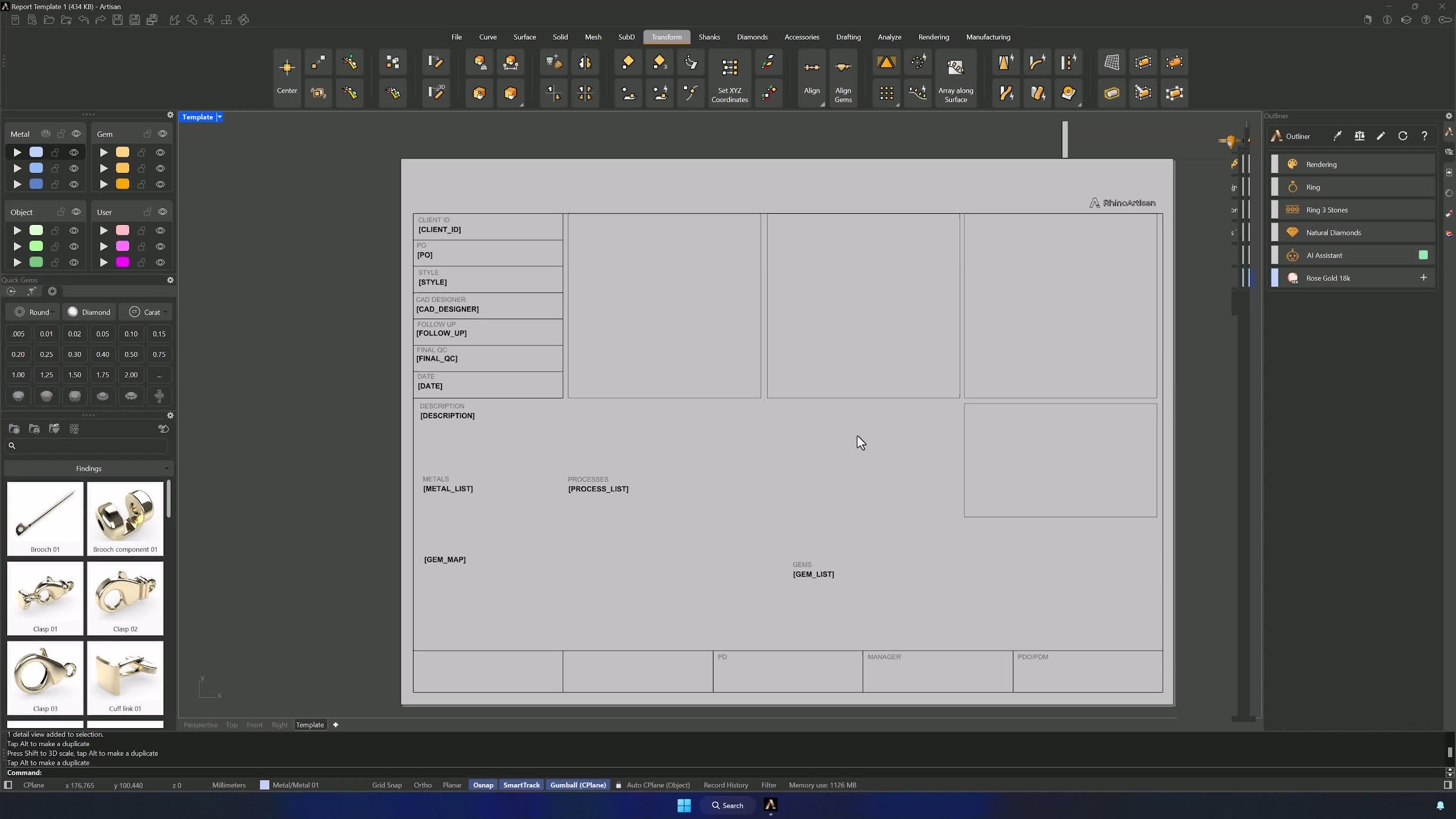
6. Position View Boxes and Match Their Size
Place the view box to the left of the data fields — typing Move in the command bar gives precise repositioning, OSNAP keeps things aligned. Scale 1D matches its height to the data fields, and Gumball + Alt duplicates it if you need more view areas.
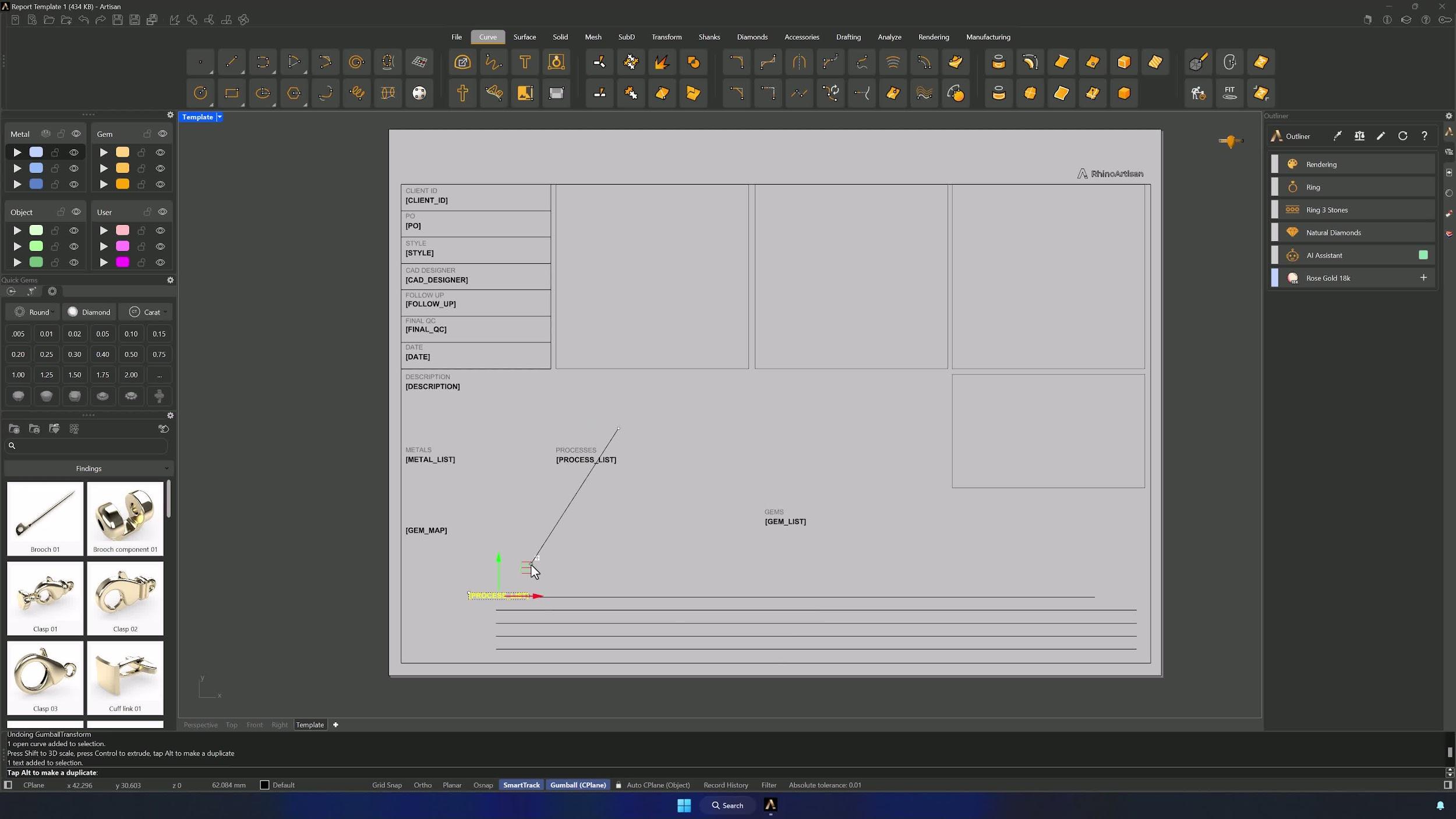
7. Align All Text and Add Optional Notes
Select all the text and run Align for a clean layout, deleting any unused fields. Lines for optional notes go on the Default layer so they print black like everything else.
Almost there — you still have some lessons to complete. Jump to the next one →
Impersonating — progress and reviews are disabled.
Course completed
You've completed Jewelry Production & Manufacturing Essentials 🎉
Great work. Get your certificate of completion and, if you have a minute, let other jewelers know what you thought of the course.