Dragon Pendant
Lesson 7 of 9
SubD - Basics
Sign in to access this lesson
This lesson is part of SubD Creations: Organic Modeling & Sculpting, which can come bundled with a RhinoArtisan Commercial license subject to current promotions. Log in with your customer account, or get in touch and we'll set you up.
Customers only
Solo para clientes
This lesson is part of SubD Creations: Organic Modeling & Sculpting, which can be included with a RhinoArtisan Commercial license subject to current promotions. If you've already purchased and don't see it in your account, get in touch.
Learn the fundamentals of SubD modeling and key tools in RhinoArtisan to start creating organic 3D shapes.
SubD Tab Overview
Locate and explore the SubD tab and the basic commands available.

Creating a Sphere
Use Grid Snap to set the center point.
Hold Shift to activate Ortho mode for precise orientation.
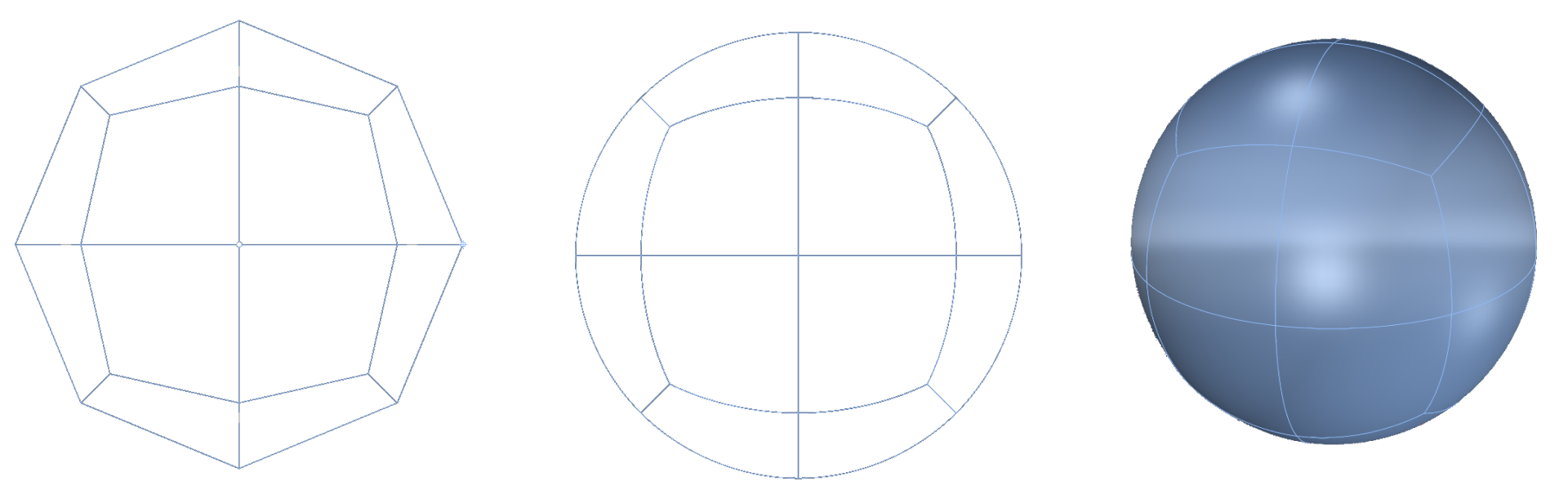
Viewport Display Modes
Change display modes using the lower viewport controls.
Hold Shift while selecting a mode to apply it to all viewports.

Using Reflect Command
Apply symmetry across the axis.
Use Flip to control which side is editable.
Learn to remove reflection using the same command.
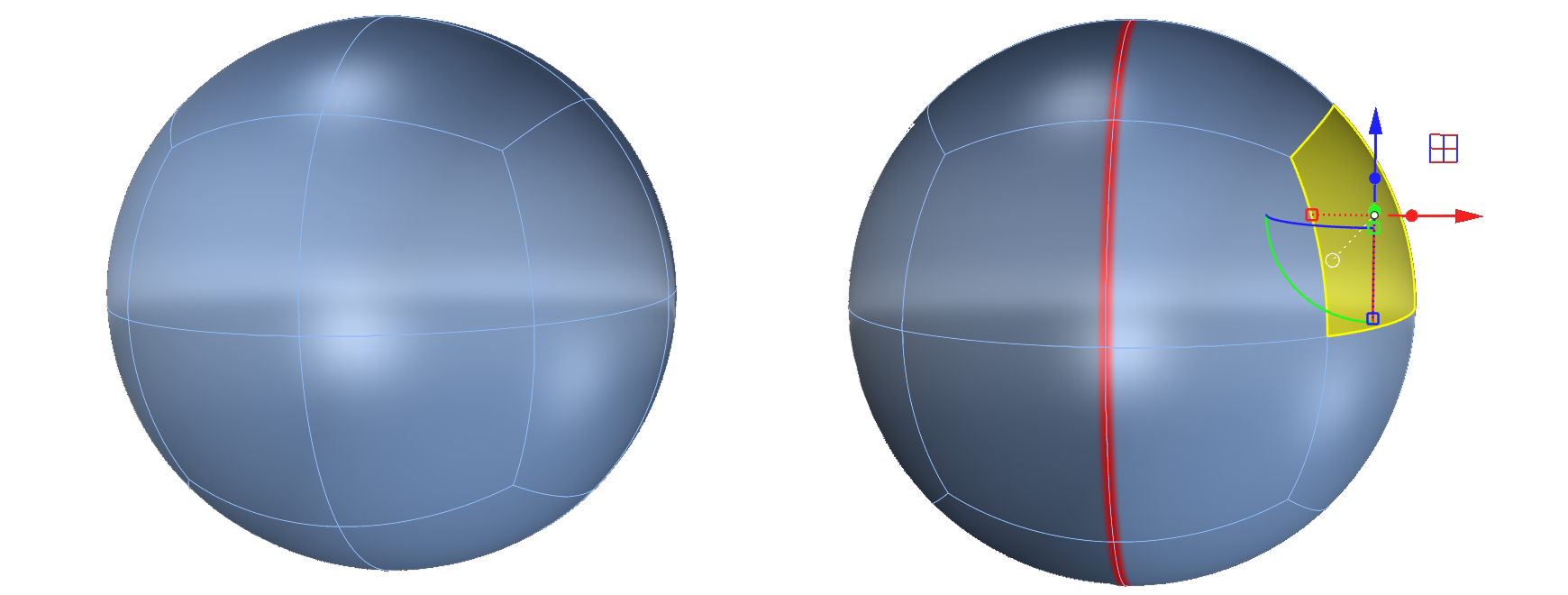
Selection Filters
Use the selection panel to filter by vertices, edges, faces, or nothing.
Double-click to select edge loops.
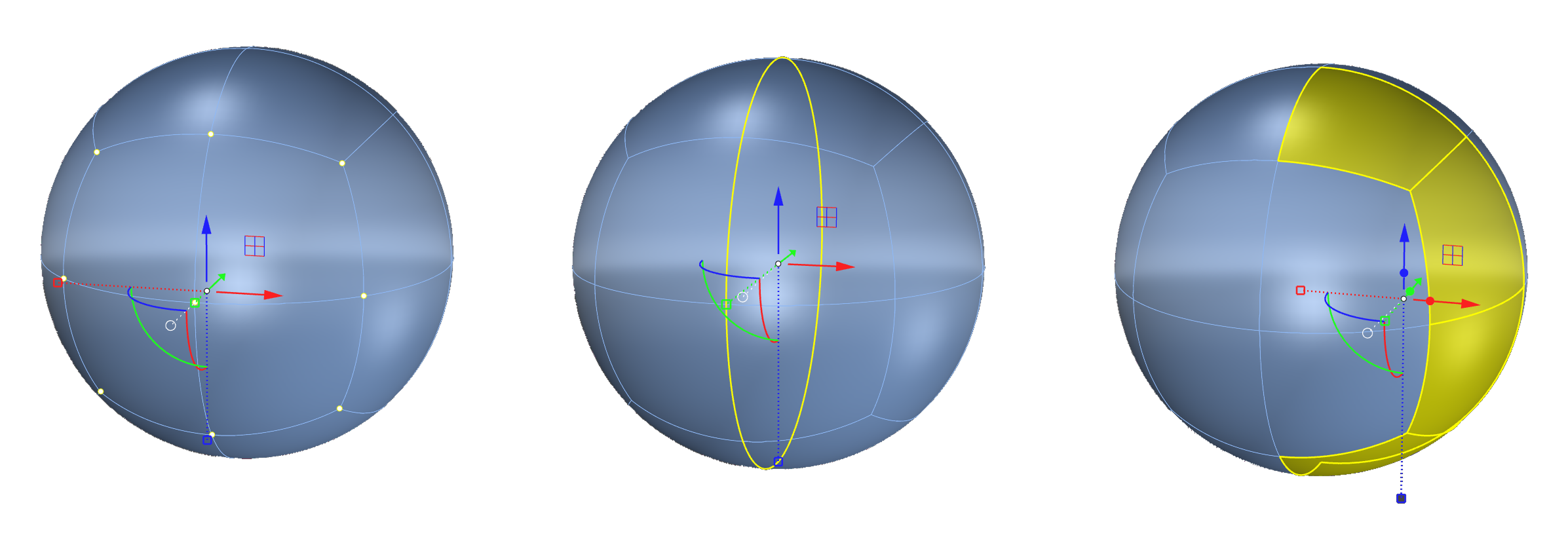
Duplicating Elements
Press Alt and move using the Gumball to duplicate.
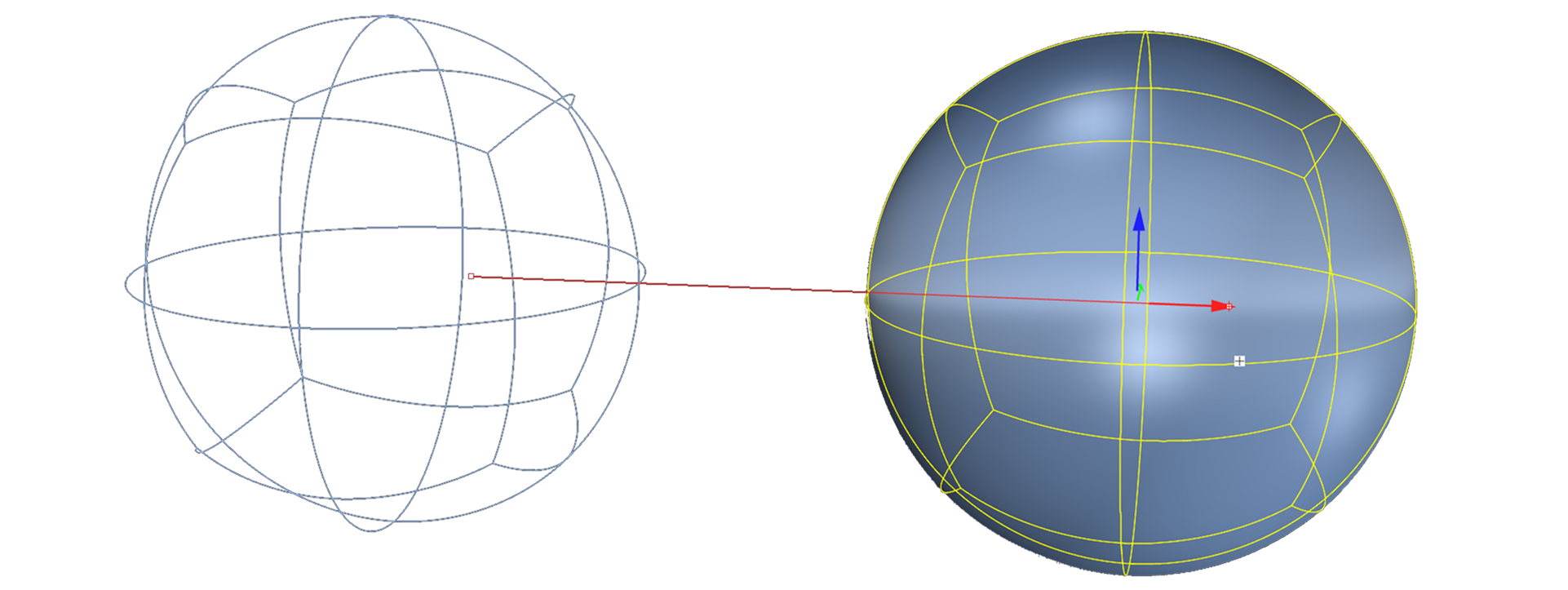
Using Layers
Assign elements to specific layers via the layer panel.
Lock layers, hide/show them, and quickly select objects by right-clicking on the color.
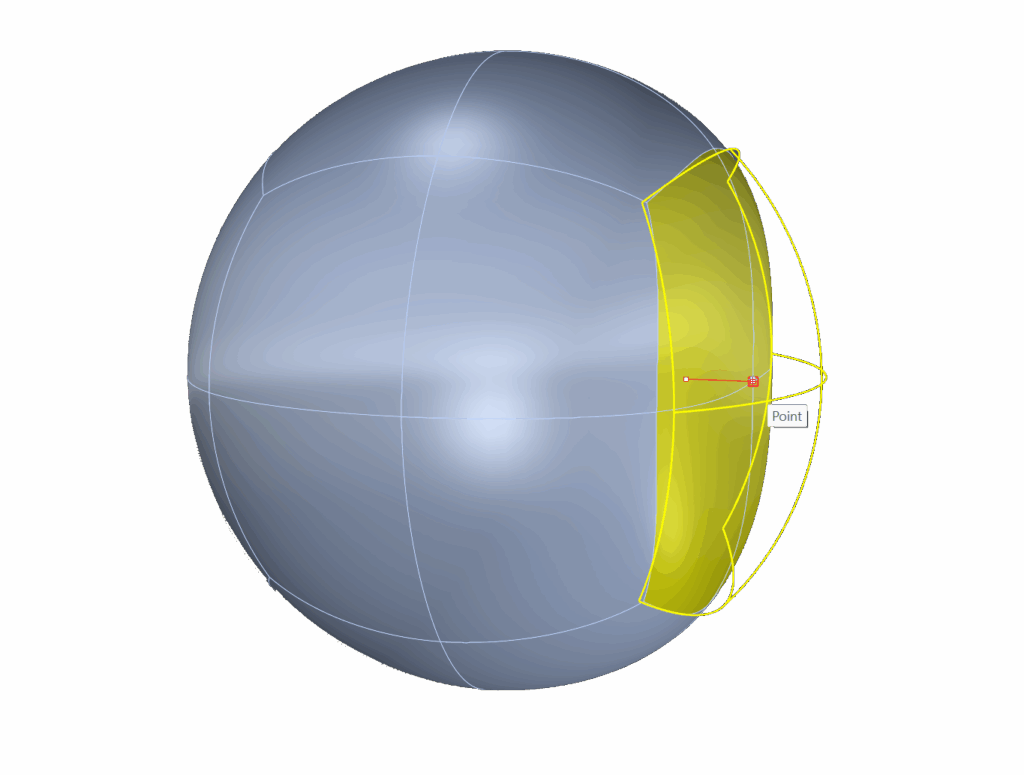
Flattening with Gumball
Scale selected faces vertically to flatten surfaces.
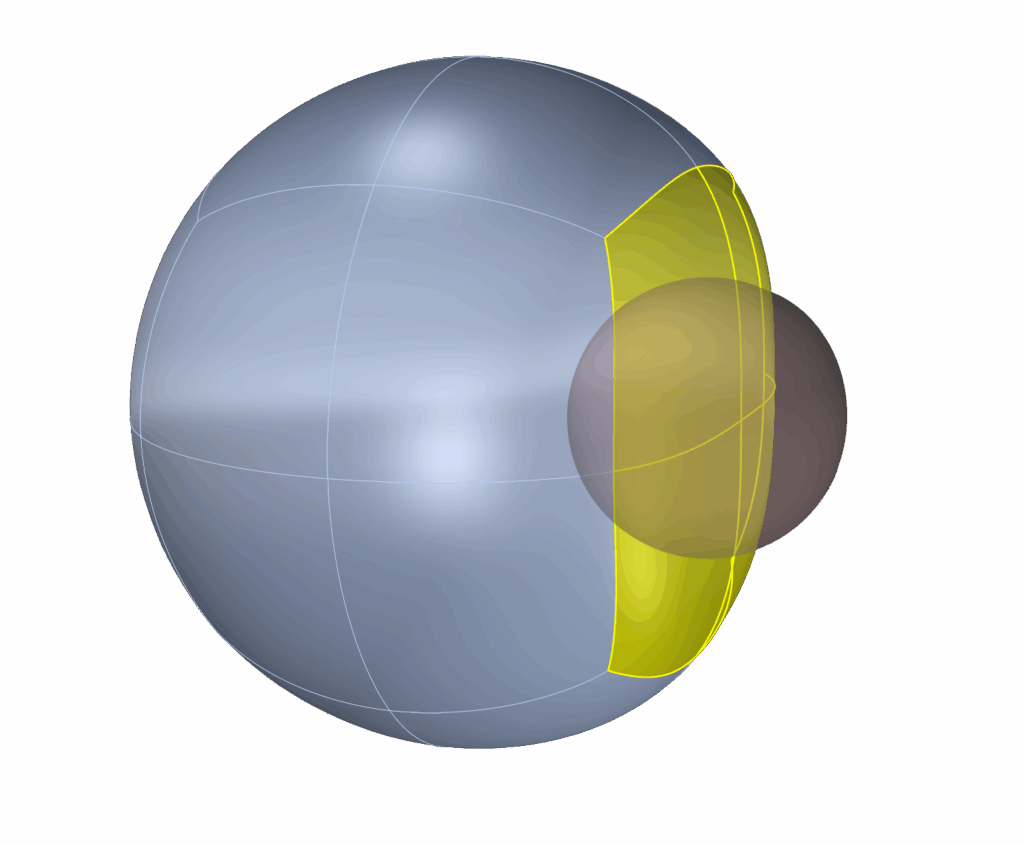
Soft Transform Tool
Edit soft zones without manually adjusting each face.
Deactivate by clicking the command and setting “Enable” to No.
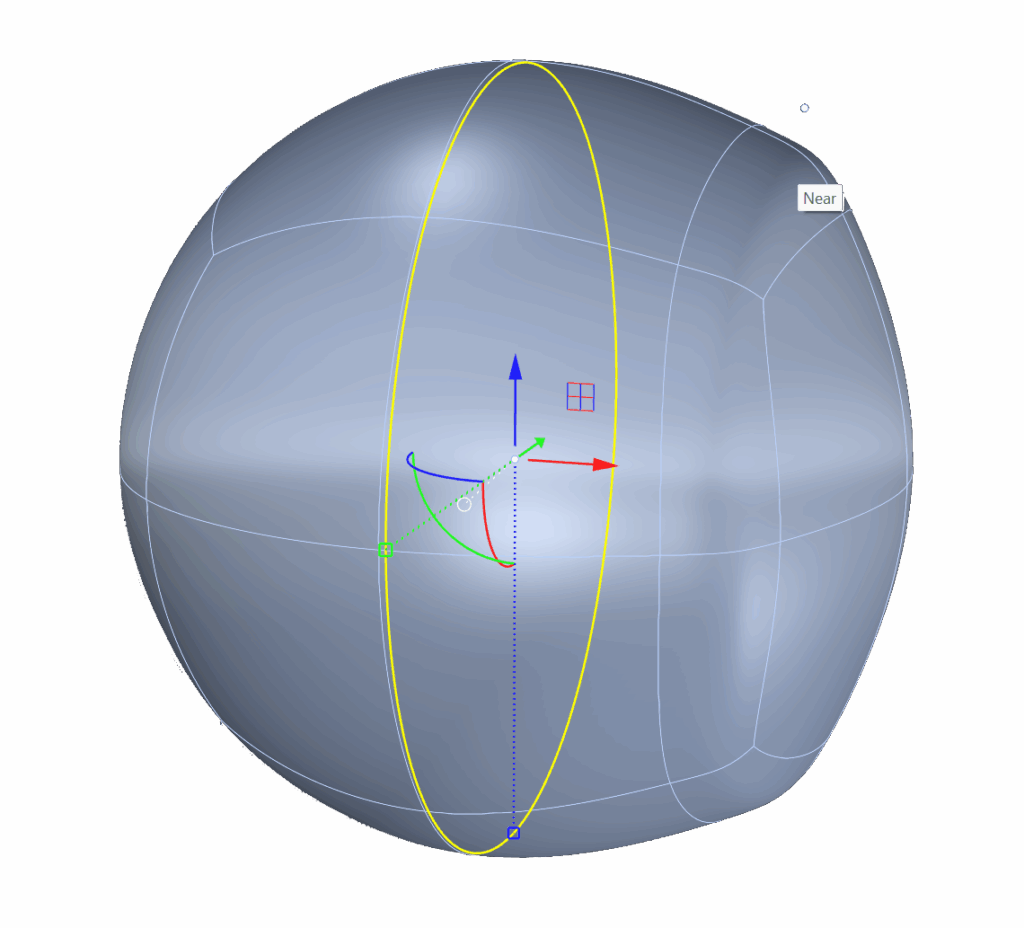
Insert Edge Loops
Add edge loops for more detail using the Insert Edge command.
Right-click to repeat the last command.
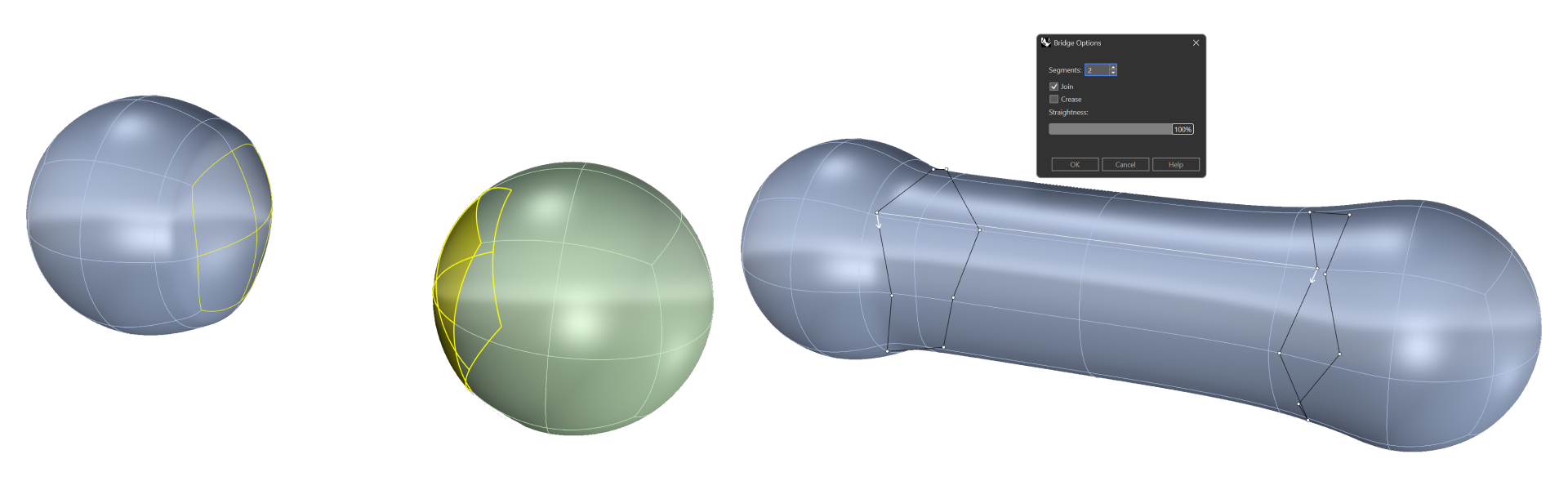
Bridge Tool
Connect faces from two objects using Bridge.
Choose number of sections for smoother transitions.
Tip: Less is more – use fewer polygons for easier modeling.
Almost there — you still have some lessons to complete. Jump to the next one →
Impersonating — progress and reviews are disabled.
Course completed
You've completed SubD Creations: Organic Modeling & Sculpting 🎉
Great work. Get your certificate of completion and, if you have a minute, let other jewelers know what you thought of the course.