ASSISTANT
User System Prompts Manager
The User System Prompts Manager allows you to create, manage, and control custom system prompts that define how the RhinoArtisan Assistant behaves.
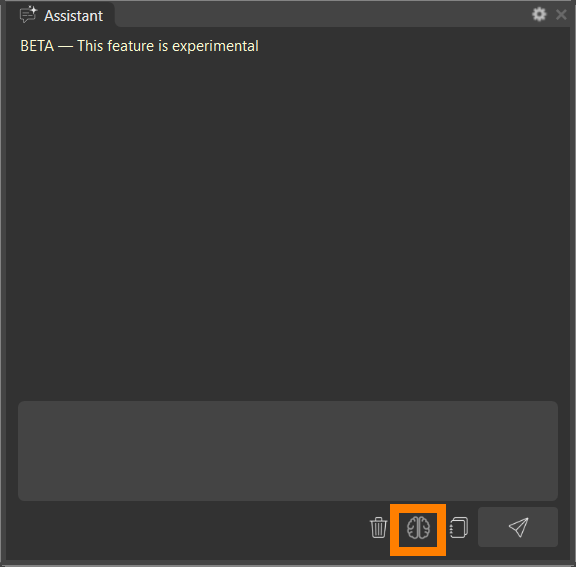
User System Prompts act as foundational instructions that influence the assistant’s role, tone, level of expertise, and the way it responds. These prompts can later be combined with recipes from the Recipe Book to solve specific tasks.
User System Prompts and the Recipe Book
In RhinoArtisan Assistant, there are two complementary concepts:
User System Prompts define how the assistant behaves.
The Recipe Book defines what the assistant does and how it does it.
Conceptually:
User System Prompts define the chef.
The Recipe Book defines the dishes.
Together, they allow the assistant to adapt to different workflows and real-world jewelry scenarios.
Your Custom Prompts
This panel displays all the User System Prompts you have created. Each prompt represents a reusable set of instructions that can be enabled or disabled depending on the current context.
If no prompts are available, the list will be empty and you can create your first one using the New Prompt button.
Actions
New Prompt
Creates a new User System Prompt. You can define its name, description, and the instructions that will guide the assistant’s behavior.
Edit Prompt
Allows you to modify the selected prompt, refining its instructions or adjusting how the assistant should behave.
Enable Prompt
Activates the selected prompt. Enabled prompts are taken into account when the assistant generates responses.
Disable Prompt
Temporarily deactivates the prompt without deleting it. Disabled prompts are ignored by the assistant.
Delete Prompt
Permanently removes the selected prompt from the system.
Prompt Details
This panel shows detailed information about the selected User System Prompt, including its content and current status. If no prompt is selected, this area remains empty.
Storage Location
User System Prompts are stored locally on your computer in the following folder:
C:\Users[Username]\AppData\Roaming\Artisan\6.6\UserPrompts
This makes it possible to back up, share, or manage prompts outside of RhinoArtisan if needed.
Company Standards and Client Requirements
User System Prompts can also be used to load and enforce company standards and specific client requirements.
This allows the assistant not only to be intelligent, but also to behave consistently with the way each company works and with the expectations of each project or customer.
Company Standards
Using User System Prompts, you can define internal company rules and criteria, such as:
- Design and style guidelines
- Manufacturing constraints
- Cost limits or margin rules
- Internal quality standards
- How prices, materials, and processes should be communicated
Once defined, these standards can remain permanently enabled, ensuring consistency across all assistant responses and recommendations.
Client Requirements
In the same way, User System Prompts can be created to represent the requirements of a specific client, such as:
- Design preferences
- Budget constraints
- Allowed or excluded materials
- Expected level of detail in explanations
- A more technical or more sales-oriented approach
These prompts can be enabled only when working with that client, allowing the assistant to adapt its behavior without rewriting instructions each time.
A Flexible and Scalable Approach
By separating behavior, standards, and execution:
- User System Prompts define the working framework
- Company standards and client requirements are loaded as contextual rules
- The Recipe Book executes specific tasks within that framework
This approach makes RhinoArtisan Assistant scalable, consistent, and easy to adapt to different teams, clients, and business scenarios.
Best Practices
Keep prompts focused
Each User System Prompt should have a clear purpose. It is more effective to create several small, focused prompts than a single generic one.
Define behavior, not tasks
User System Prompts should describe how the assistant behaves, not the specific tasks it performs. Tasks and workflows belong in the Recipe Book.
Use prompts as reusable building blocks
Think of User System Prompts as reusable components that can be combined across different contexts and recipes.
Limit the number of active prompts
Only enable prompts that are relevant to the current context. Too many active prompts can dilute the assistant’s behavior.
Use clear and descriptive names
Prompt names should clearly reflect their purpose, such as “Sales-Oriented Assistant”, “Manufacturing Expert”, or “In-Store Jewelry Designer”.
Iterate and refine over time
Start simple, test the assistant, and refine prompts as needed. Small changes can significantly improve results.
Design recipes assuming the right prompts are active
Recipes should be built on top of the correct User System Prompts. Behavior comes first, execution second.
Common Mistakes to Avoid
Using User System Prompts to define specific tasks
Avoid instructions like “analyze this design and calculate costs.” These belong in the Recipe Book.
Creating overly long or complex prompts
If a prompt tries to cover too many roles or goals, it should probably be split into multiple prompts.
Keeping too many prompts enabled at once
This can result in conflicting instructions or unclear assistant behavior.
Using vague or ambiguous instructions
Statements like “be more professional” or “answer better” are not specific enough. Clearly define tone, audience, and intent.
Mixing behavior with execution logic
Step-by-step logic and workflows should live in the Recipe Book, not in User System Prompts.
Never revisiting existing prompts
Prompts should evolve along with your workflows. Review and refine them regularly.
Treating prompts as one-off configurations
User System Prompts work best when designed as reusable building blocks for multiple scenarios.